# About v5.6 release

### Cart drawer blocks

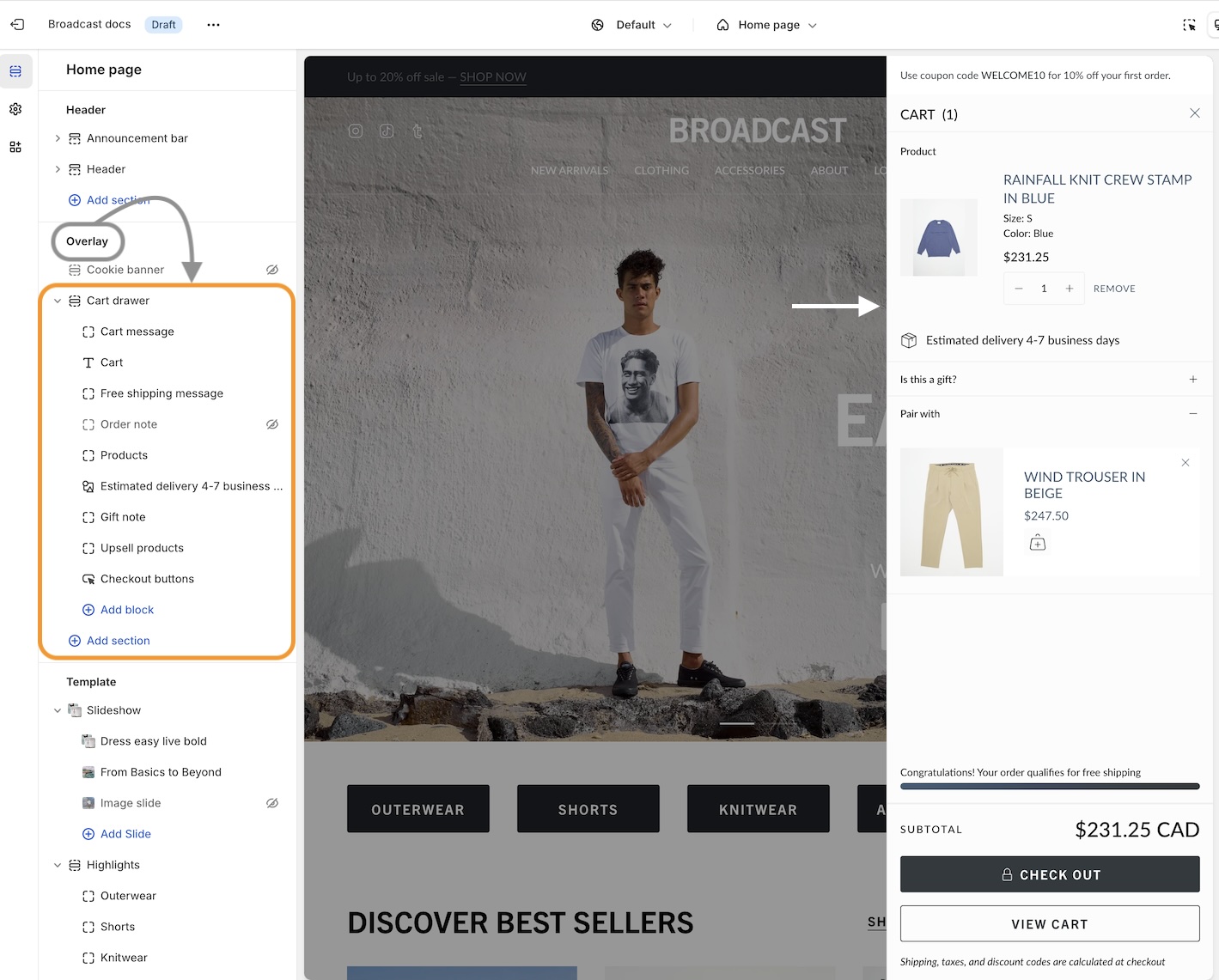
Broadcast 5.6 introduces Cart drawer blocks. Customize the cart drawer with a series of blocks to supercharge the cart experience :&#x20;

<figure><img src="https://content.gitbook.com/content/j8jzXN4KKXAfQhgbN5lO/blobs/yVrkTf0eMxhiQrueeDjq/Cart%20blocks%20in%20overlay.jpg" alt=""><figcaption><p>Customize the entire cart experience with Broadcast 5.6</p></figcaption></figure>

#### Cart blocks in Broadcast

Add, arrange, and configure any of these cart blocks for a fully customized cart experience:

| Title                      | Cart message               | Free shipping message |
| -------------------------- | -------------------------- | --------------------- |
| Products                   | Upsell products            | Order note            |
| Gift note                  | Shipping estimate          | Icon                  |
| Product list (easy upsell) | Custom code (use for apps) | Payment icons         |
| Checkout buttons           |                            |                       |

#### Individual settings

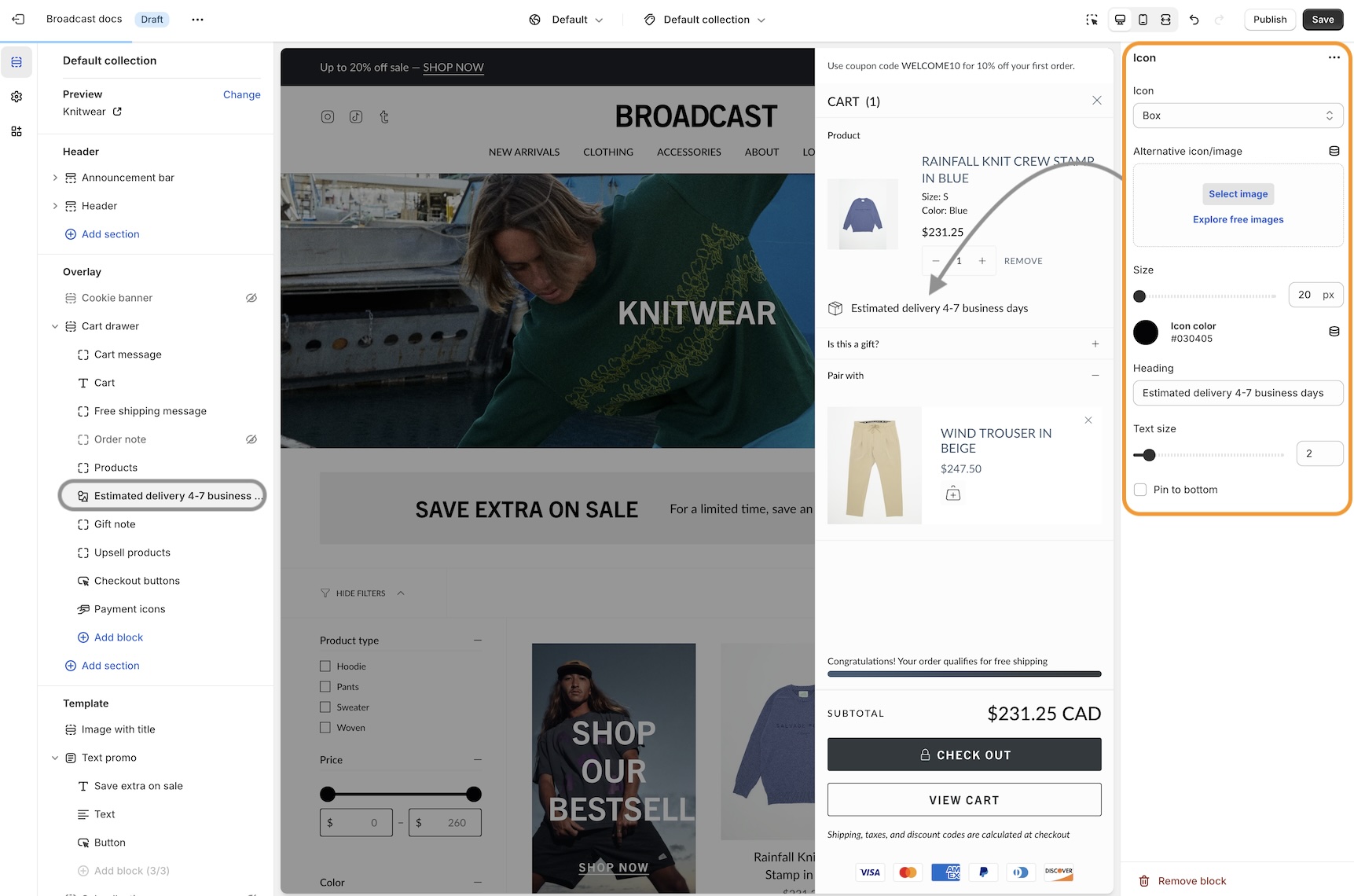
Each block has a set of customizable options. Example of Icon block used to display shipping message:

<figure><img src="https://content.gitbook.com/content/j8jzXN4KKXAfQhgbN5lO/blobs/fNrJPUMIf0AadXBgvrBB/icon%20example%20cart.jpg" alt=""><figcaption></figcaption></figure>

#### Pin to bottom

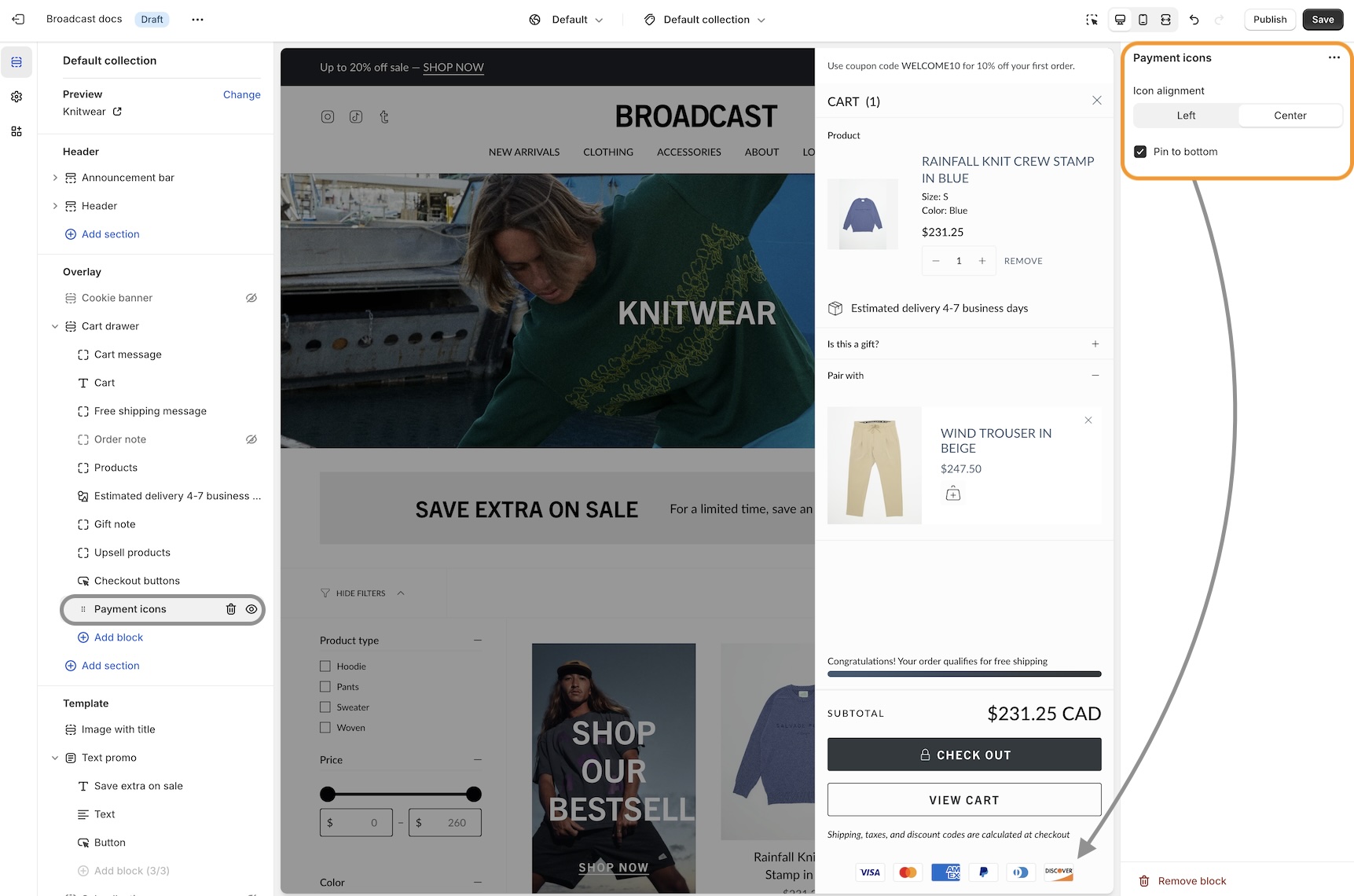
Pin blocks to the bottom like the Payment icons:

<figure><img src="https://content.gitbook.com/content/j8jzXN4KKXAfQhgbN5lO/blobs/gy52HyxVsCtDAIjRFSdg/Pin%20bottom.jpg" alt=""><figcaption></figcaption></figure>

### Fit Guide for products

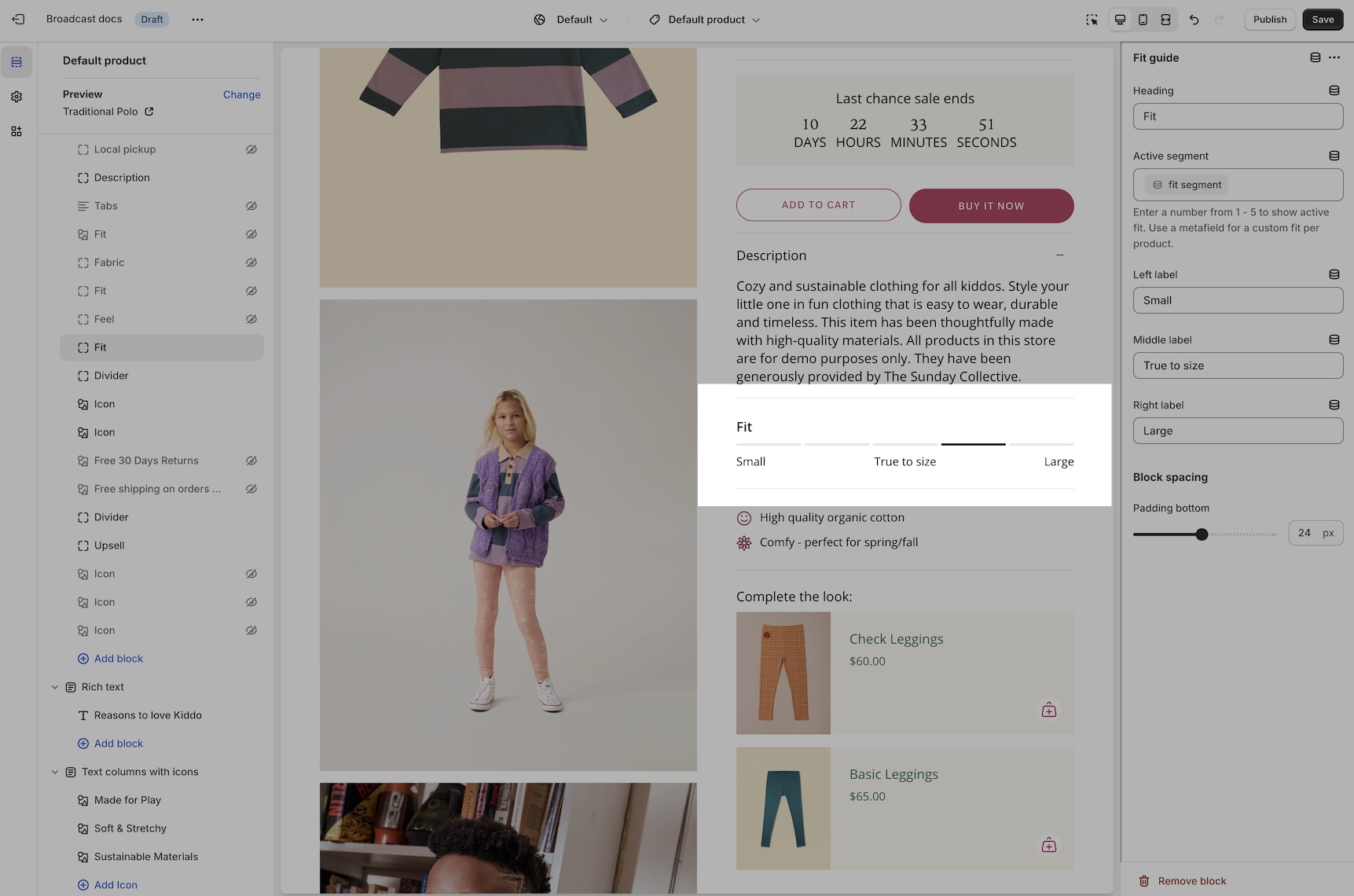
Broadcast includes an easy-to-use fit guide block for Product pages. Help customers visually see how items fit. Each product can have a custom value for the line chart:

<figure><img src="https://content.gitbook.com/content/j8jzXN4KKXAfQhgbN5lO/blobs/hXBGKO9dvSM3ENdcMEfk/fit%20guide%20highlight.jpg" alt=""><figcaption><p><strong>Customize the headings and values in the block settings</strong></p></figcaption></figure>

1. Video overview on how to use and set up the Fit guide block:

{% embed url="<https://www.loom.com/share/29a7f4df848f49dd9708d499849aaf6b?sid=c99764ad-6163-464f-b27e-3268684a5de5>" %}

2. Video on how to customize the Fit Guide using custom values with metafields:

{% embed url="<https://www.loom.com/share/6531e98ecc6c44138cc9feb3e800dd81?sid=4a94d61c-f775-4a7b-9ac4-95f89219c812>" %}

### Variant images

Display images for any variant type on your product form. Help your customers visually see what a variant looks like. In addition to swatches, Broadcast can display an image for each Size variant or any other type you choose.

Two styles are available in Broadcast 5.6, in-line and stacked:

#### In-line style

<figure><img src="https://content.gitbook.com/content/j8jzXN4KKXAfQhgbN5lO/blobs/nCp29E3wdUbyRv7opcBT/variants%20with%20images.jpg" alt=""><figcaption></figcaption></figure>

#### Stacked style

<figure><img src="https://content.gitbook.com/content/j8jzXN4KKXAfQhgbN5lO/blobs/CD92DnIFoyoyYmwj85DT/stacked%20variant%20image.jpg" alt=""><figcaption></figcaption></figure>

Images are used from your Product setup:

<figure><img src="https://content.gitbook.com/content/j8jzXN4KKXAfQhgbN5lO/blobs/yAcKTRGdU447Q86u4nWv/variant%20image%20product%20setting.jpg" alt=""><figcaption></figcaption></figure>

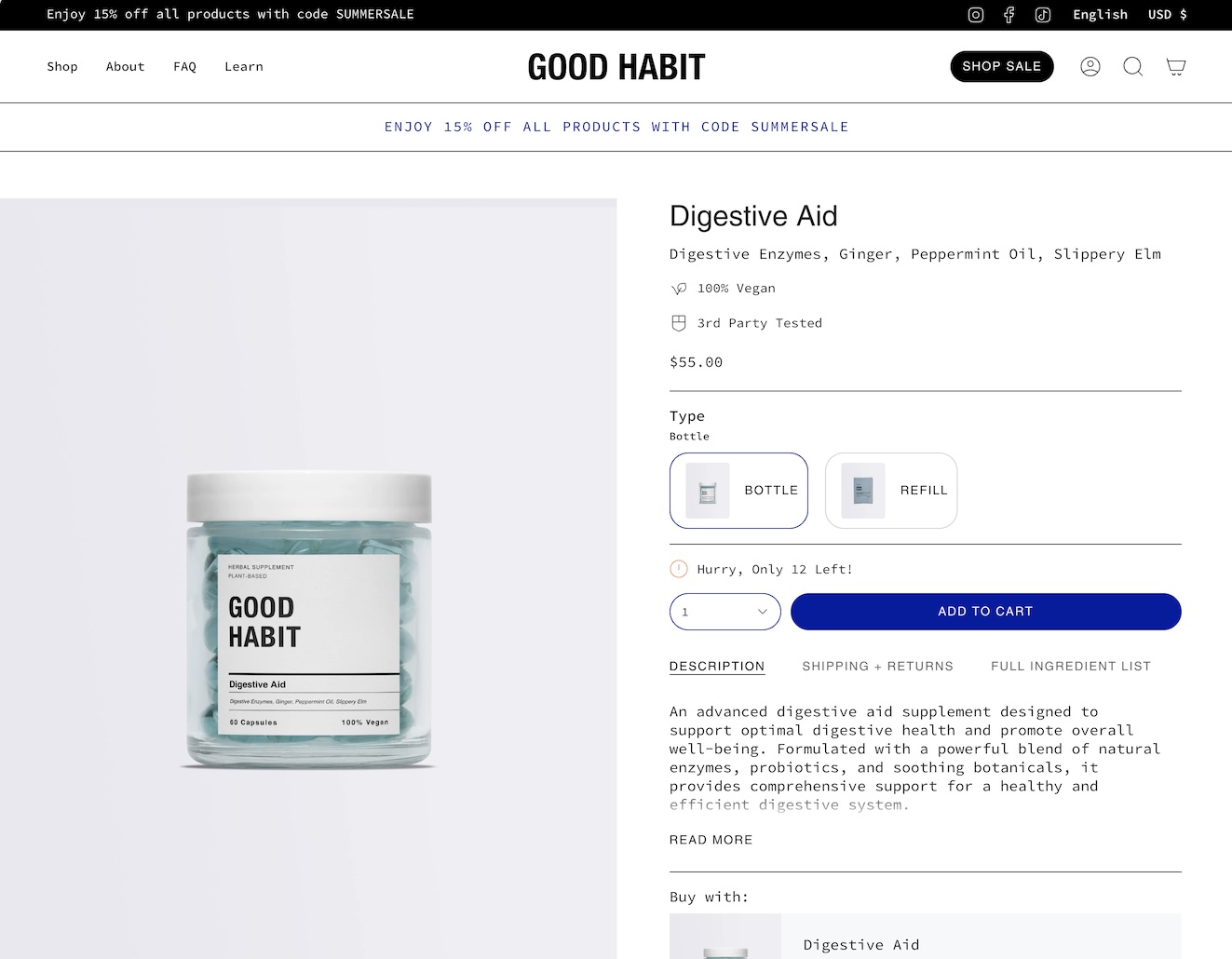
The 'Size' variant is used by default. You can configure any variant to display images. The above example shows 'Type' to visually show the product style.&#x20;

#### Learn more:

{% content-ref url="../../products/product-pages/variant-images" %}
[variant-images](https://broadcast.presidiocreative.com/broadcast-v5/products/product-pages/variant-images)
{% endcontent-ref %}

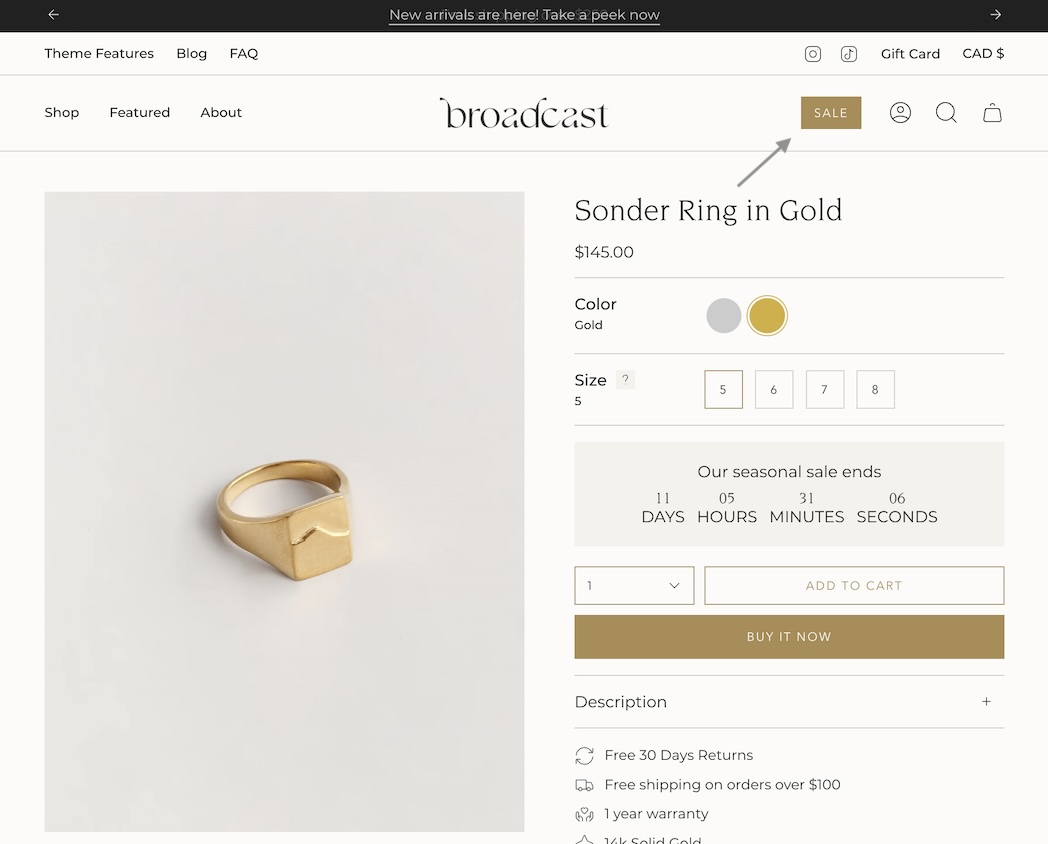
### Header call-to-action button

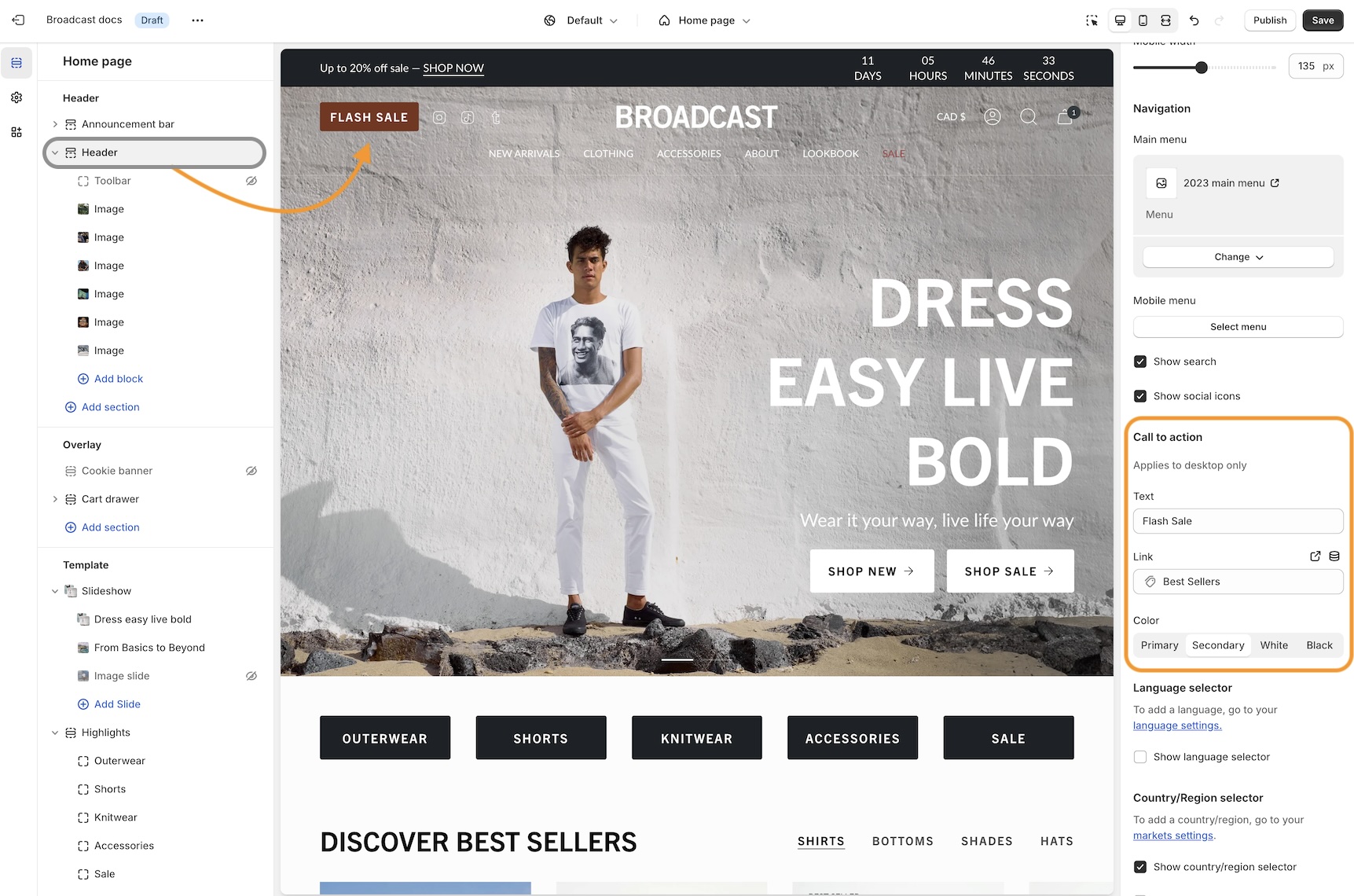
Now in Broadcast, you can add a call-to-action button right into the Header area:

<figure><img src="https://content.gitbook.com/content/j8jzXN4KKXAfQhgbN5lO/blobs/65NV4BKArL1Tw7C57WWA/Header%20call%20to%20action%20red.jpg" alt=""><figcaption></figcaption></figure>

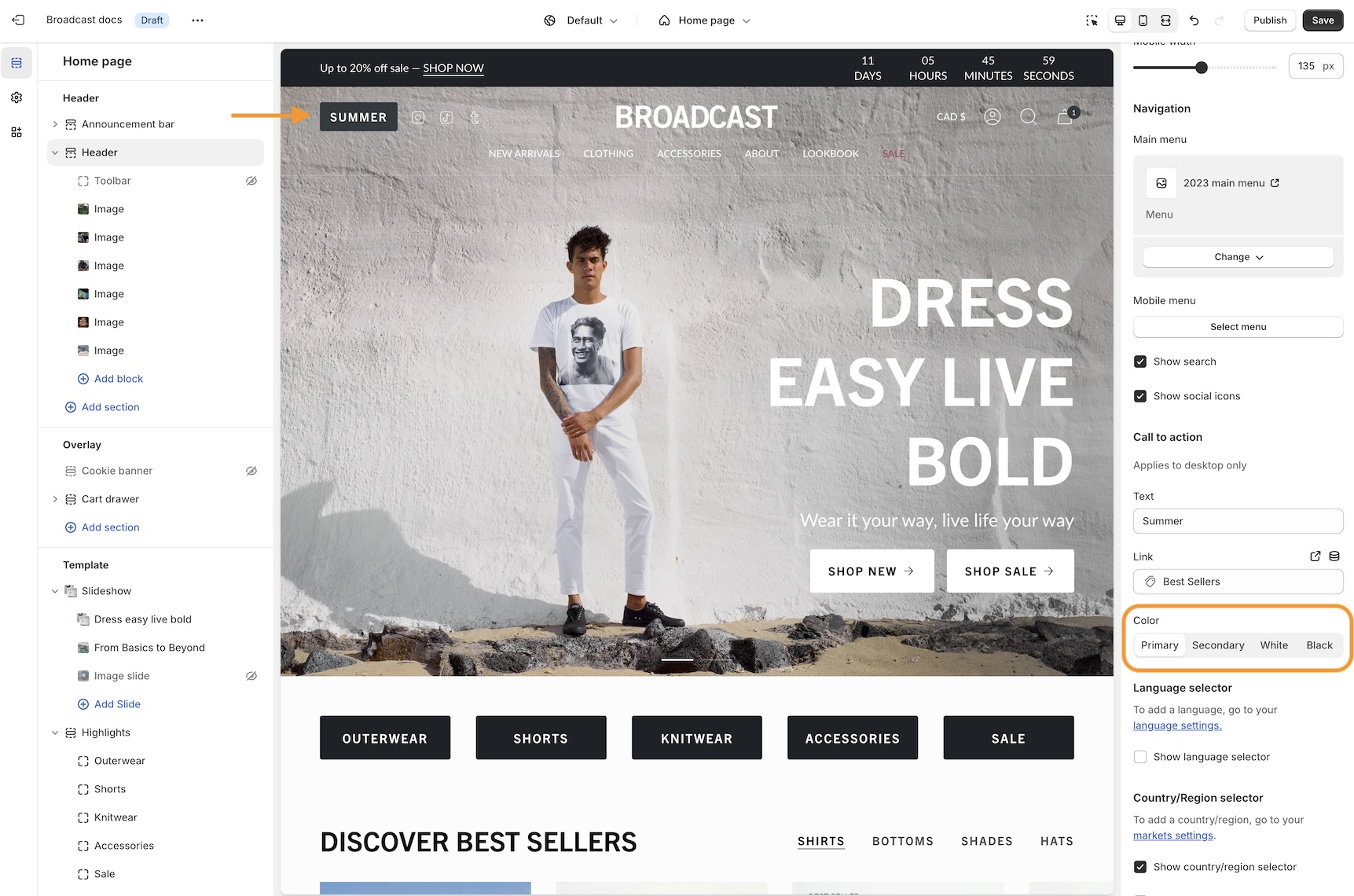
Use the Header section settings to customize the button color, text and link:

<figure><img src="https://content.gitbook.com/content/j8jzXN4KKXAfQhgbN5lO/blobs/cNuTrglm0DhbSwbD2xQE/button%20options.jpg" alt=""><figcaption><p>Button color options</p></figcaption></figure>

Experiment with different Header styles, the call-to-action button positions differently based on the style of header and navigation you use:&#x20;

<figure><img src="https://content.gitbook.com/content/j8jzXN4KKXAfQhgbN5lO/blobs/VtMjzUWkzKAEPCfkV0Ls/header%20style%20button.jpg" alt=""><figcaption><p>Logo center menu left style</p></figcaption></figure>

### Swatch collection styles

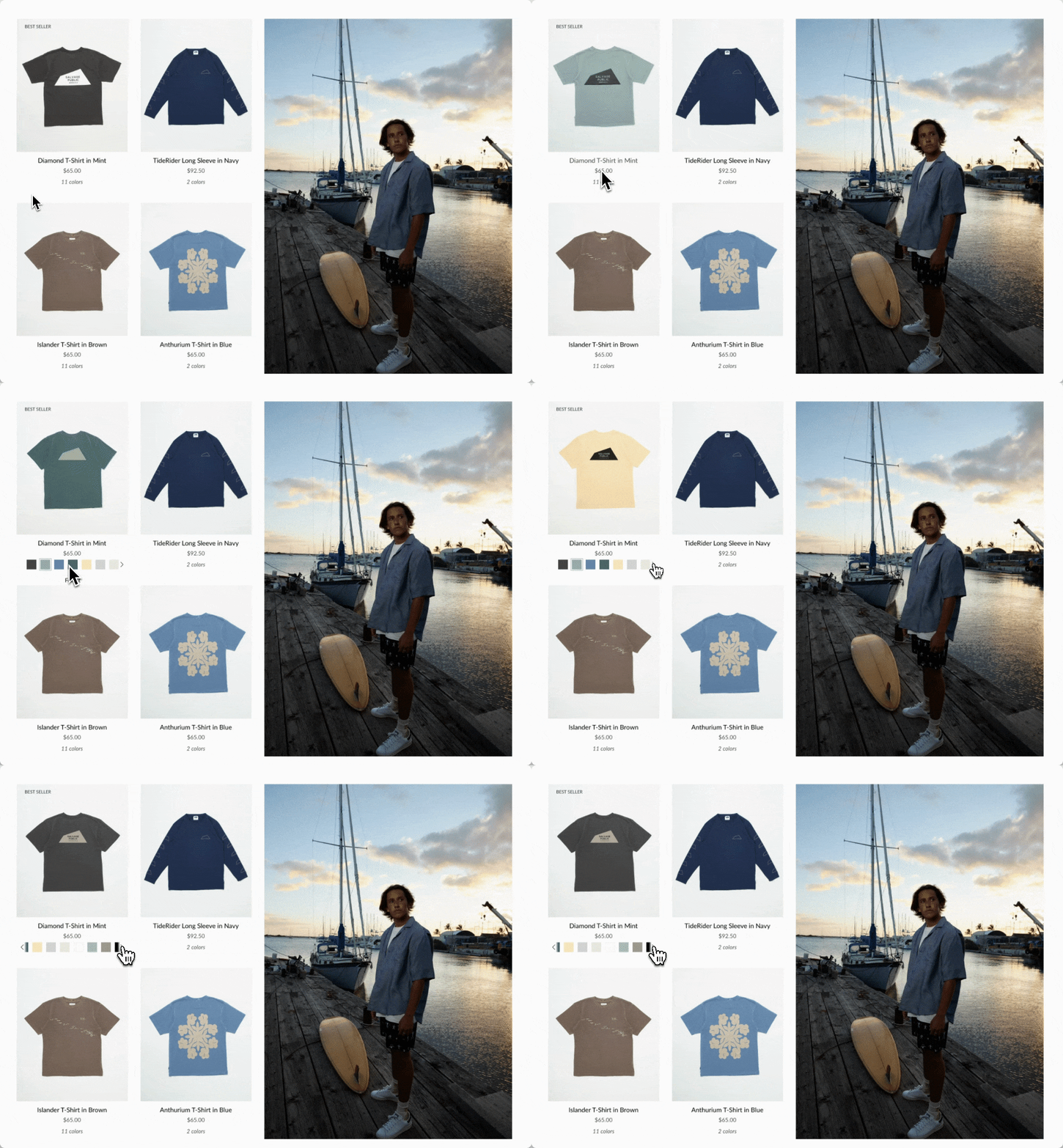
Customize the swatch and siblings display style on the Product Grid. Now in Broadcast, you can choose from different swatch display styles. Examples include:

#### Slider on hover

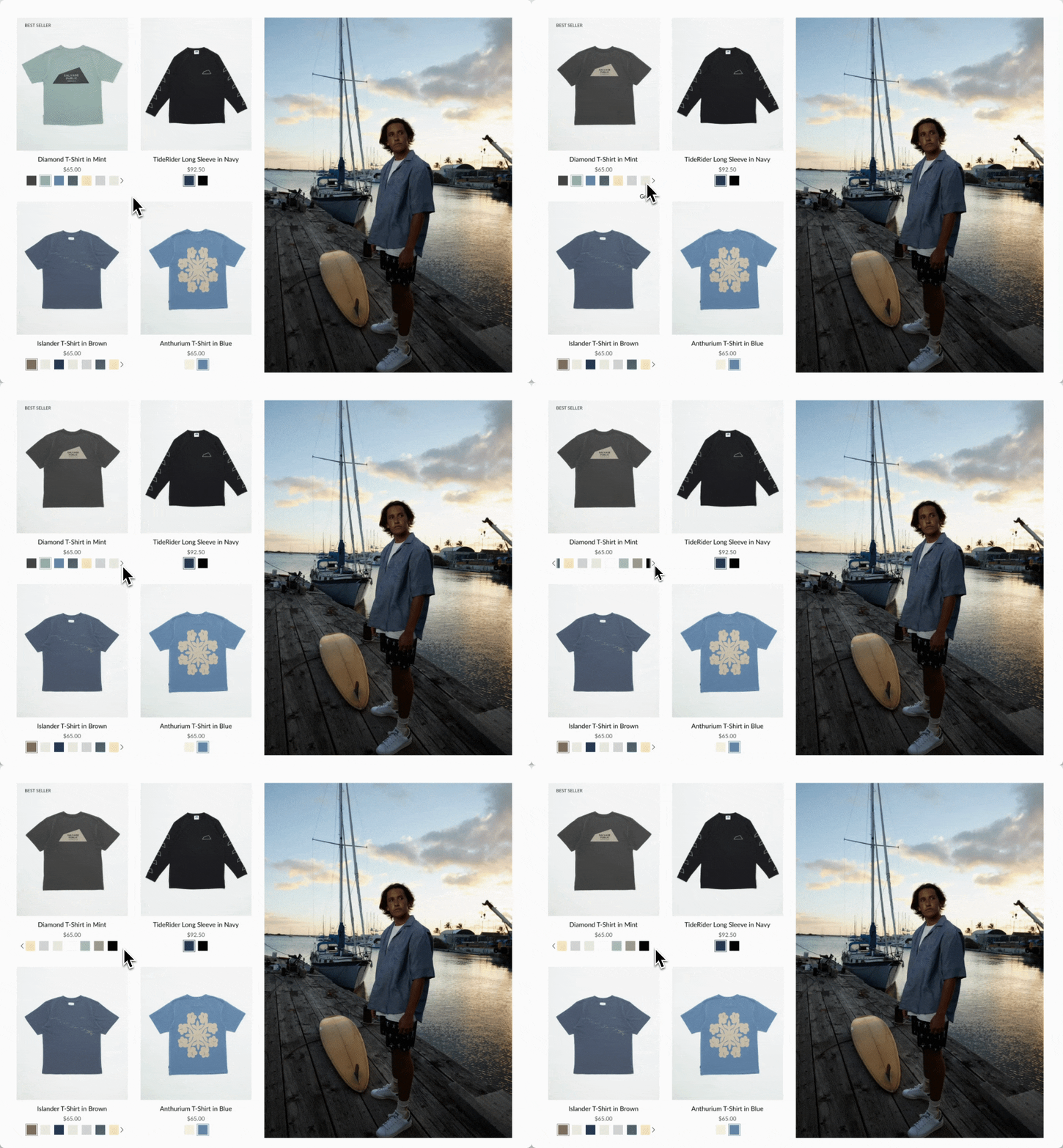
Clean text is displayed on the Product grid. Upon hover, the text is replaced with swatches or siblings. The slider feature keeps all swatch options aligned horizontally on a single line:

<figure><img src="https://content.gitbook.com/content/j8jzXN4KKXAfQhgbN5lO/blobs/hyDB4BX8XyKxe7A0X0Dr/slider-on-hover.gif" alt=""><figcaption></figcaption></figure>

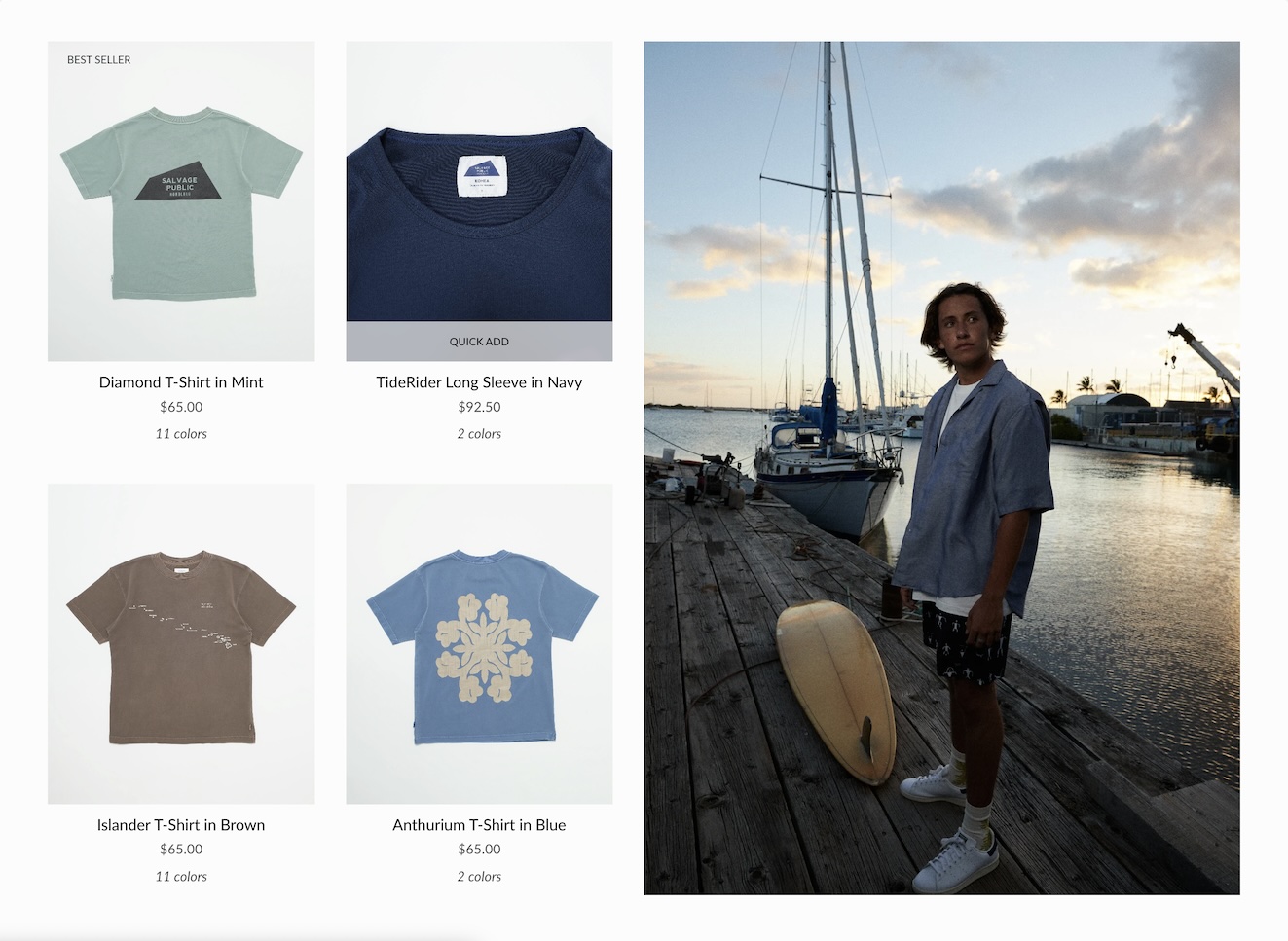
#### Text only

A clean text version that displays the number of swatches or siblings which are available:

<figure><img src="https://content.gitbook.com/content/j8jzXN4KKXAfQhgbN5lO/blobs/b4ztsPFZhNZkTEpnVLQp/text%20only.jpg" alt=""><figcaption></figcaption></figure>

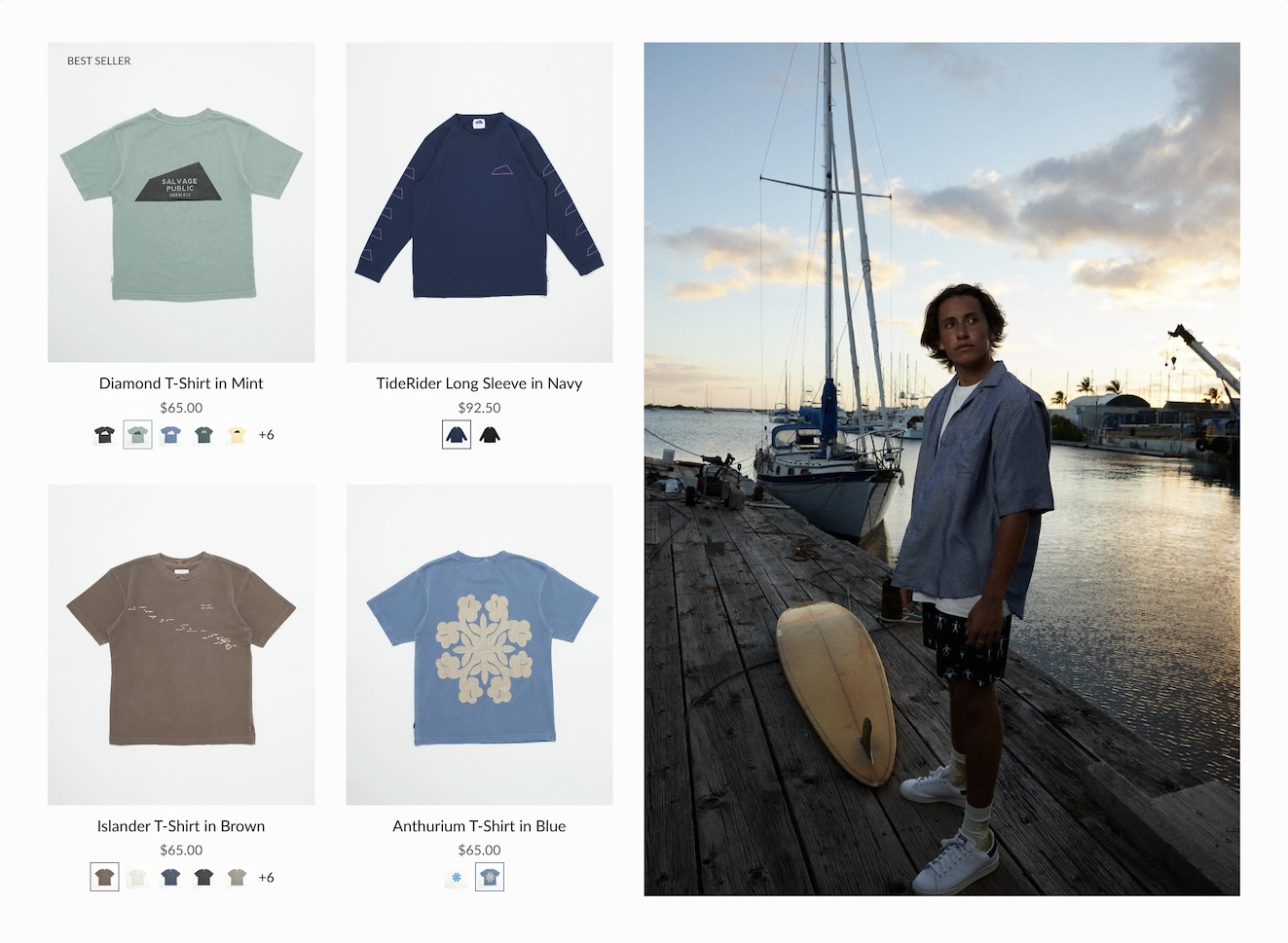
#### Swatches with text

Displays a sample of swatches or siblings on a single line and indicates how many additional options are available with text:

<figure><img src="https://content.gitbook.com/content/j8jzXN4KKXAfQhgbN5lO/blobs/P5pJeEuQkRvlFOzSYgmo/siblings%20swatches%20and%20text.jpg" alt=""><figcaption></figcaption></figure>

#### Slider

Displays the swatch or siblings slider on one line at all times:

<figure><img src="https://content.gitbook.com/content/j8jzXN4KKXAfQhgbN5lO/blobs/d8yIbI0tq8xrAlvMIiVH/slider.gif" alt=""><figcaption></figcaption></figure>

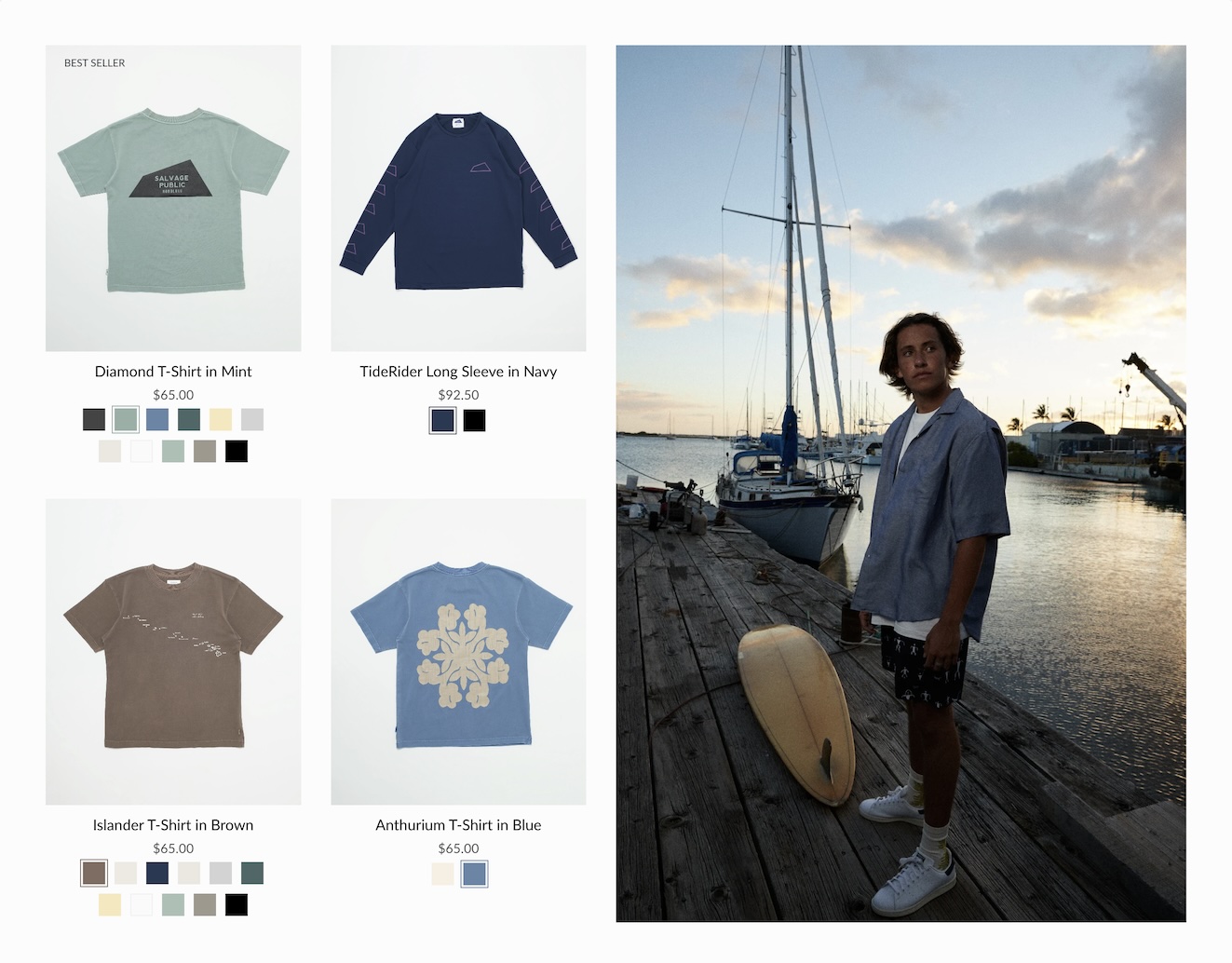
#### Grid

Displays all possible swatches or sibling options that are available to choose from:

<figure><img src="https://content.gitbook.com/content/j8jzXN4KKXAfQhgbN5lO/blobs/ffWHX8hv904w4DLBLKbv/grid.jpg" alt=""><figcaption></figcaption></figure>

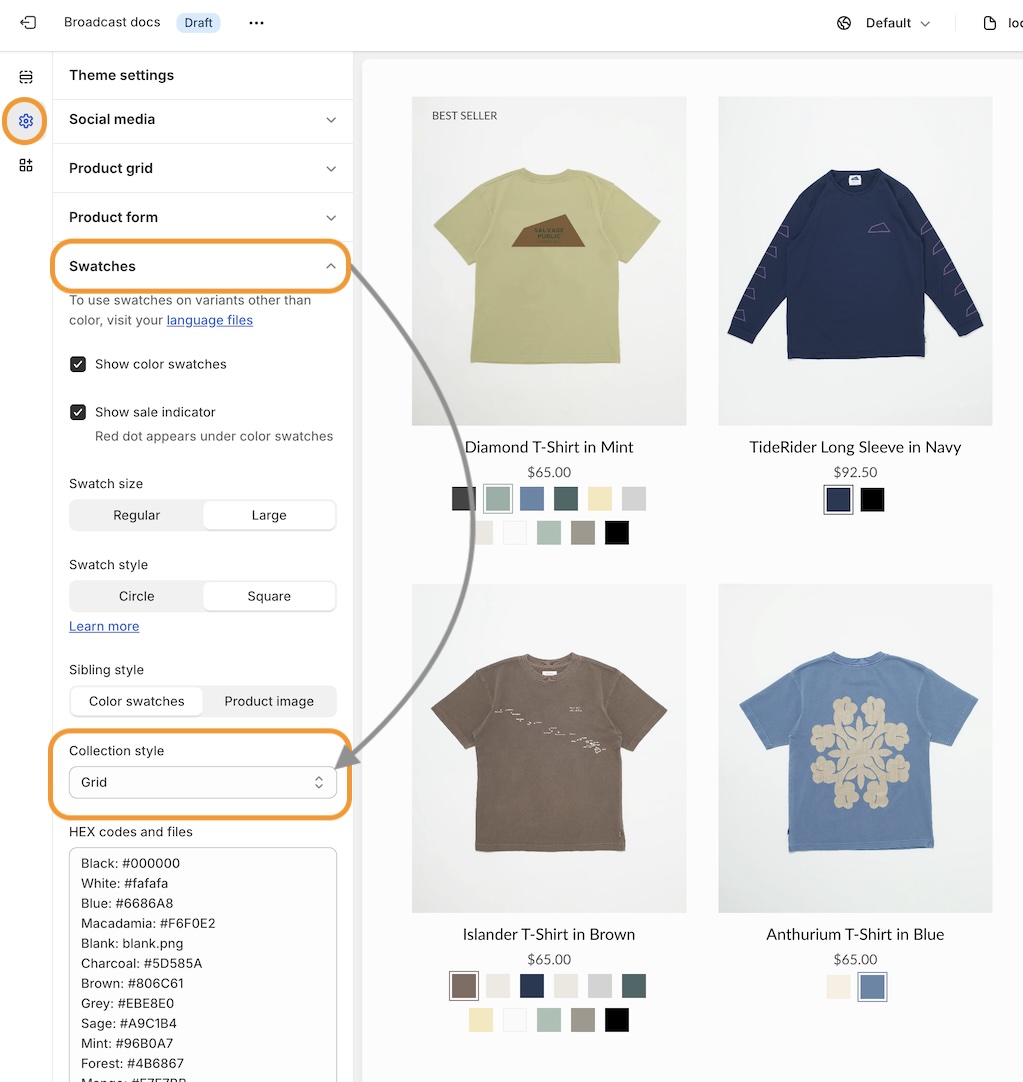
#### How to configure

Use the global **Theme Settings** -> **Swatches** -> **Collection style**

Choose your collection style in the drop-down:

<figure><img src="https://content.gitbook.com/content/j8jzXN4KKXAfQhgbN5lO/blobs/86jV1eXBBwm0Te8kKSDO/configure%20collection%20style.jpg" alt=""><figcaption></figcaption></figure>

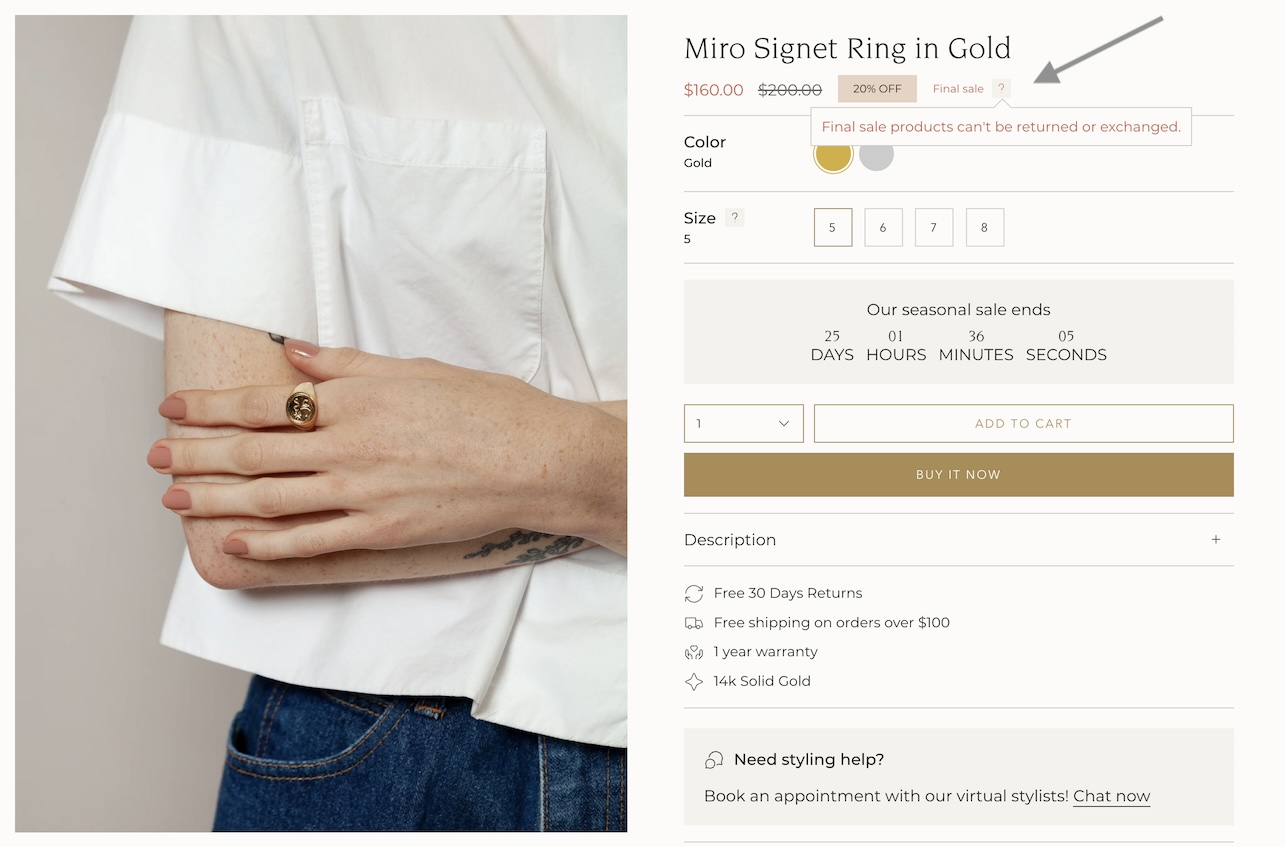
### Final sale message

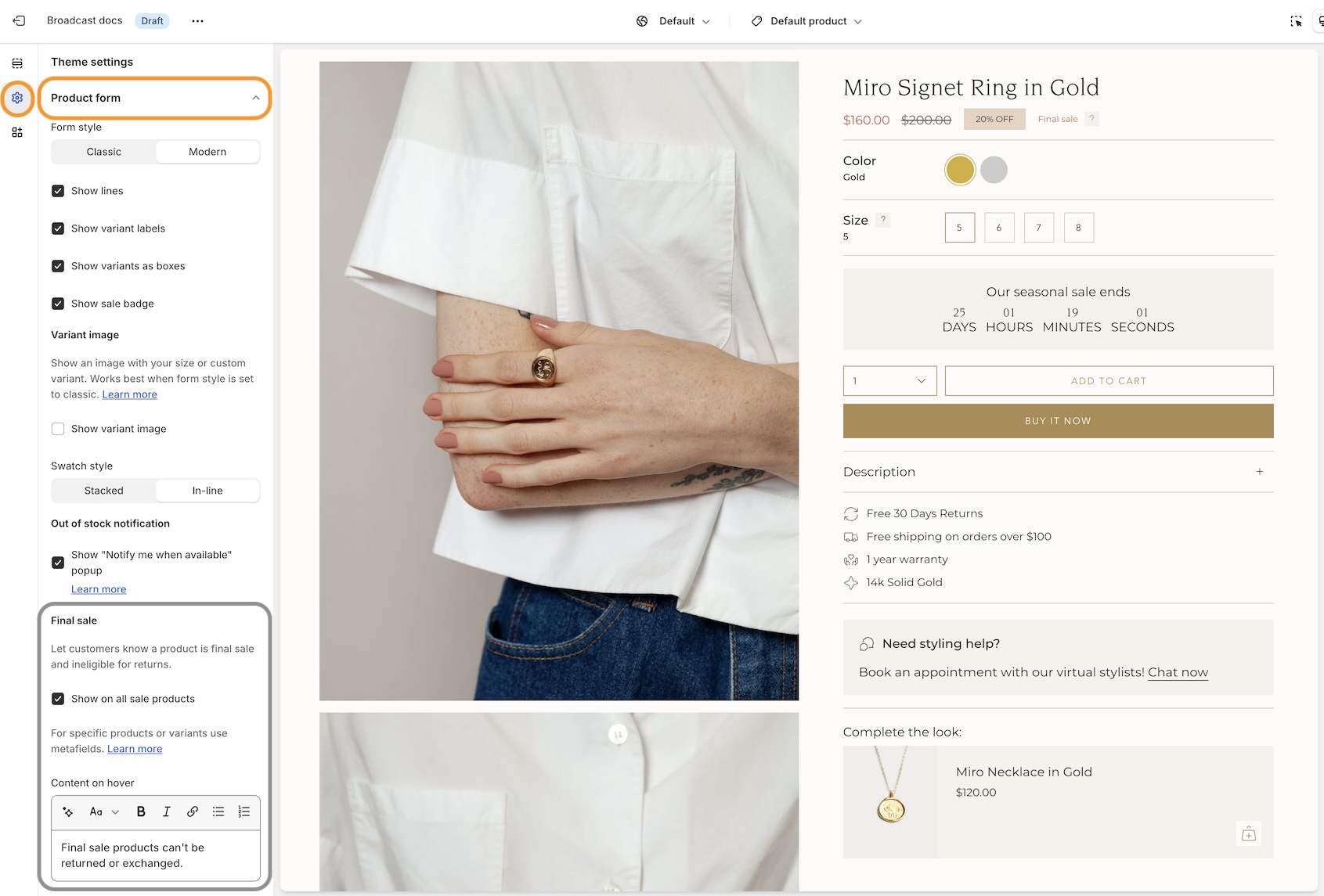
Display a 'Final sale' message with details of sale on sale items:

<figure><img src="https://content.gitbook.com/content/j8jzXN4KKXAfQhgbN5lO/blobs/laqwhDnSM39FDZB383iw/final%20sale%20for%20docs.jpg" alt=""><figcaption></figcaption></figure>

Configure the global settings under **Theme settings** -> **Product form** -> **Final sale**

<figure><img src="https://content.gitbook.com/content/j8jzXN4KKXAfQhgbN5lO/blobs/zYlnl5tlySnmAIzEPwOd/final%20sale%20settings.jpg" alt=""><figcaption></figcaption></figure>

#### Learn more:

{% content-ref url="../../products/product-pages/final-sale" %}
[final-sale](https://broadcast.presidiocreative.com/broadcast-v5/products/product-pages/final-sale)
{% endcontent-ref %}

### Countdown timer block

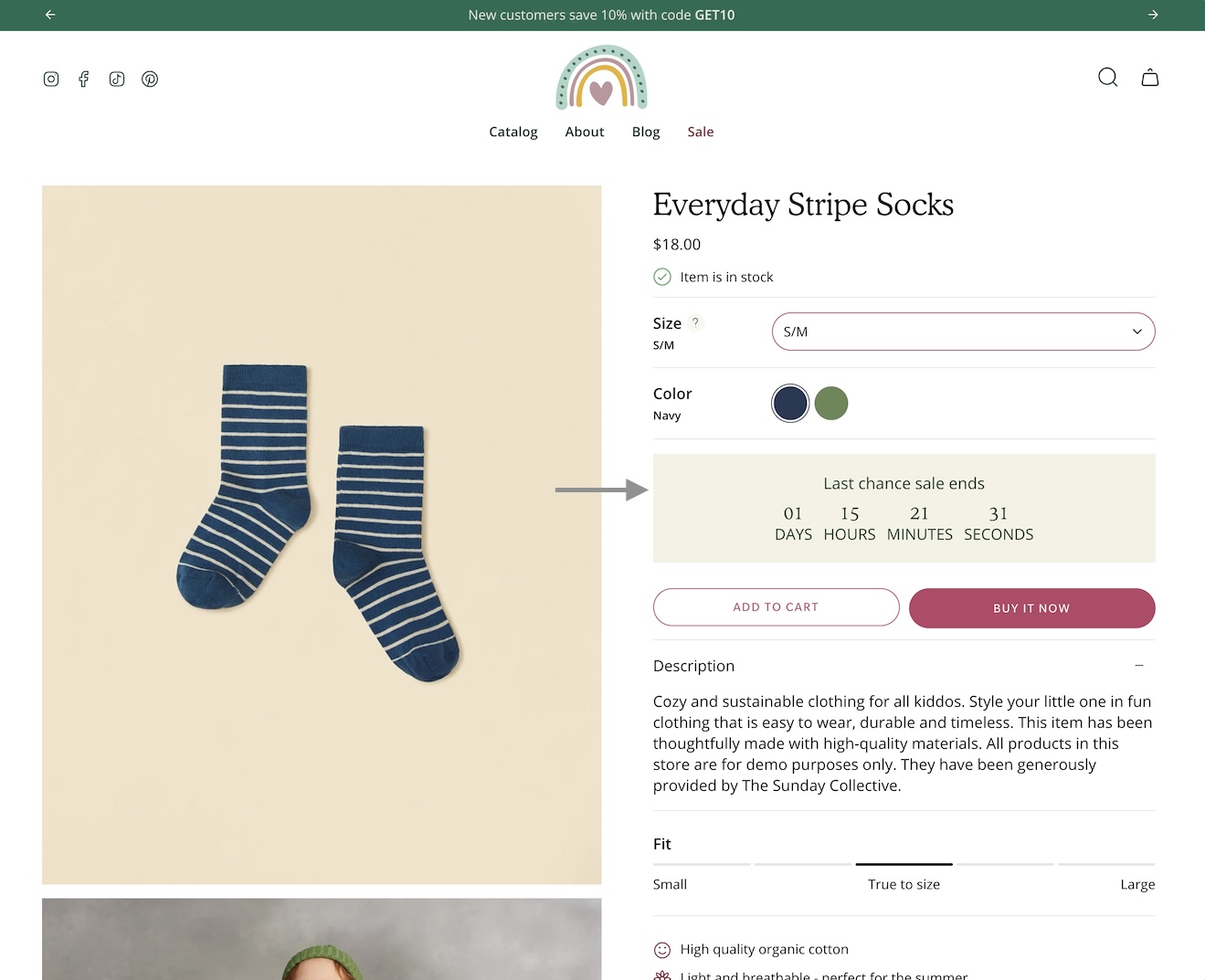
We've added a countdown timer block to the Product form. You can now quickly add a countdown promotion right into the Product form:

<figure><img src="https://content.gitbook.com/content/j8jzXN4KKXAfQhgbN5lO/blobs/tRMUPGp2XuPr9DJWjCNq/countdown%20block.jpg" alt=""><figcaption></figcaption></figure>

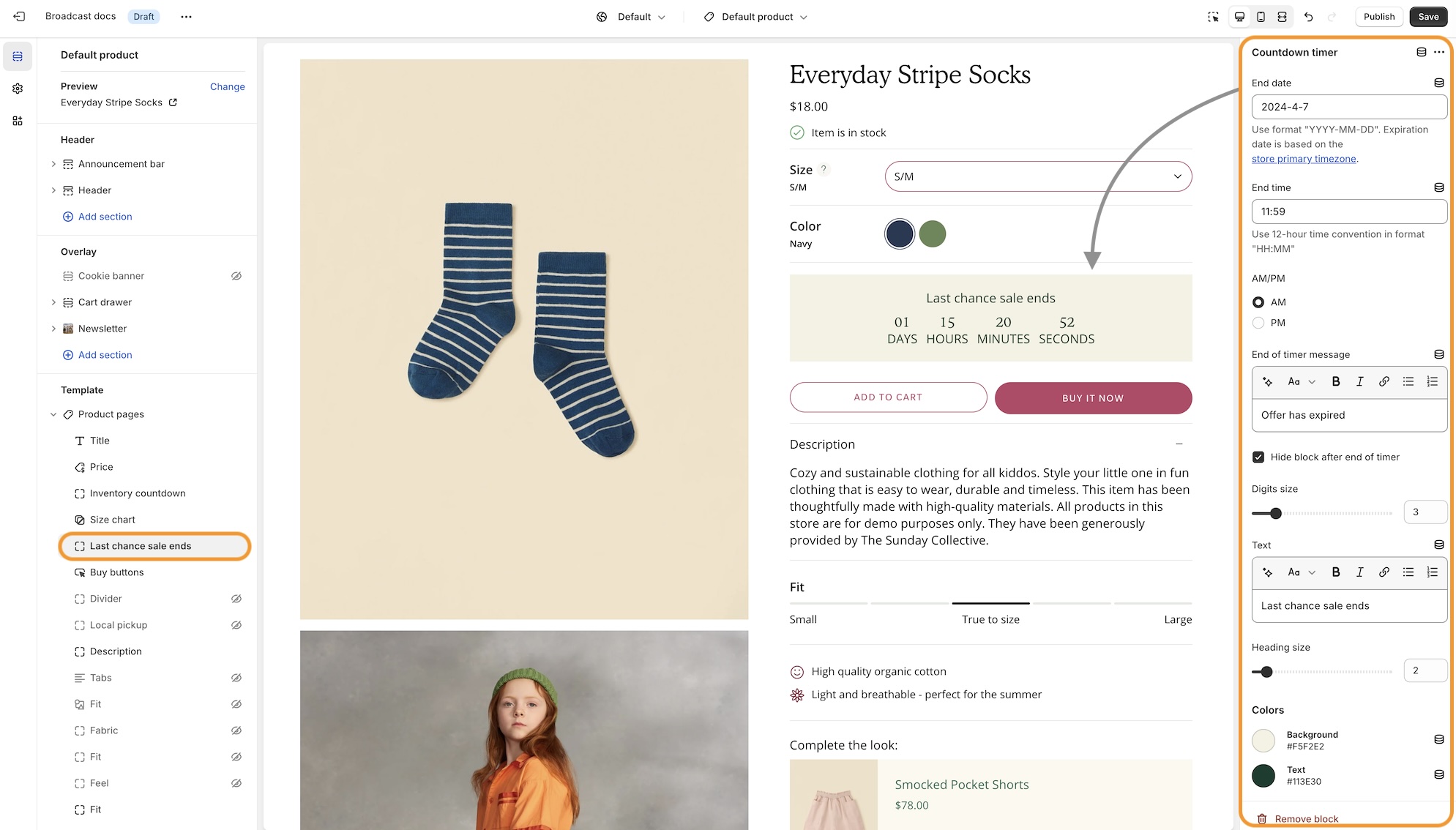
Add the countdown timer block and customize it with a wide-range of options. Use dynamic data sources to apply individual settings for any product:

<div data-full-width="true"><figure><img src="https://content.gitbook.com/content/j8jzXN4KKXAfQhgbN5lO/blobs/J216yJZ1QHLeLBmMVIYM/countdown%20block%20full%20page.jpg" alt=""><figcaption></figcaption></figure></div>

{% hint style="info" %}
The same information will appear on all your product pages when adding blocks to the Default product template.&#x20;

To display custom information for individual products, Shopify provides two methods to customize your content:

* Create multiple product templates and assign only certain products to different templates
* Use dynamic data sources with product metafields to customize for individual products.&#x20;
  {% endhint %}

### Accordions, Tabs and Description blocks for Product pages

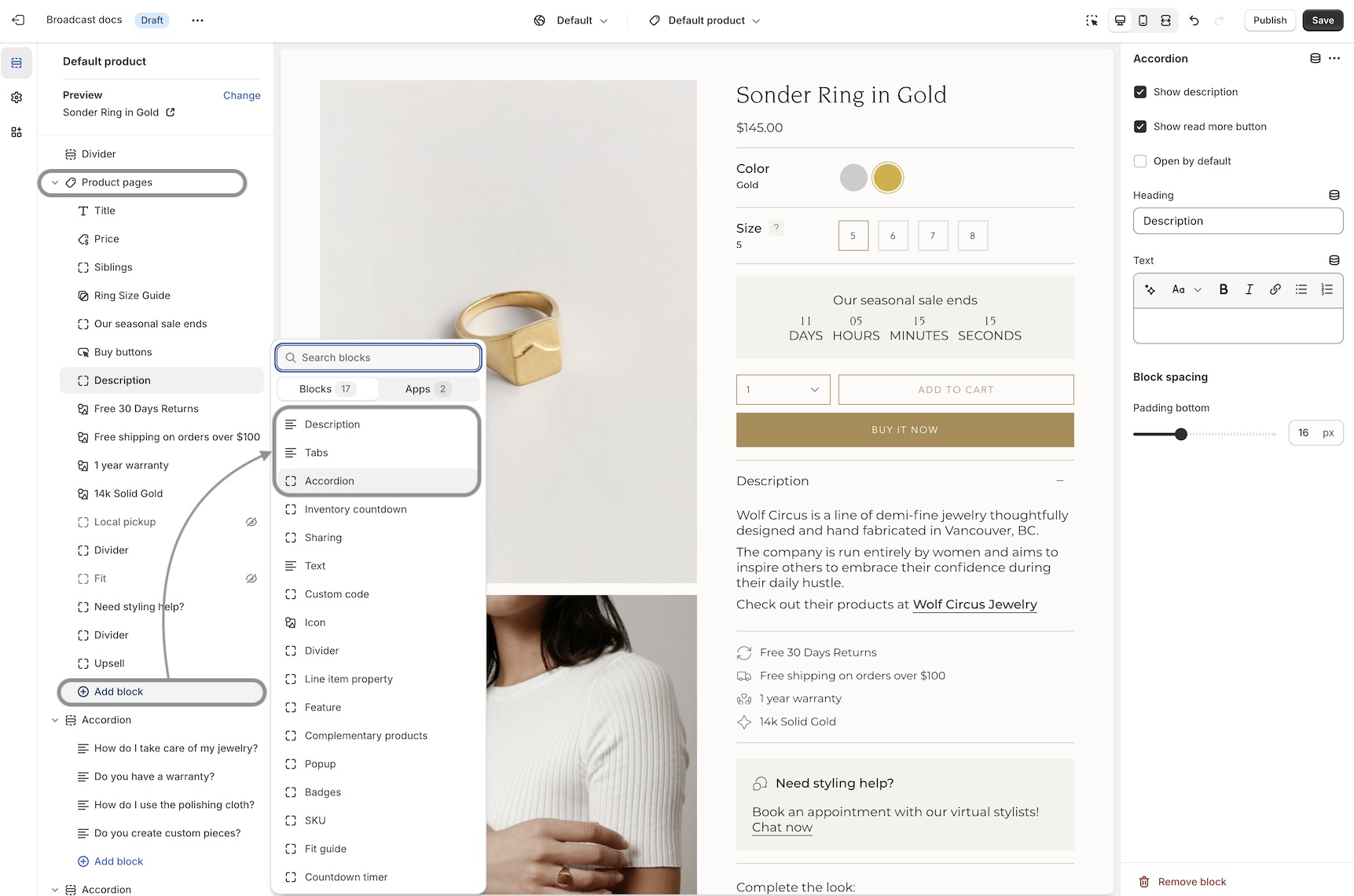
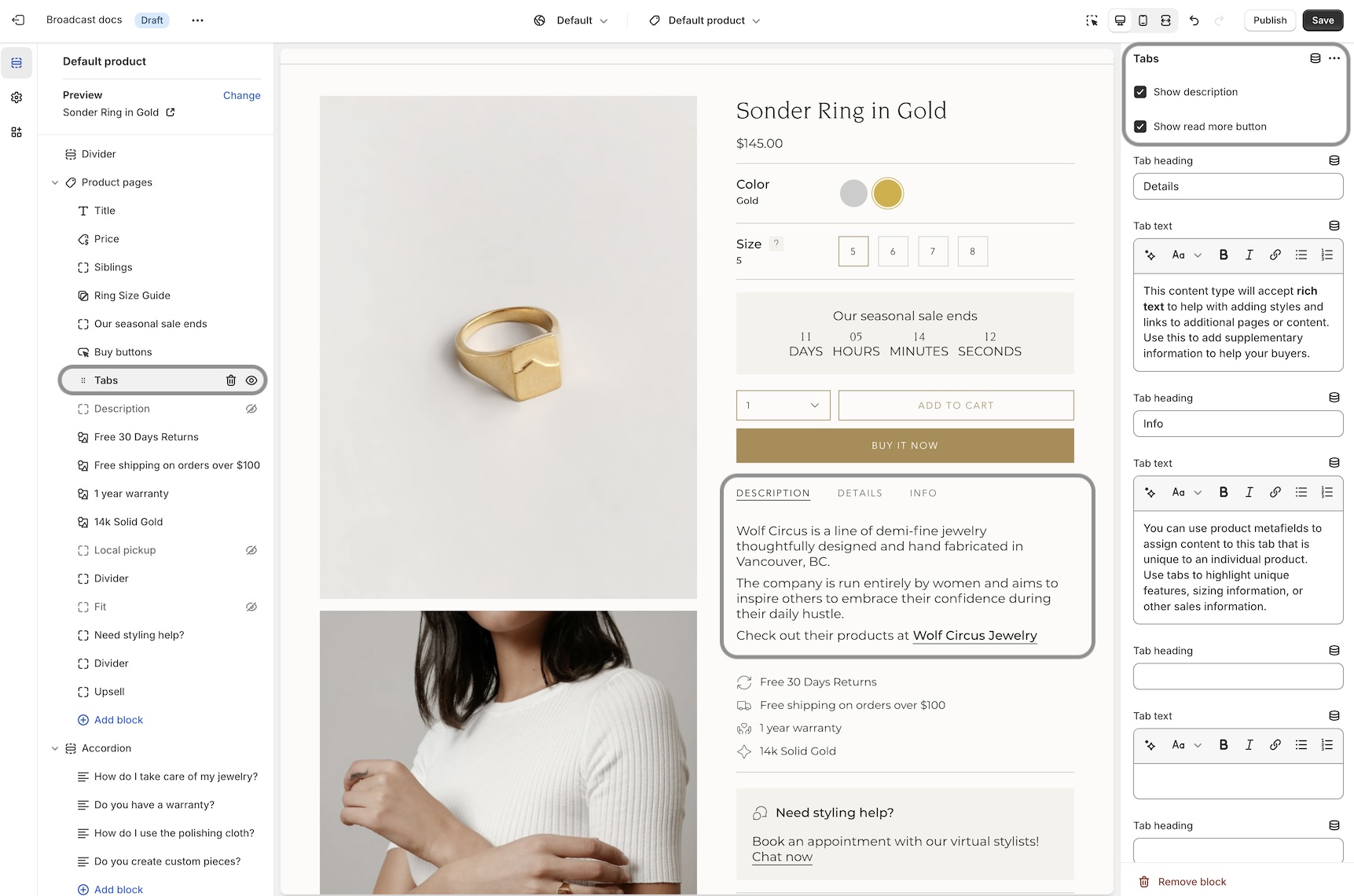
We've separated out the accordion, tabs and description into individual blocks. Now with greater customization and flexibility.&#x20;

<figure><img src="https://content.gitbook.com/content/j8jzXN4KKXAfQhgbN5lO/blobs/naxNLFsibYfBSdH7lLp4/blocks%20-%20accordion%20tabs%20and%20description.jpg" alt=""><figcaption><p>Accordion and Tab blocks and include or exclude the product description information</p></figcaption></figure>

Example of Tabs block with options to show the description and read more button:

<figure><img src="https://content.gitbook.com/content/j8jzXN4KKXAfQhgbN5lO/blobs/kSmecpQ0RwkKbMu8Vm5P/tabs%20block.jpg" alt=""><figcaption></figcaption></figure>

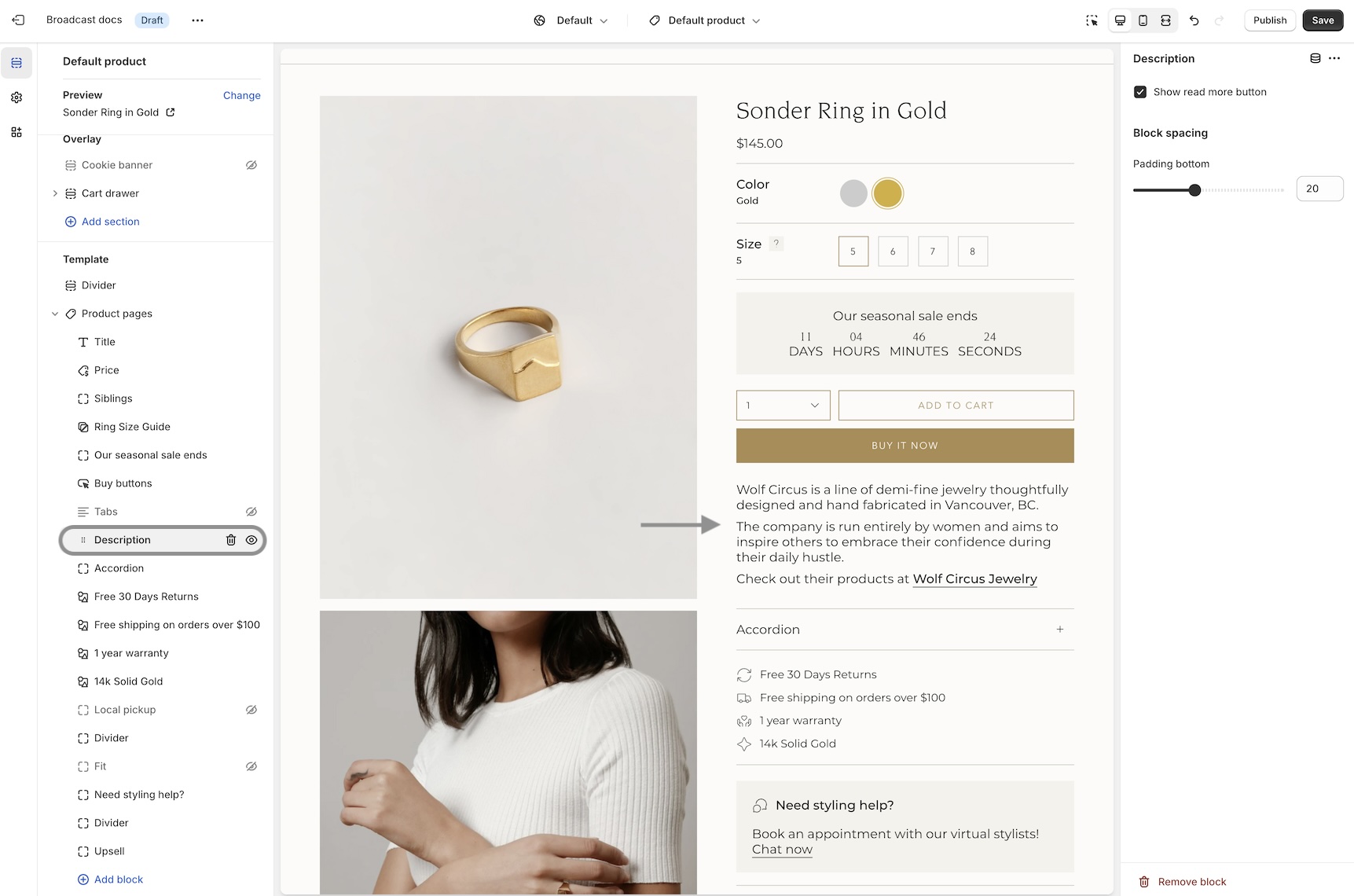
The Description block can be used to pull out the product description from an accordion or tab, and shown independently:

<figure><img src="https://content.gitbook.com/content/j8jzXN4KKXAfQhgbN5lO/blobs/BEeDevZLAIr7wfjLWyNs/description%20block.jpg" alt=""><figcaption><p>Description block example with closed accordion below</p></figcaption></figure>

### Out-of-stock notification

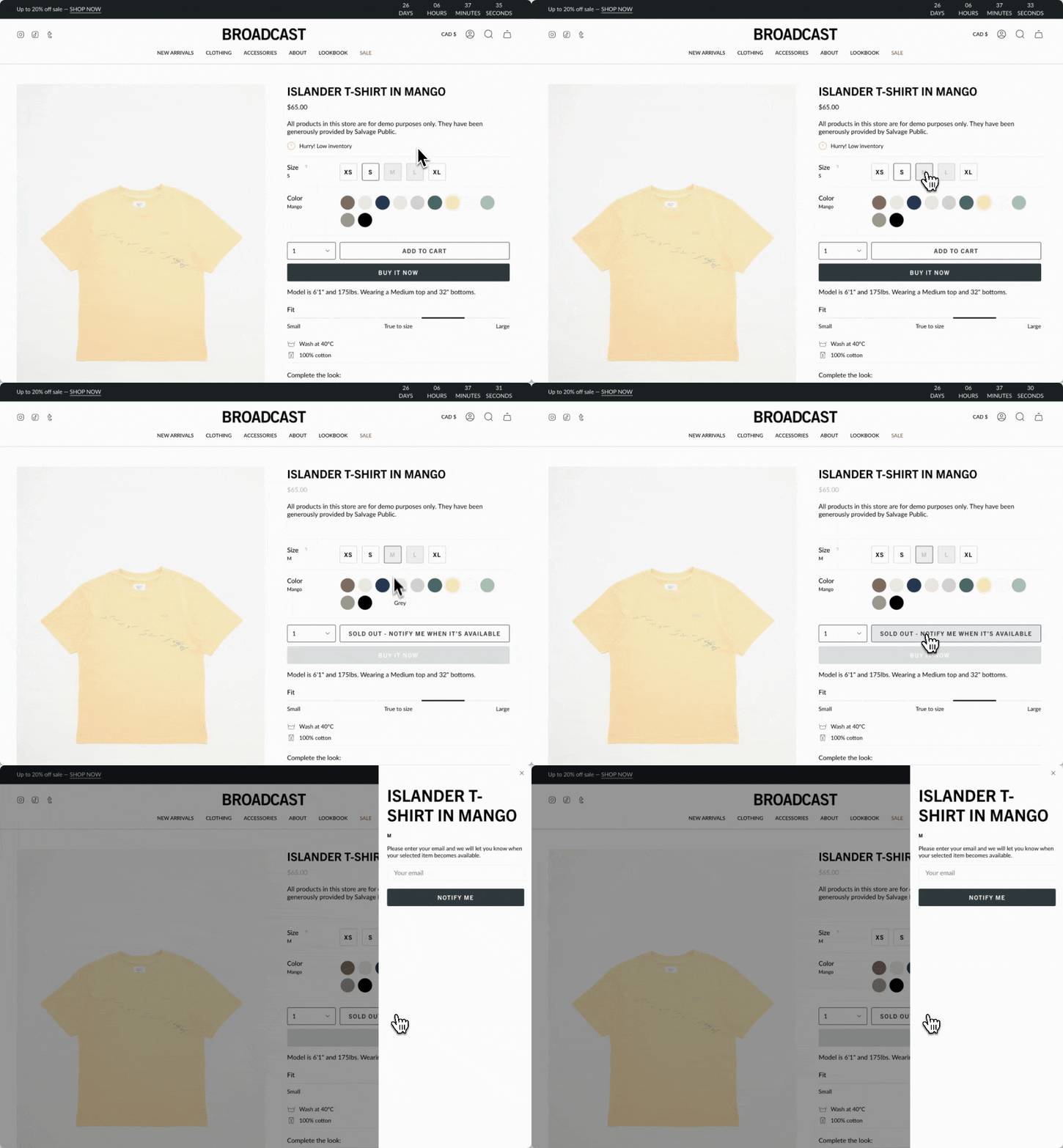
Let your customers know when a product or variant is back in stock. This new feature in Broadcast allows your customers to submit an email request with product and variant details for an item that is currently sold out:

<figure><img src="https://content.gitbook.com/content/j8jzXN4KKXAfQhgbN5lO/blobs/tRj5nRZbDB8r8238CIxc/back-in-stock.gif" alt=""><figcaption><p>Find out which products customers are looking for when items are sold out</p></figcaption></figure>

#### Learn more:

{% content-ref url="../../products/product-pages/out-of-stock-notification" %}
[out-of-stock-notification](https://broadcast.presidiocreative.com/broadcast-v5/products/product-pages/out-of-stock-notification)
{% endcontent-ref %}

### SKU block for product pages

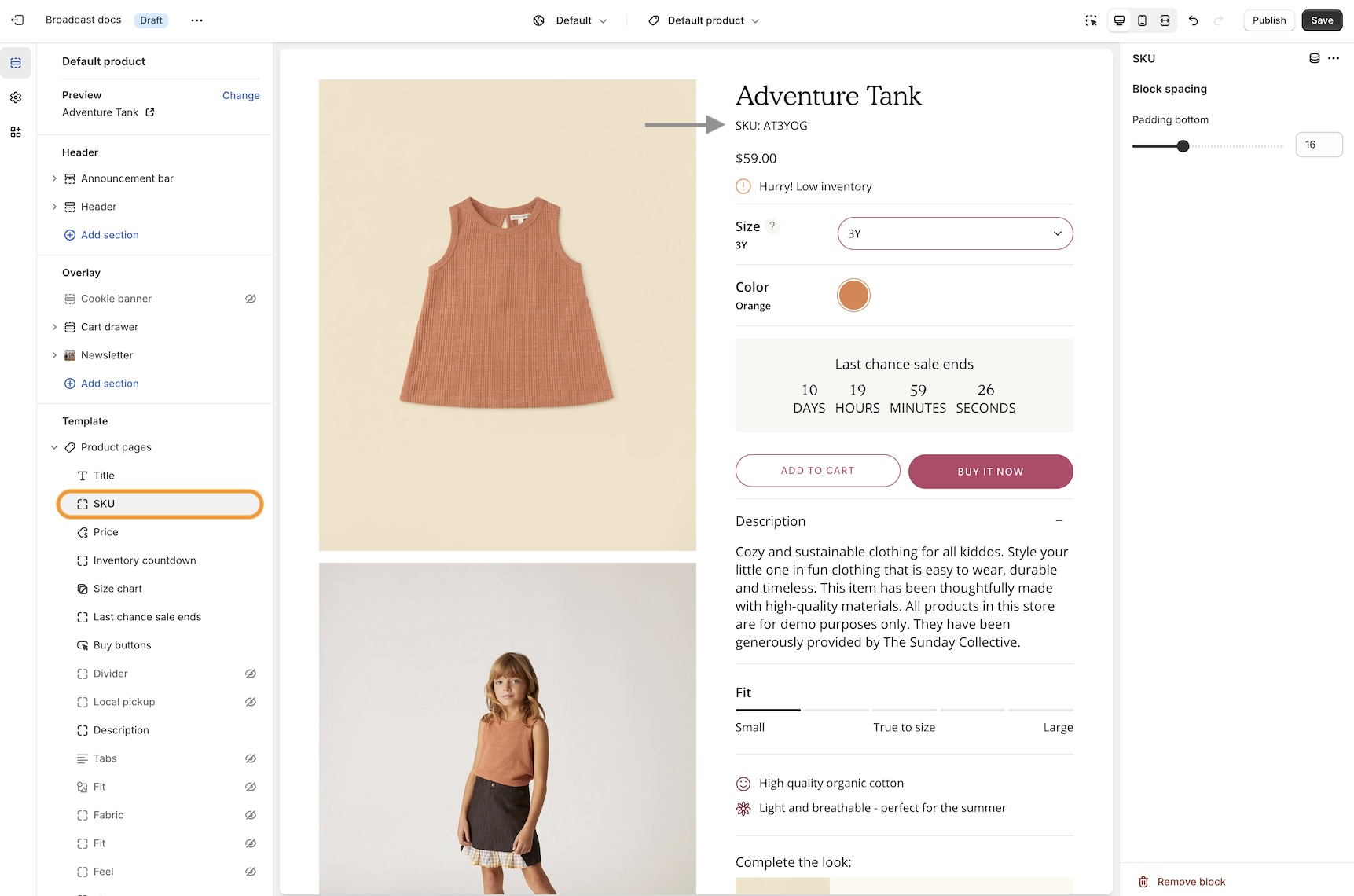
Add and position the SKU block to display the value on your product pages. Adjust the padding with the block settings:

<figure><img src="https://content.gitbook.com/content/j8jzXN4KKXAfQhgbN5lO/blobs/GcoT1iW425OmvcQv1ip0/SKU%20block.jpg" alt=""><figcaption></figcaption></figure>

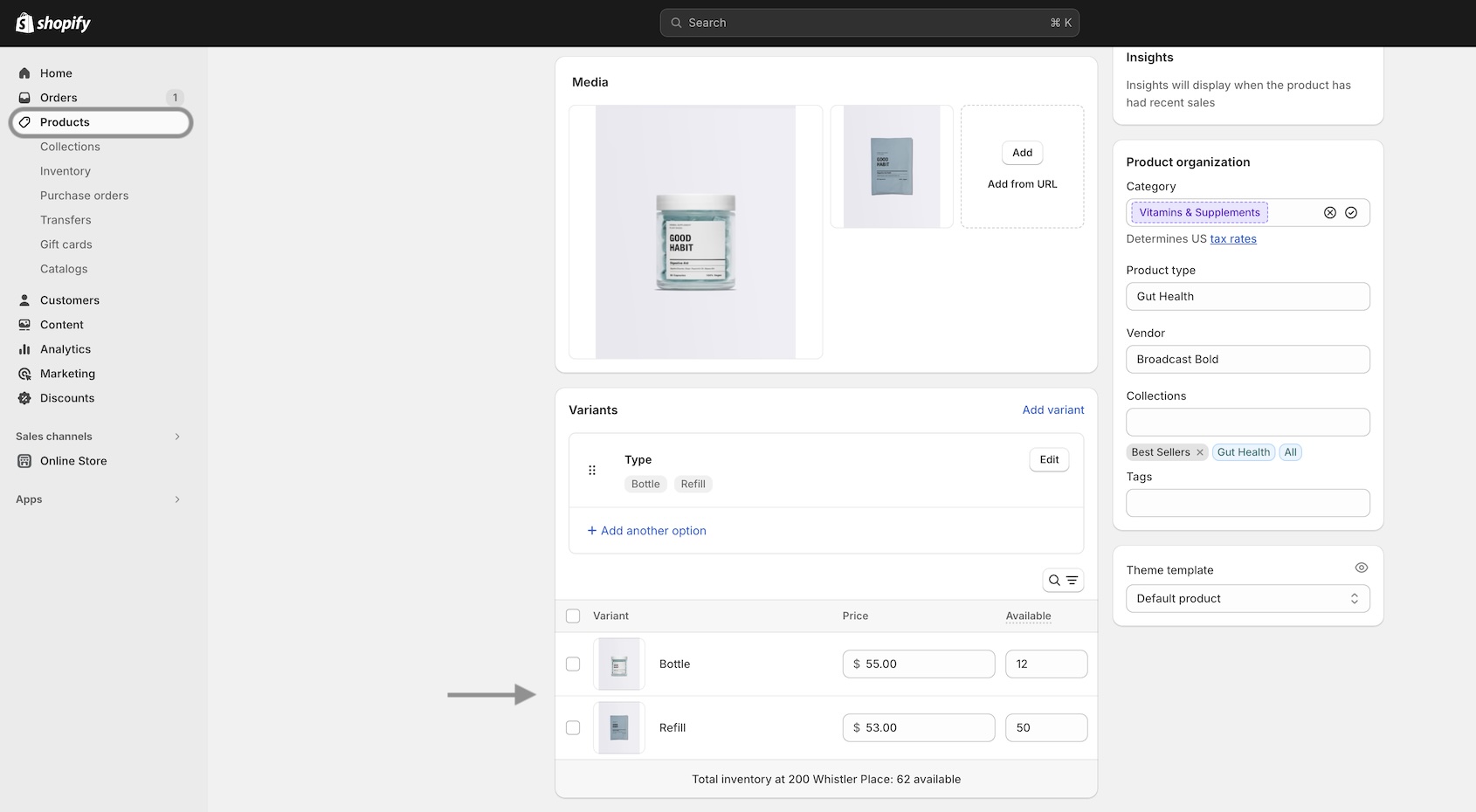
SKU values are taken from the product setup under variants:

<figure><img src="https://content.gitbook.com/content/j8jzXN4KKXAfQhgbN5lO/blobs/SVQr3zTd1aRcSE62ZvPh/sku%20inventory.jpg" alt=""><figcaption></figcaption></figure>

### Image banner placeholder on Product pages

Broadcast now includes a feature to hide the 'Image banner' placeholder image when using metafields. A new checkbox has been added to hide the placeholder for products that don't have a chosen metafield image.&#x20;

Watch the video walkthrough on how this feature works:

{% embed url="<https://www.loom.com/share/0679fc3f06bd43409c46810ea9d2f130?sid=fa4606c2-b2c8-4c06-806f-d90dbe907dbf>" %}
Video walkthrough
{% endembed %}

{% hint style="success" %}
This solves the problem of displaying an image banner section for specific products and excluding the banner from others with only one template.&#x20;
{% endhint %}

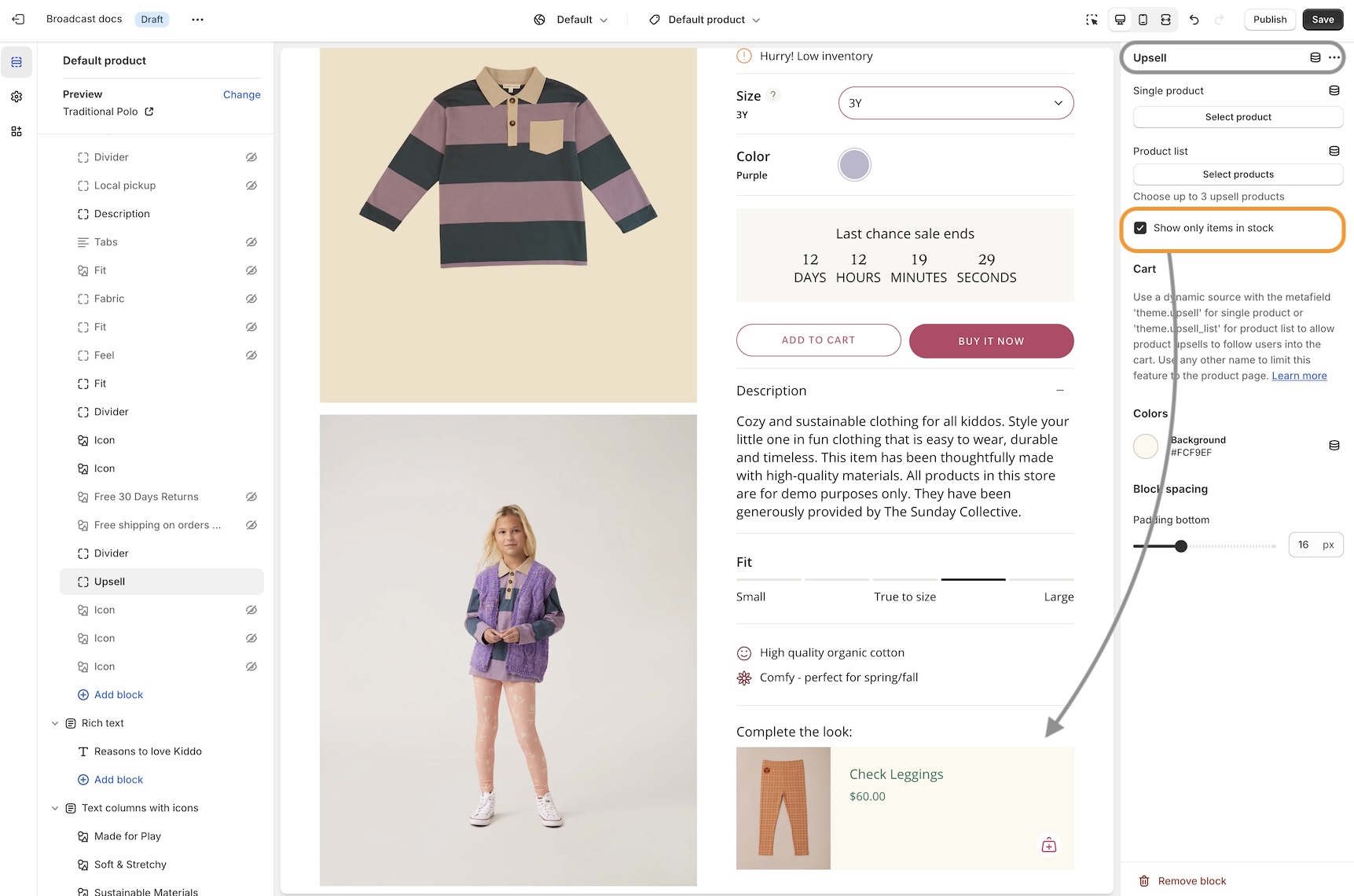
### Show only upsell items that are available in stock

An option has been added only to show in-stock items for upsell promotions on Product pages.&#x20;

<figure><img src="https://content.gitbook.com/content/j8jzXN4KKXAfQhgbN5lO/blobs/6AXvAgf3qBszeogssJqS/Upsell%20in%20stock%20only.jpg" alt=""><figcaption></figcaption></figure>

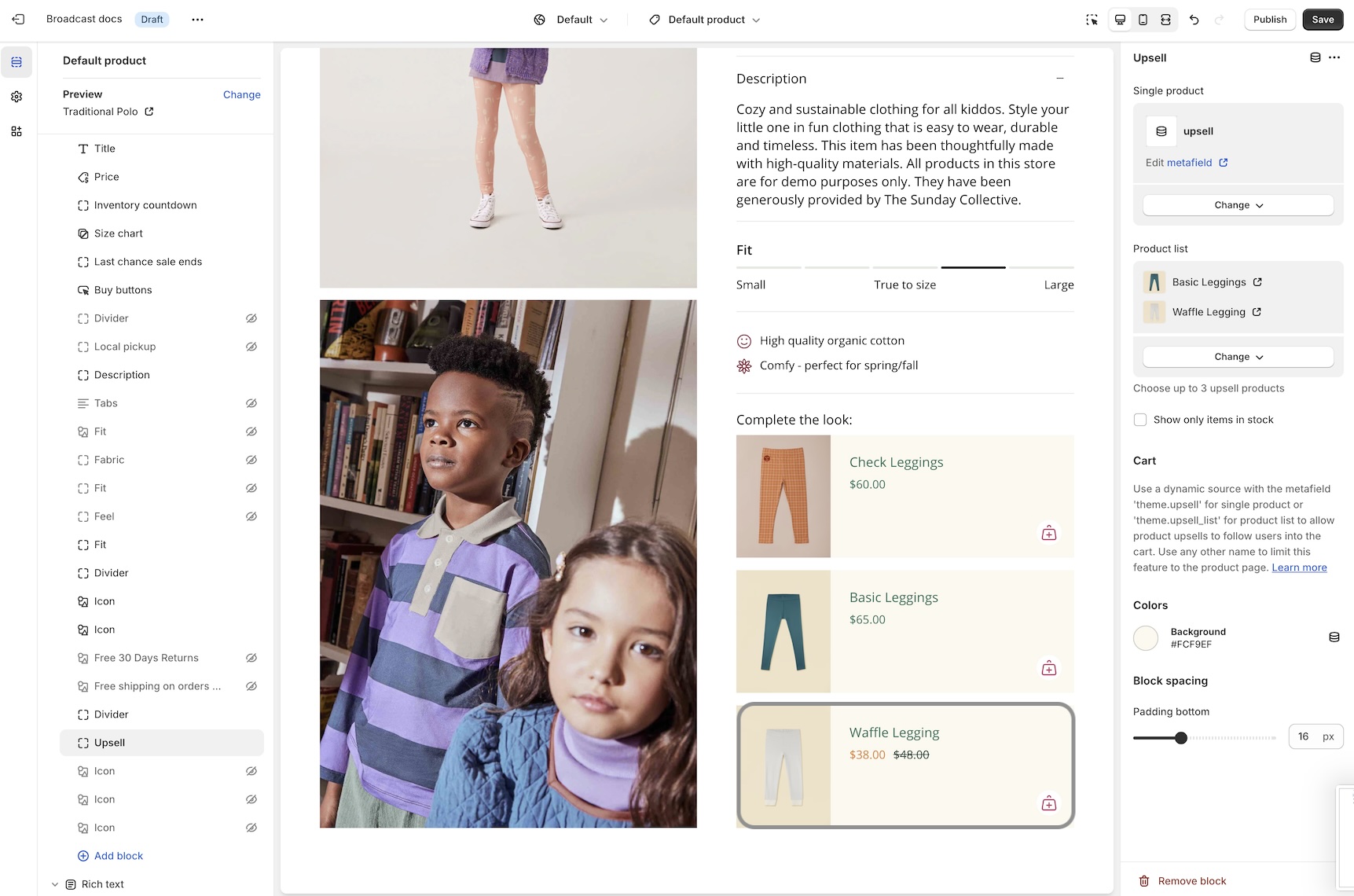
In the example below, the ***Waffle Legging*** is an upsell product. However, currently has no inventory:

<figure><img src="https://content.gitbook.com/content/j8jzXN4KKXAfQhgbN5lO/blobs/xPpJRtwWR4d31fgQ4gzc/Waffle%20legging.jpg" alt=""><figcaption></figcaption></figure>

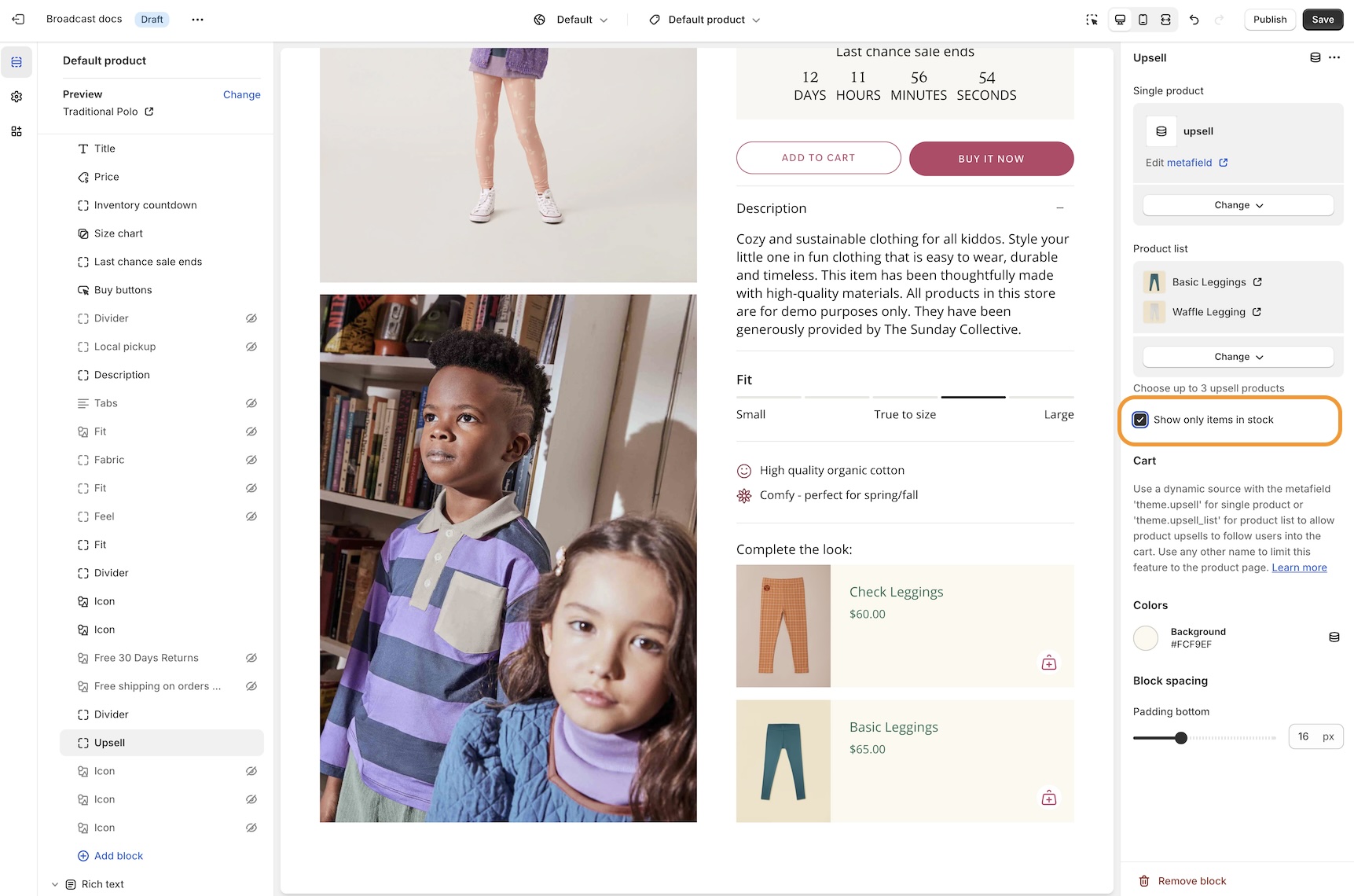
By turning on the feature, that out-of-stock item will not be displayed as an upsell option:

<figure><img src="https://content.gitbook.com/content/j8jzXN4KKXAfQhgbN5lO/blobs/ZgiEvDrSh3M57j7O1HOJ/Turn%20on%20feature%20-%20upsell%20hide%20out%20of%20stock.jpg" alt=""><figcaption></figcaption></figure>

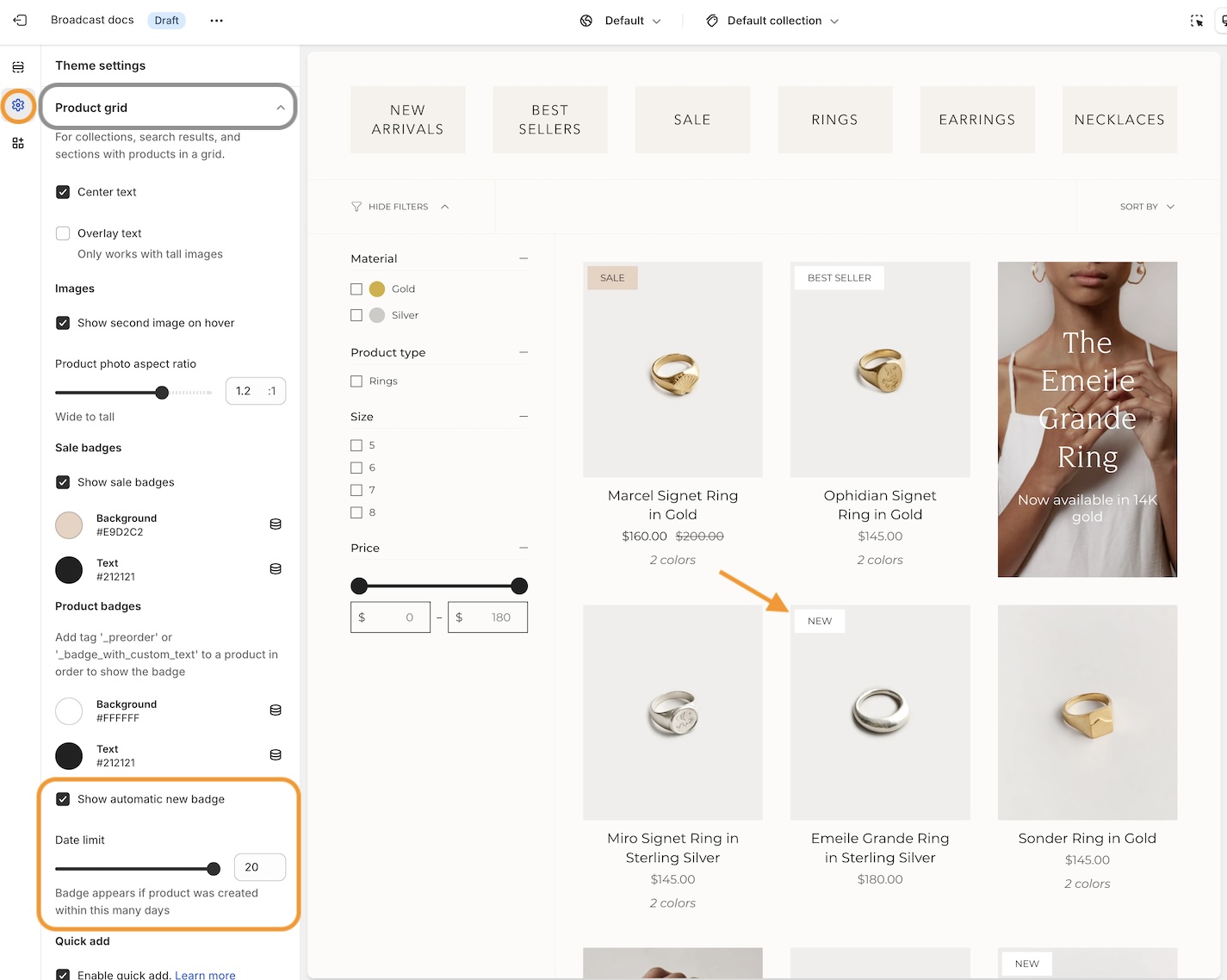
### Setting for New badge

We've added an easy-to-use setting in the **Theme Settings -> Product Grid** to add and customize when the 'New' badge appears on collection pages and the product grid:

<figure><img src="https://content.gitbook.com/content/j8jzXN4KKXAfQhgbN5lO/blobs/cTjM9I5Cqj35YYd2xDKn/New%20badge%20setting.jpg" alt=""><figcaption></figcaption></figure>

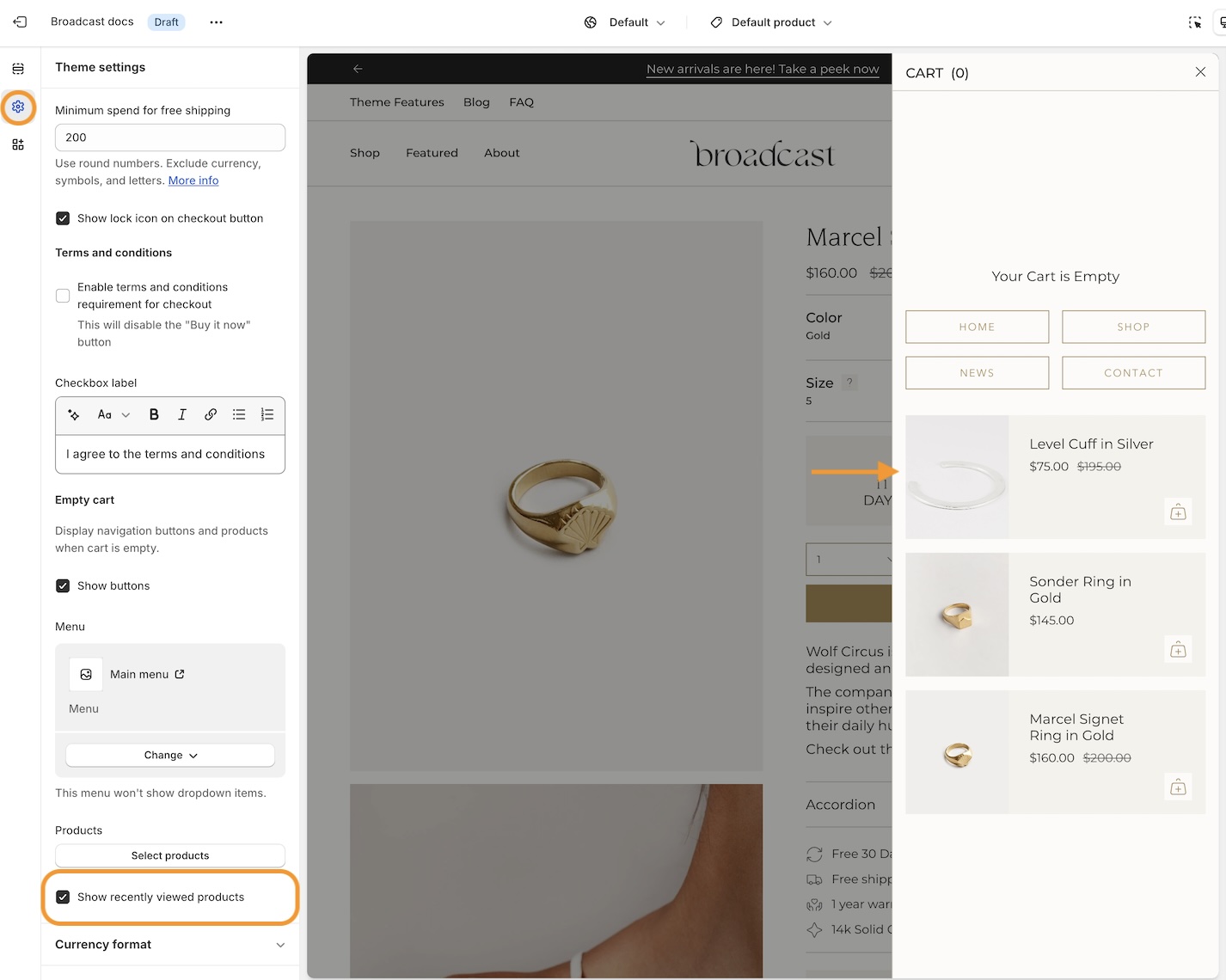
### Recently viewed items in empty cart

You can now display recently viewed items in an empty cart. Broadcast includes a global theme setting under **Theme settings -> Cart** to toggle this feature:

<figure><img src="https://content.gitbook.com/content/j8jzXN4KKXAfQhgbN5lO/blobs/PpMkekmsM10SDCciWdX2/cart%20recently%20viewed%20products.jpg" alt=""><figcaption></figcaption></figure>

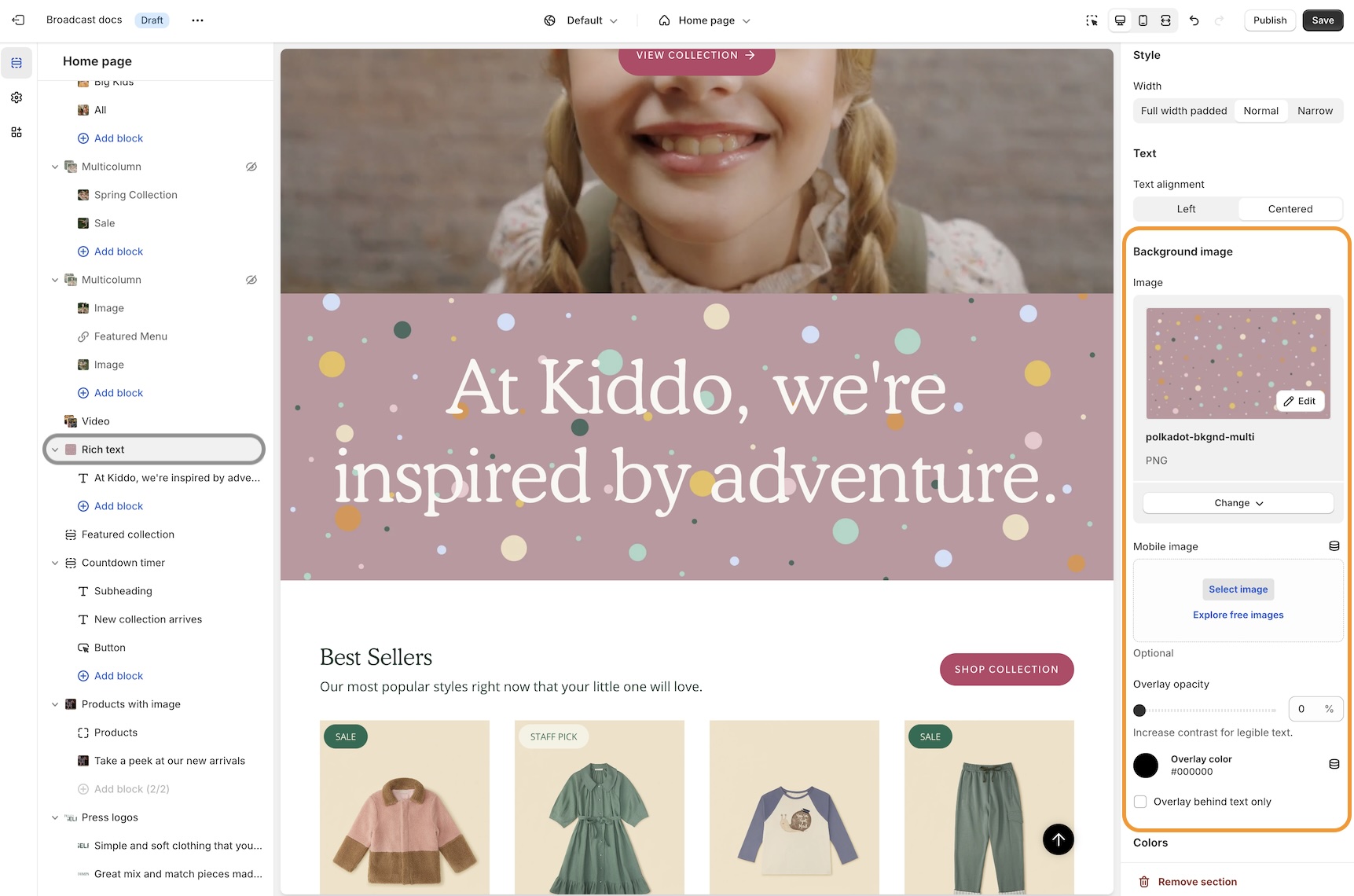
### Background image for the Rich text section

Dress up the 'Rich text' section with an option to display a background image with overlay options to help display the text over the image:

<figure><img src="https://content.gitbook.com/content/j8jzXN4KKXAfQhgbN5lO/blobs/8d1Jm4EwL7tnJ0eQsicr/Rich%20text%20bg%20image.jpg" alt=""><figcaption></figcaption></figure>

Customize with a different image for mobile devices. If no mobile image is selected, the desktop image is used.&#x20;