> For the complete documentation index, see [llms.txt](https://broadcast.presidiocreative.com/llms.txt). Markdown versions of documentation pages are available by appending `.md` to page URLs; this page is available as [Markdown](https://broadcast.presidiocreative.com/broadcast-v5/updates/whats-new-in-broadcast/about-v5.5-release.md).
# About v5.5 release
Additional information on recent Broadcast updates
### Badges block for Product pages
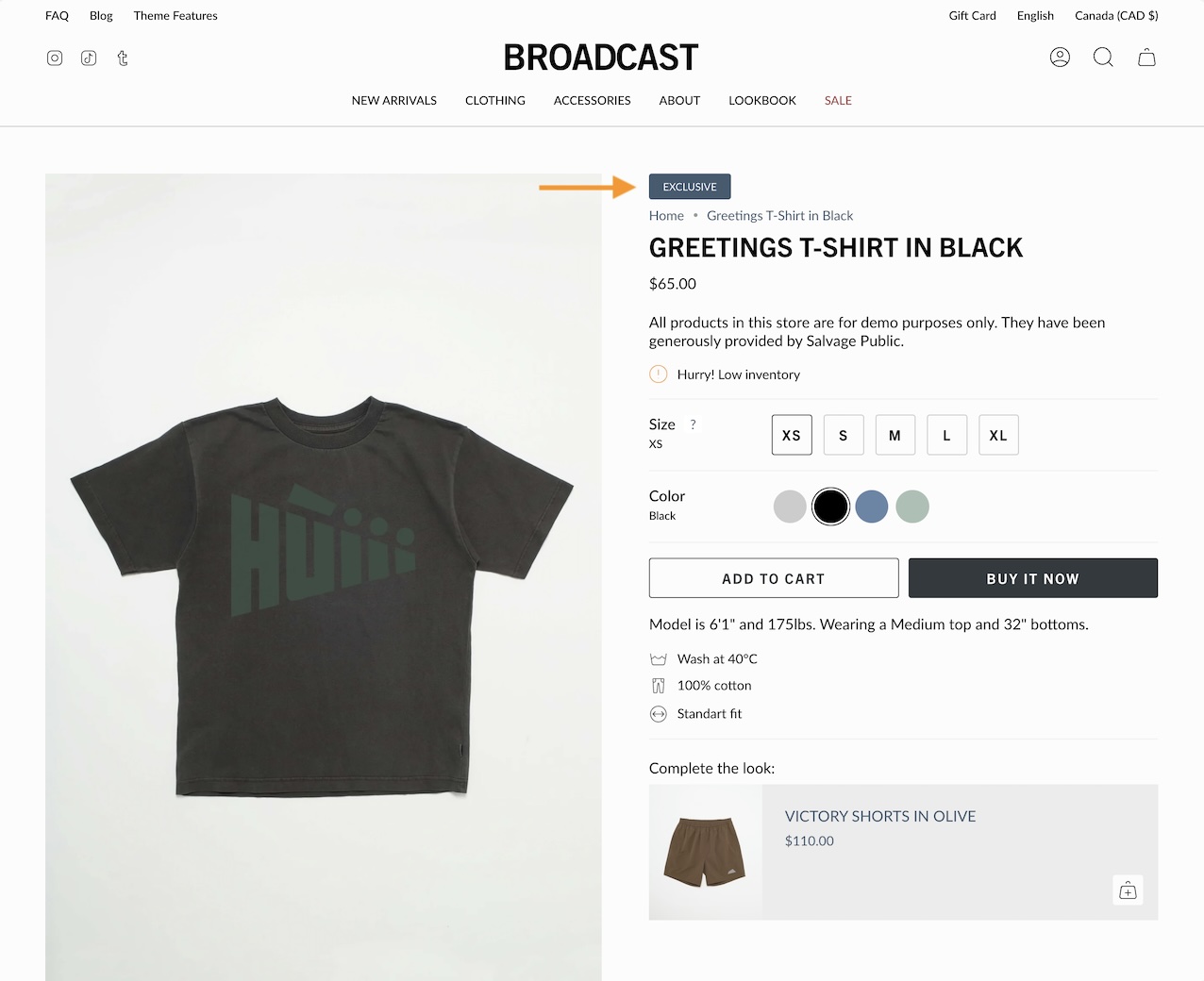
Badges can now be displayed on Broadcast Product pages. Broadcast can automatically display Sale badges or Custom badges that you create for individual products:
#### Learn more video:
{% embed url="" %}
#### Settings
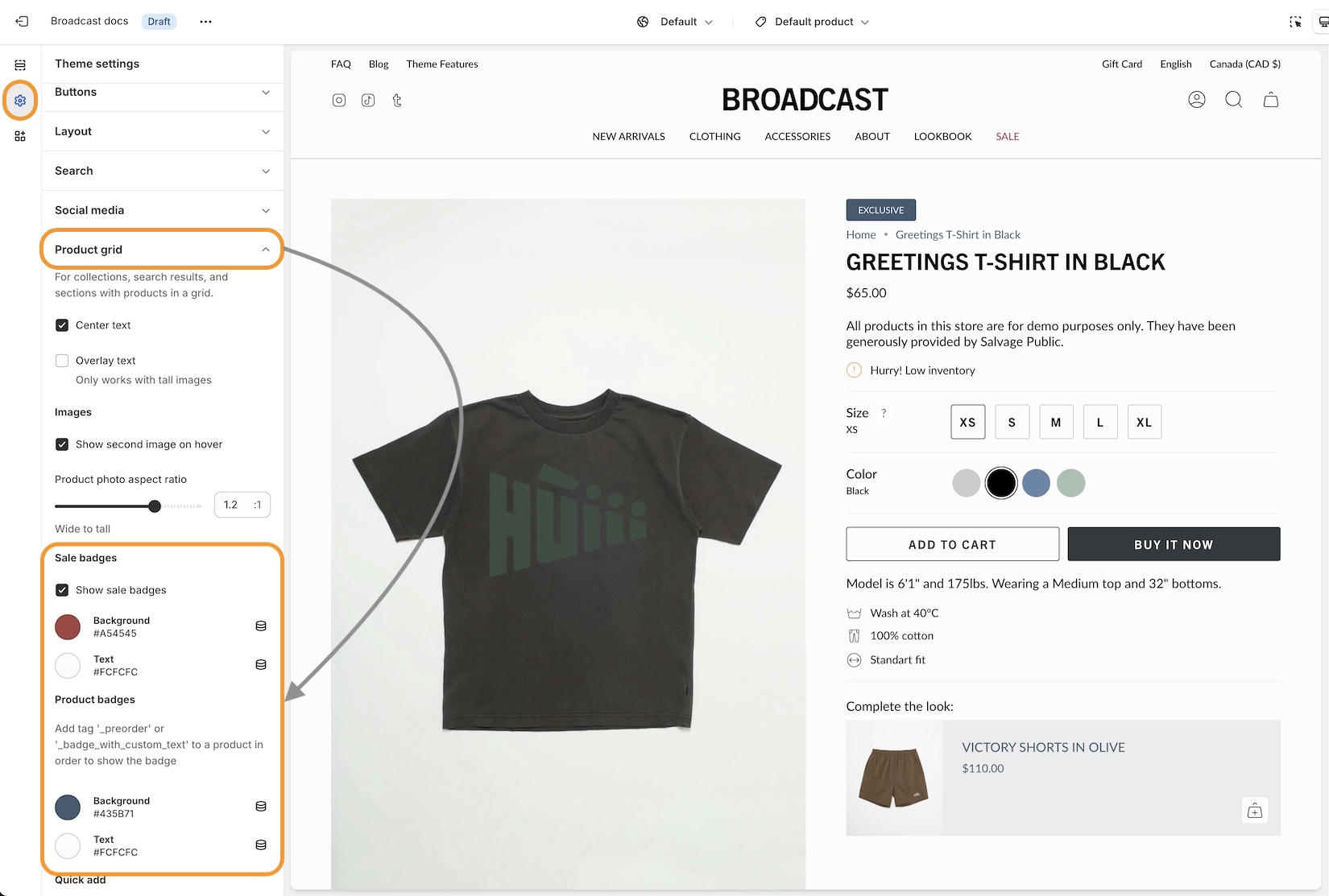
Custom and Sale badges can be styled in the 'Theme Settings' tab under 'Product grid'. These settings are applied to badges placed on both the Product card (also known as Collections or Product Card) and now the Product form when using the Badges block:
### Cart blocks
The Broadcast Cart now has blocks to customize the cart experience for your customers. Sort and arrange cart blocks, plus pin certain blocks to the bottom near the checkout button.
#### Cart drawer blocks video:
{% embed url="" %}
If you are updating from a previous version of Broadcast, please revisit the Theme Settings -> Cart to reconfigure your cart settings.
The new cart blocks are available under the Overlay section in the Theme Customizer.
#### Number of items in the cart
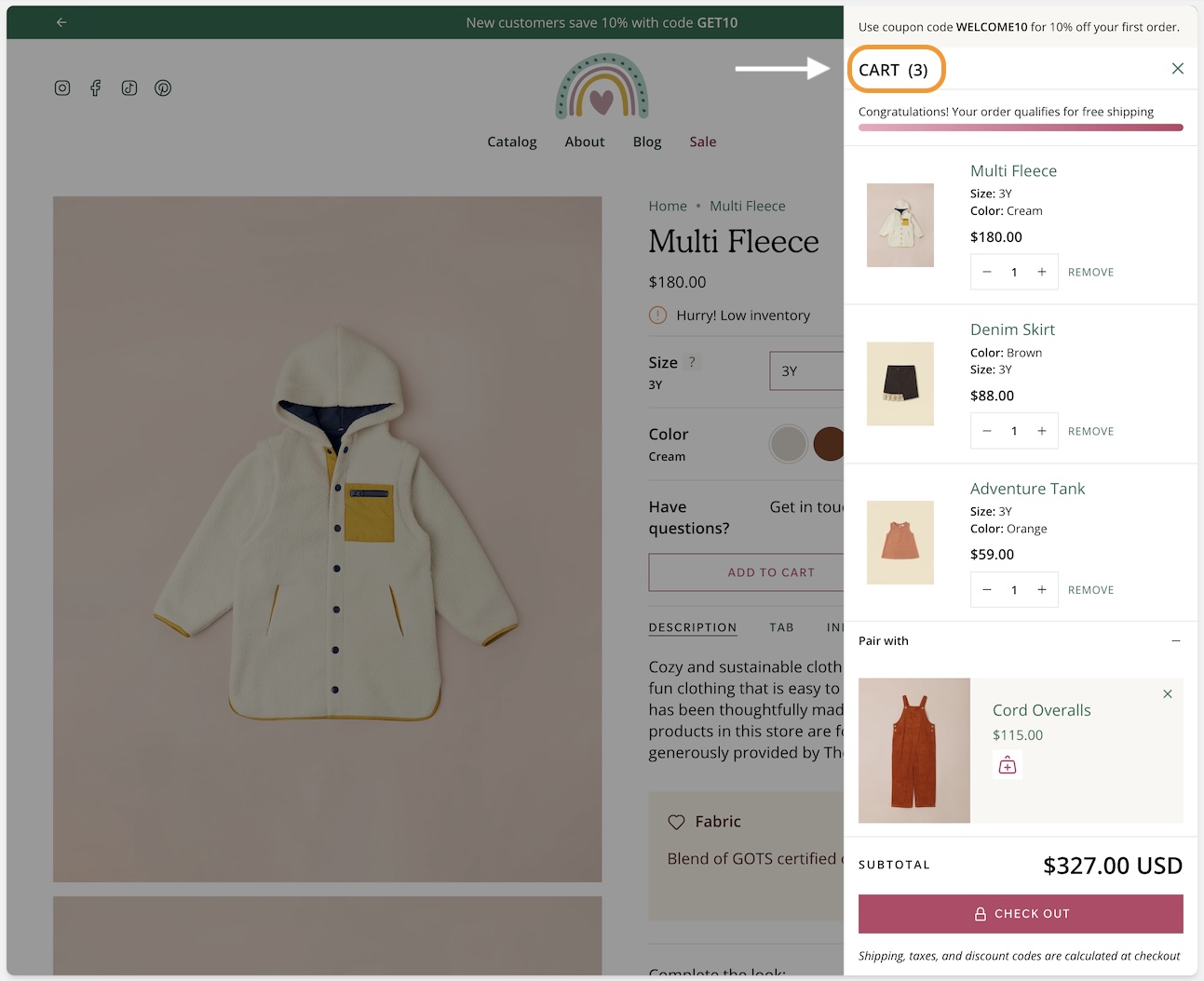
The number of items in the cart is shown in the main Cart heading:
### Image with text section - Product and Collection blocks
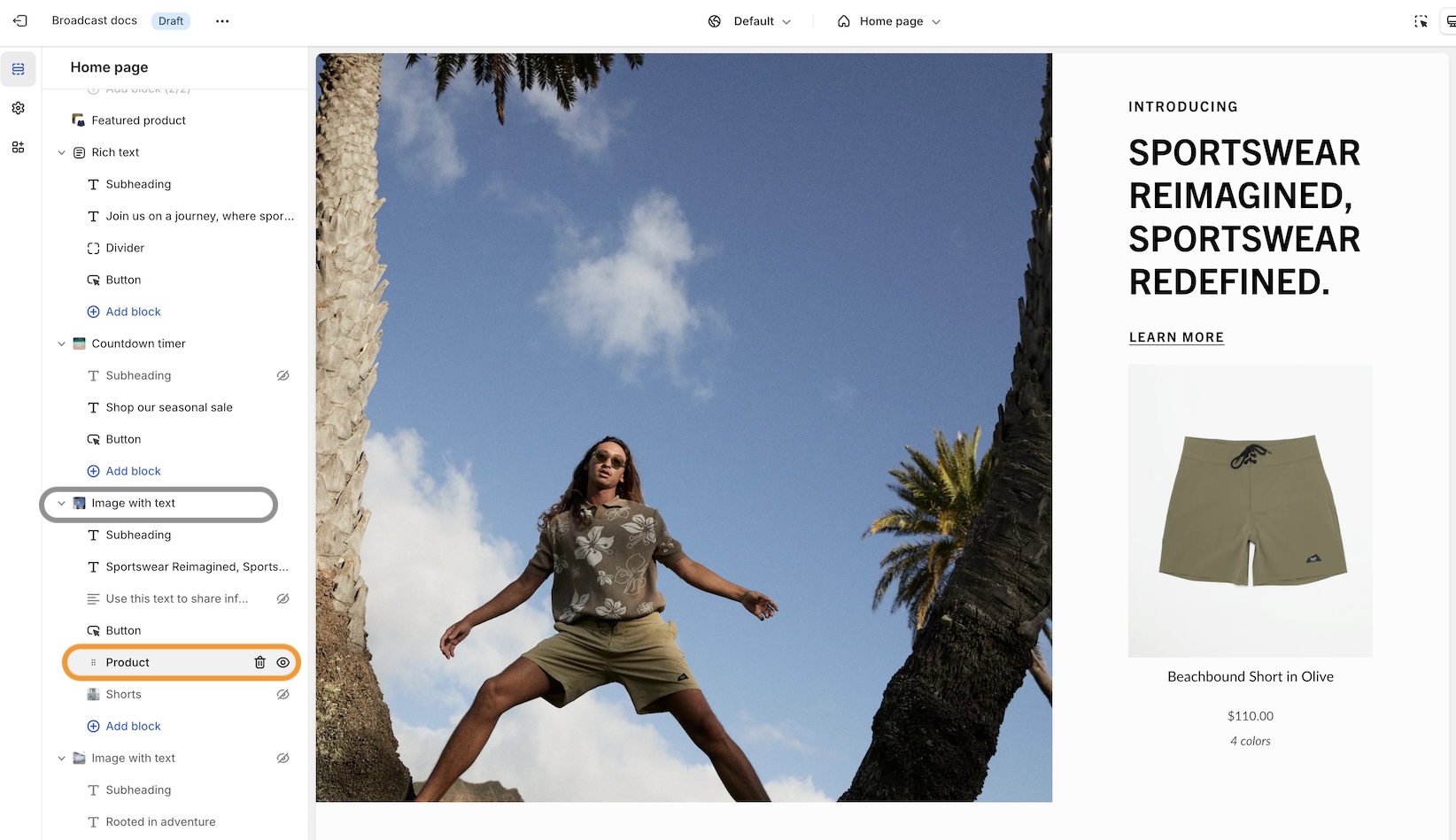
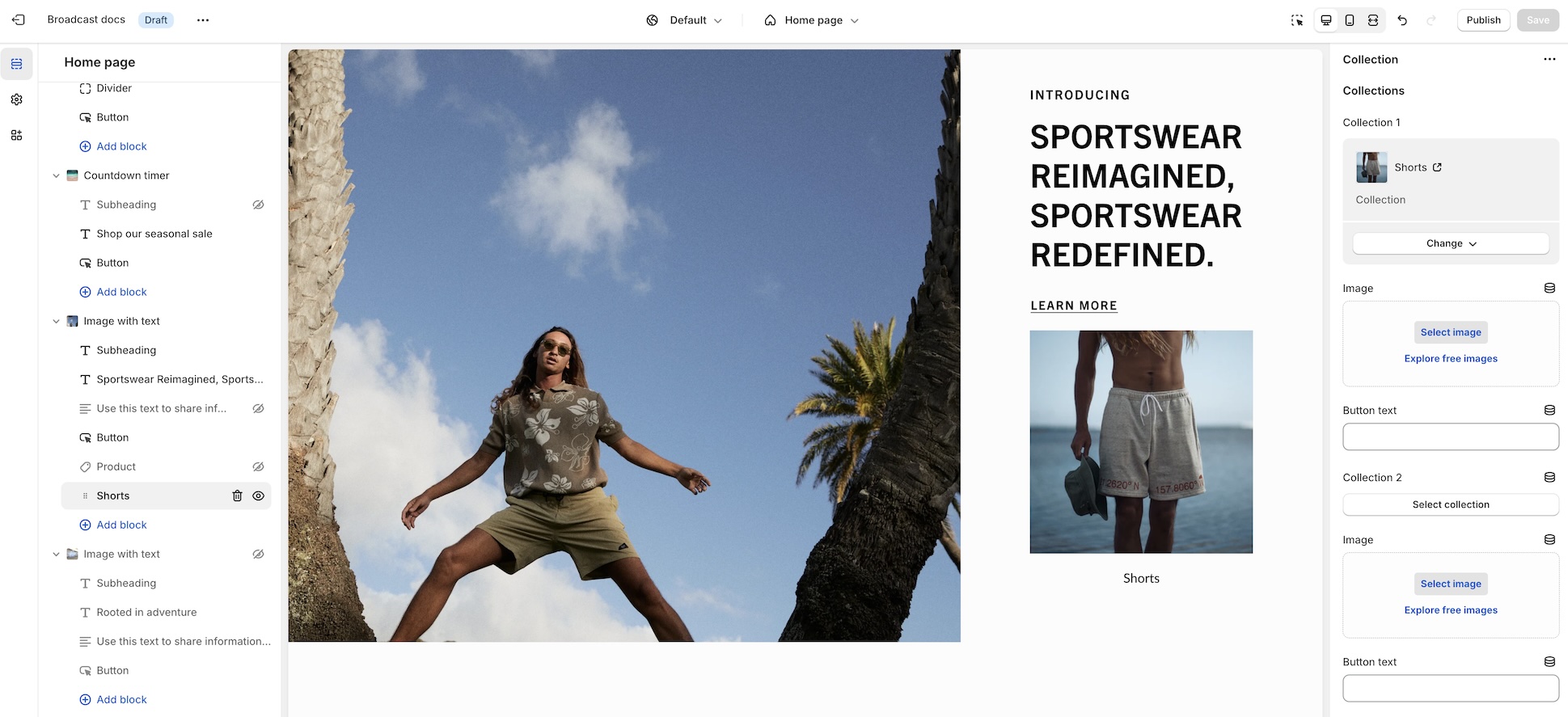
Easily display and link to products or collections with new blocks added to the Image with text section. These two new blocks can help you quickly build promotions on any page:
Product block in Image with text section
The collection block has options to choose a custom image and button text for the call to action:
### Countdown timer for the Announcement bar
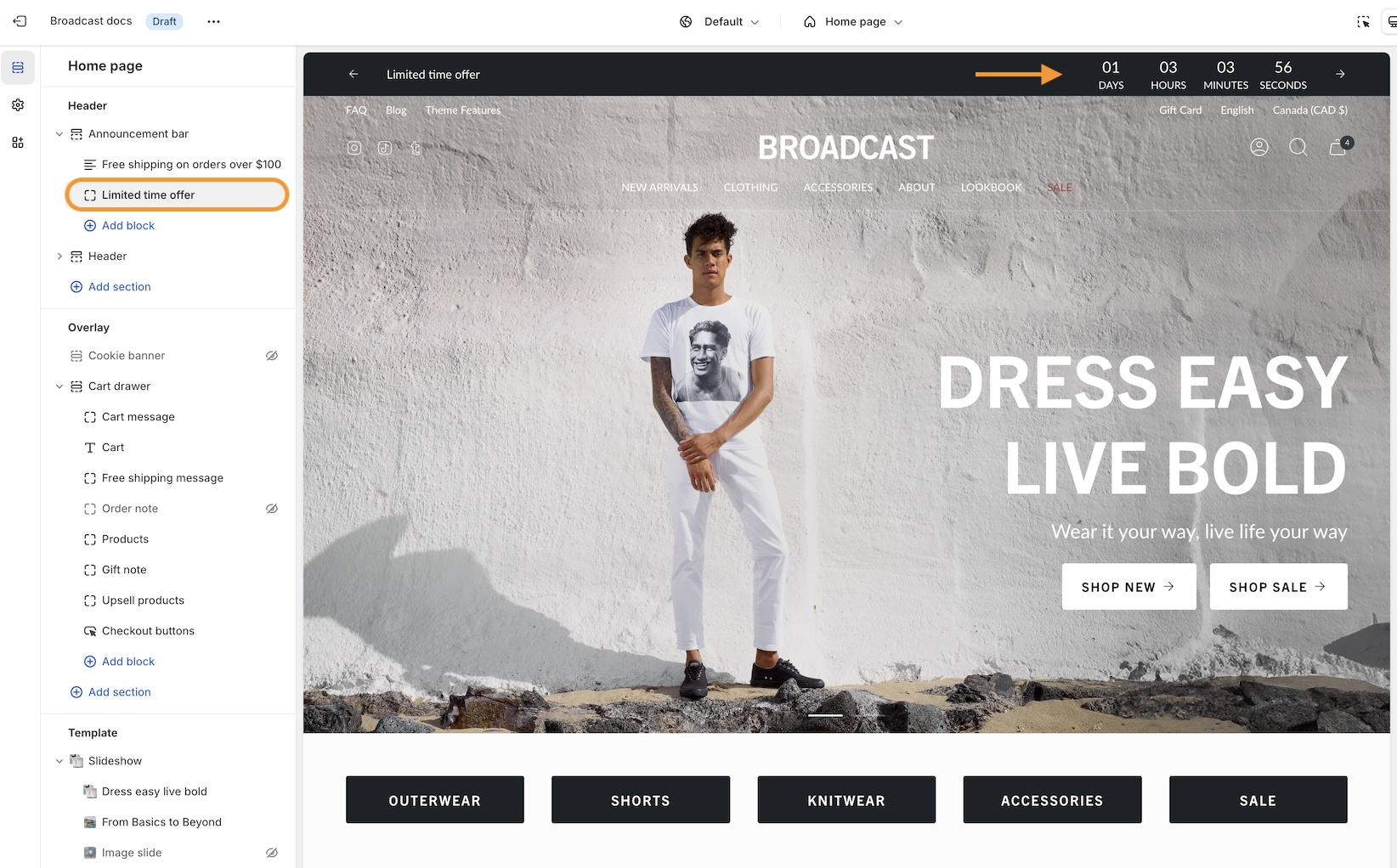
Add a sense of urgency right into the main announcement bar with the new countdown timer block:
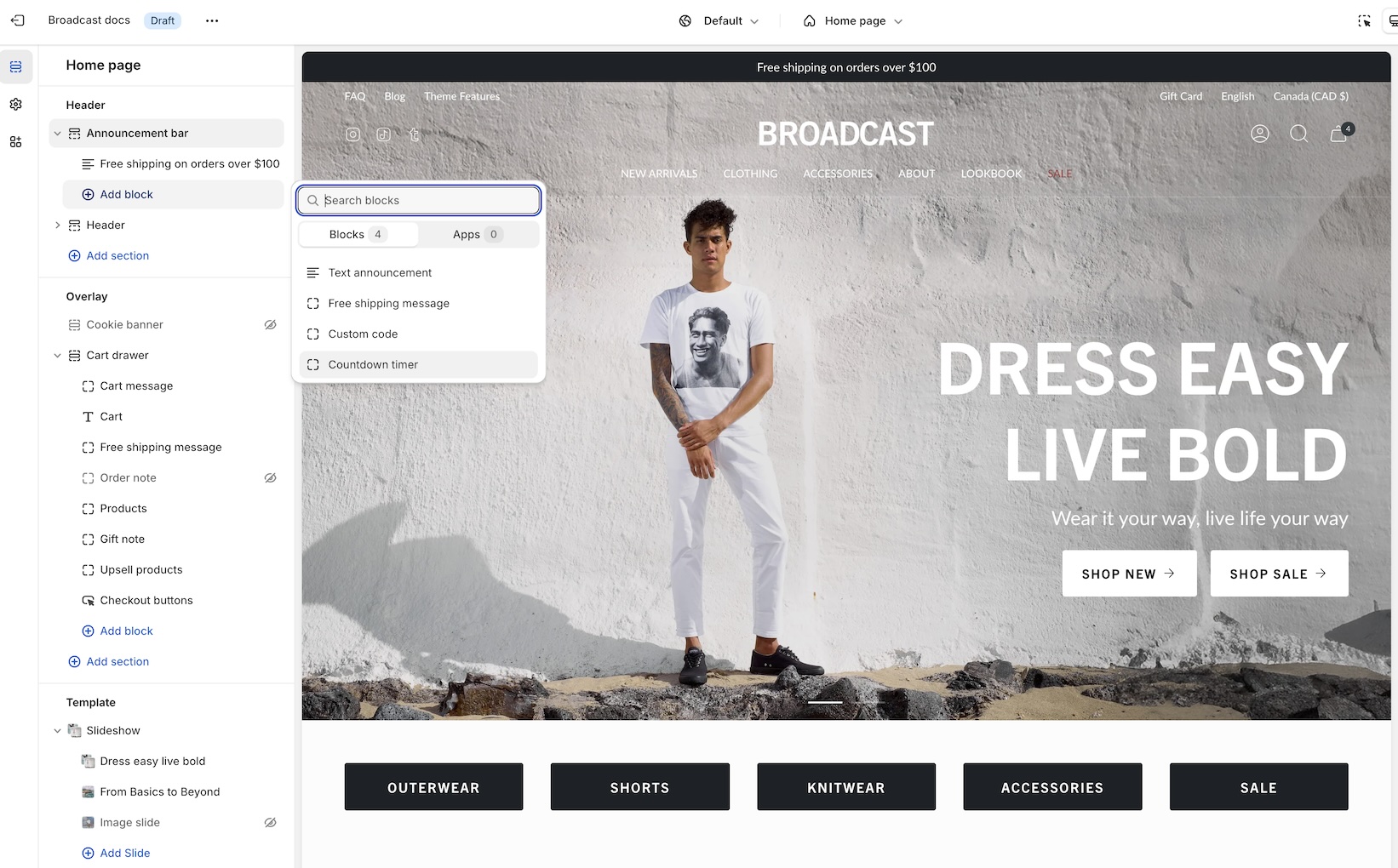
Add the block from the Header -> Announcement bar:
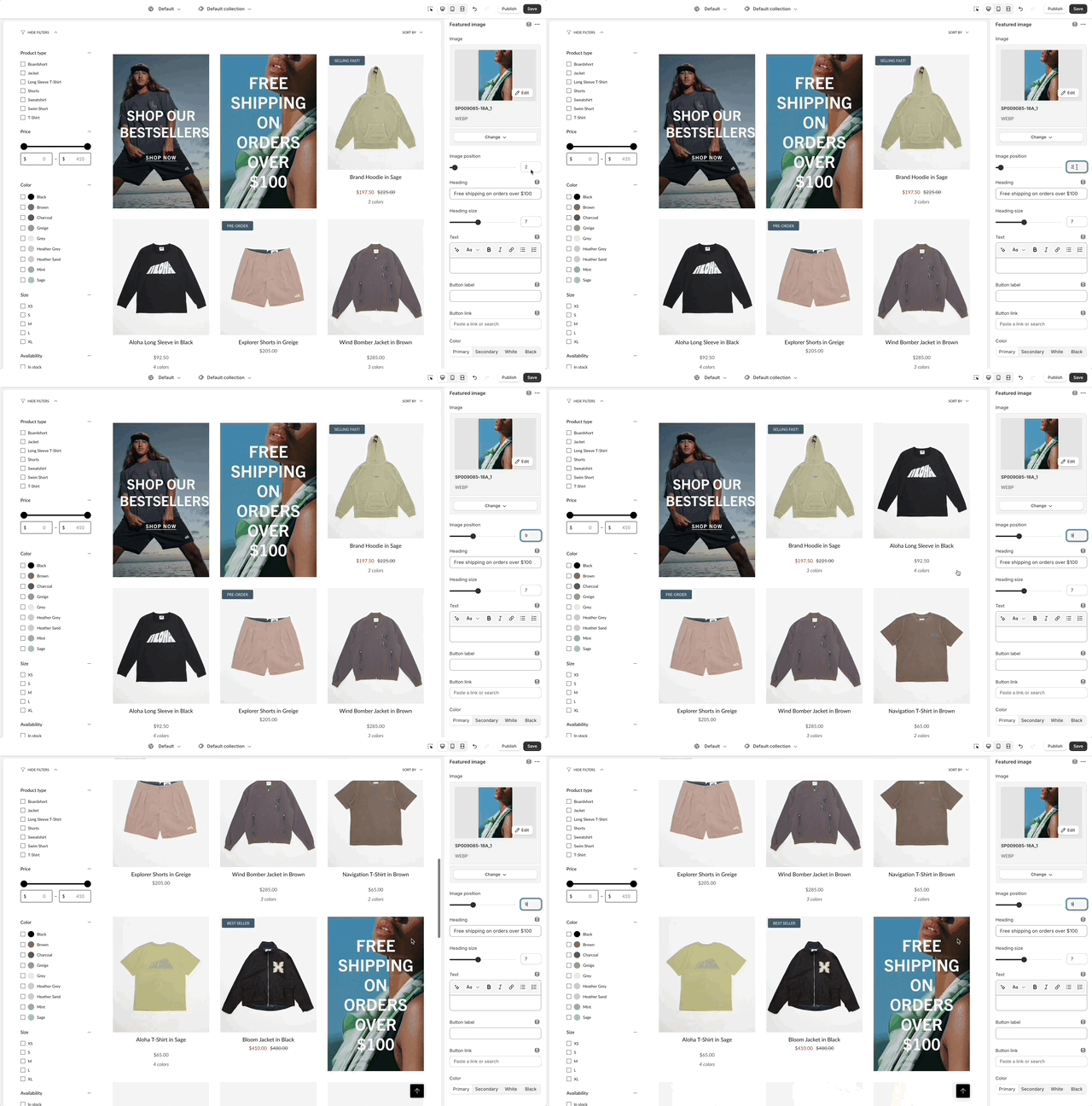
### Collection promotions - Multiple featured image blocks
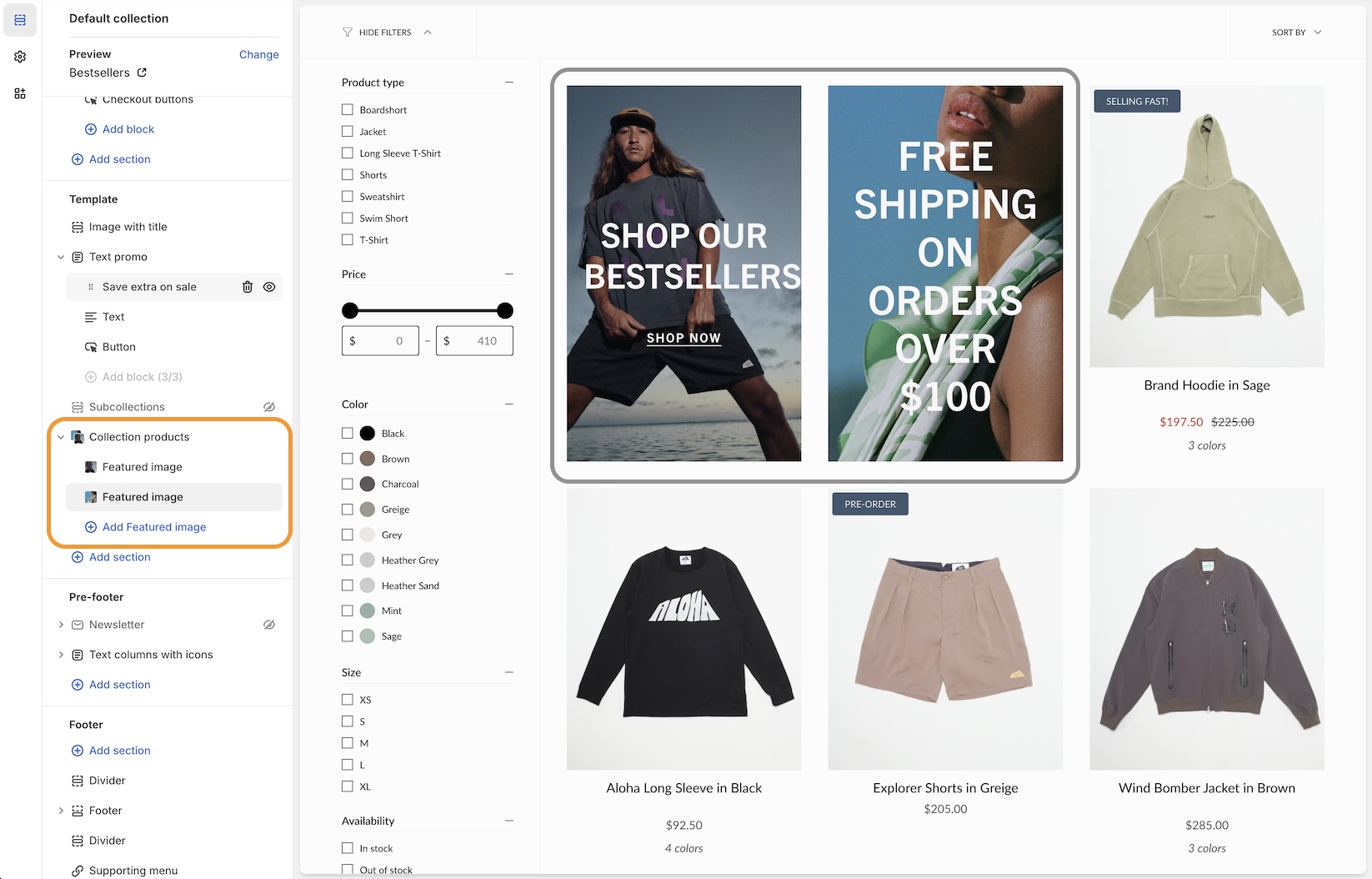
Now, you can add multiple promotions to your collection pages. Additional Featured image blocks can be added to collections:
Add upto three promotions on Collection pages
#### How to position
Position each Featured image block by using the **Image position** slider or enter the value manually:
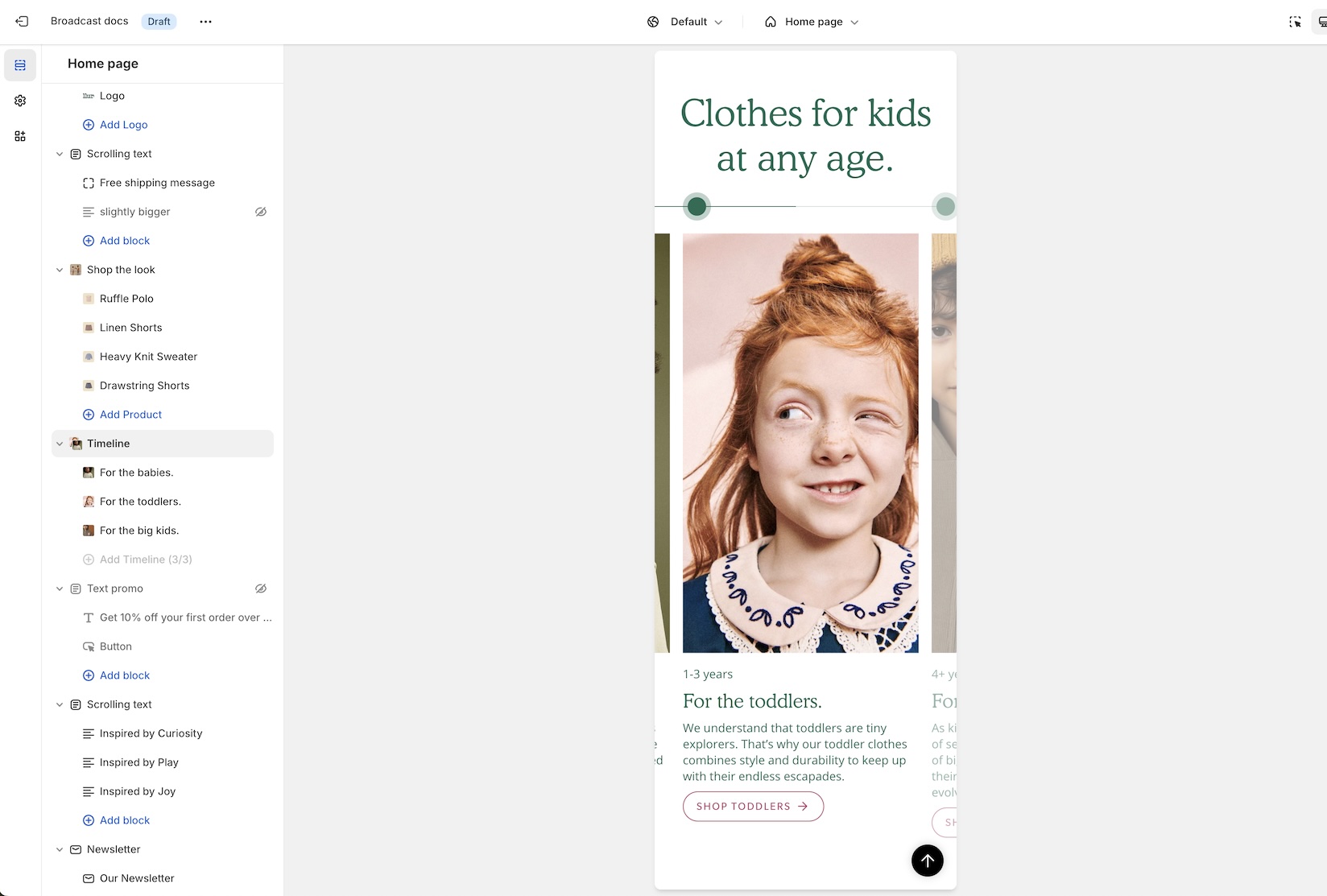
### Mobile timeline design
We've redesigned the mobile timeline section to include a horizontal scroller and cleaner visual presentation:
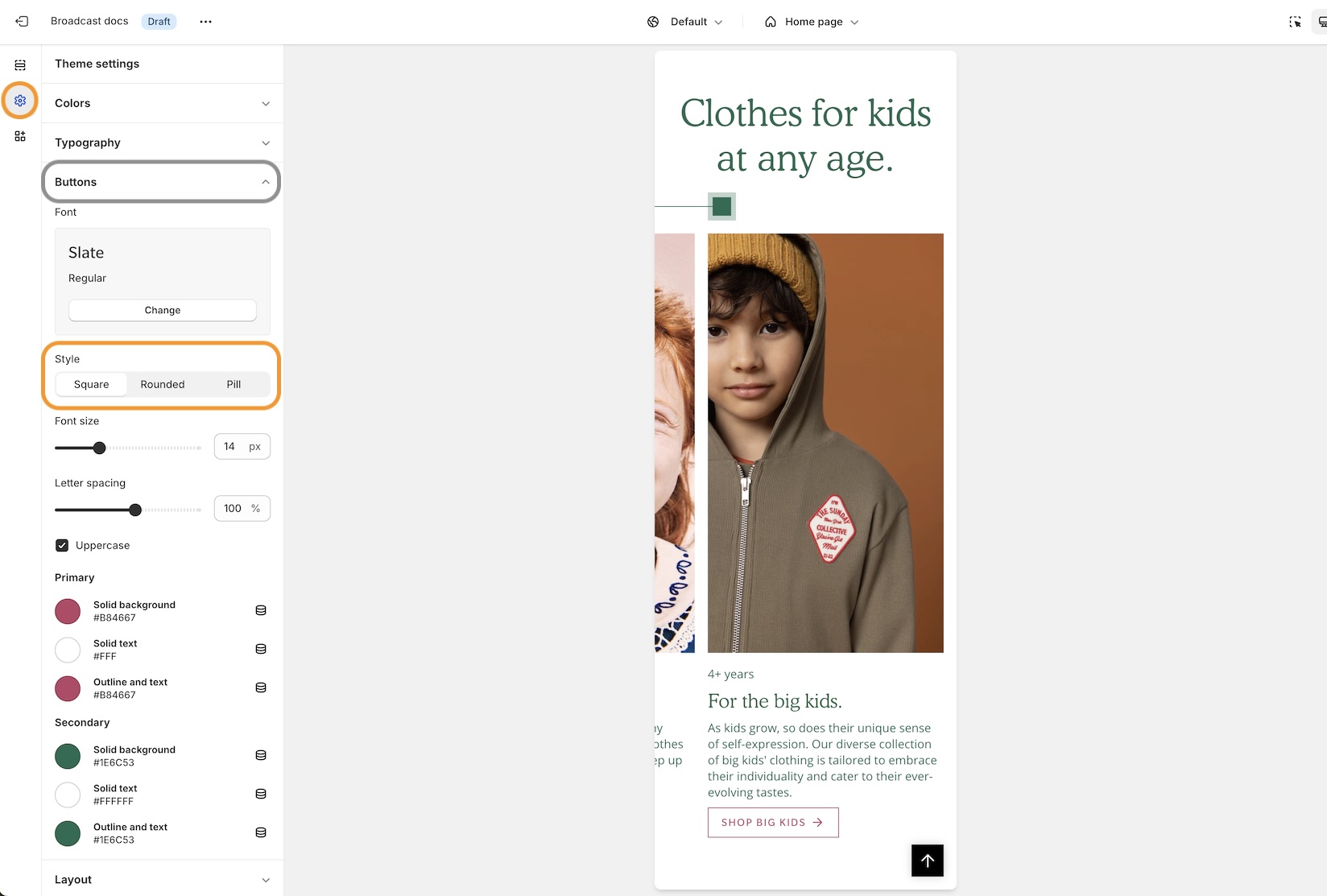
#### Settings
For square, rounded, or pill-styled period moments, use the options under Theme Settings -> Buttons:
Design is configured from Buttons Style
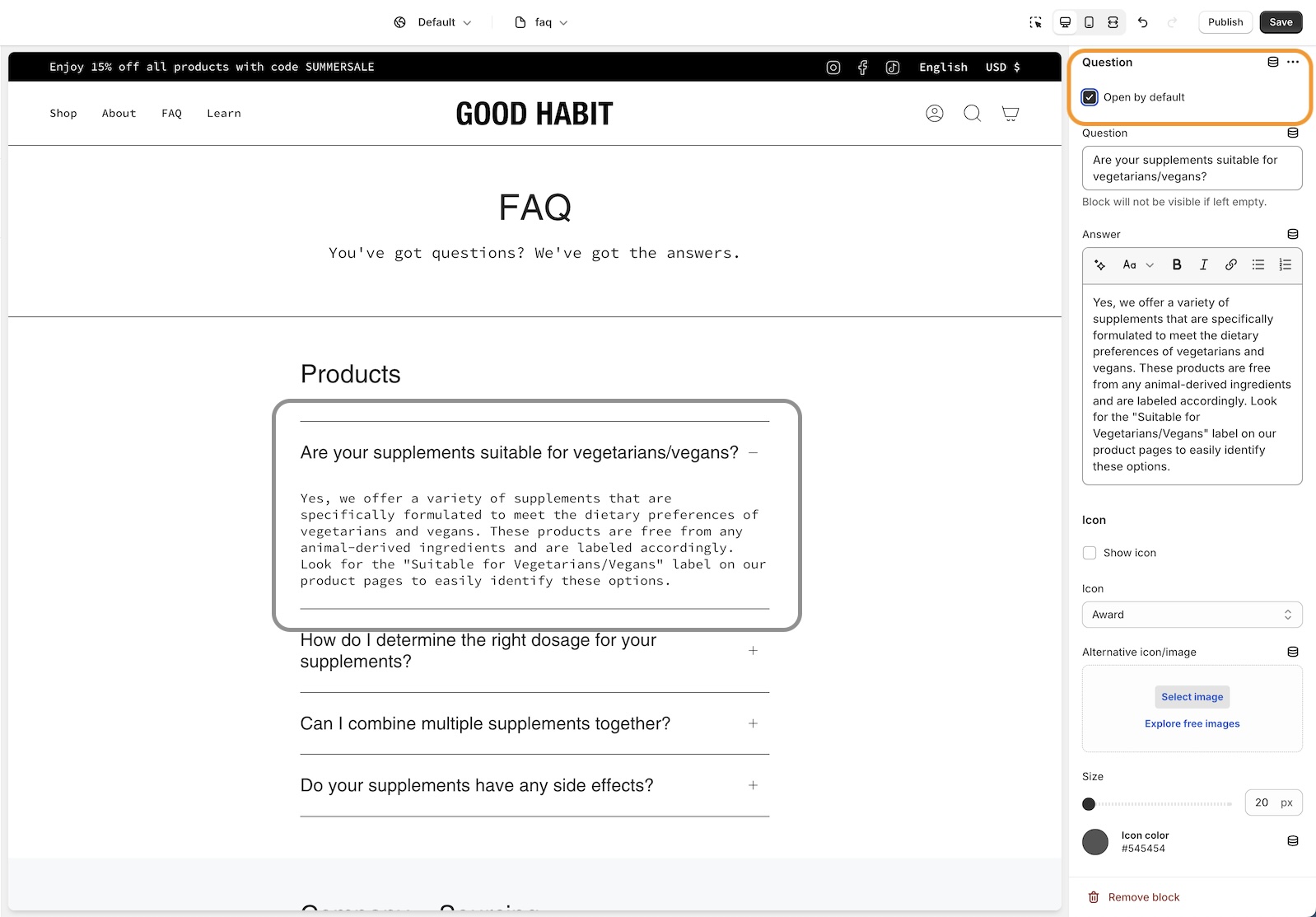
### Accordion and Accordion groups
An open-by-default option has been added to keep certain accordion blocks open when the page is loaded:
### Rich text section and Image with text section
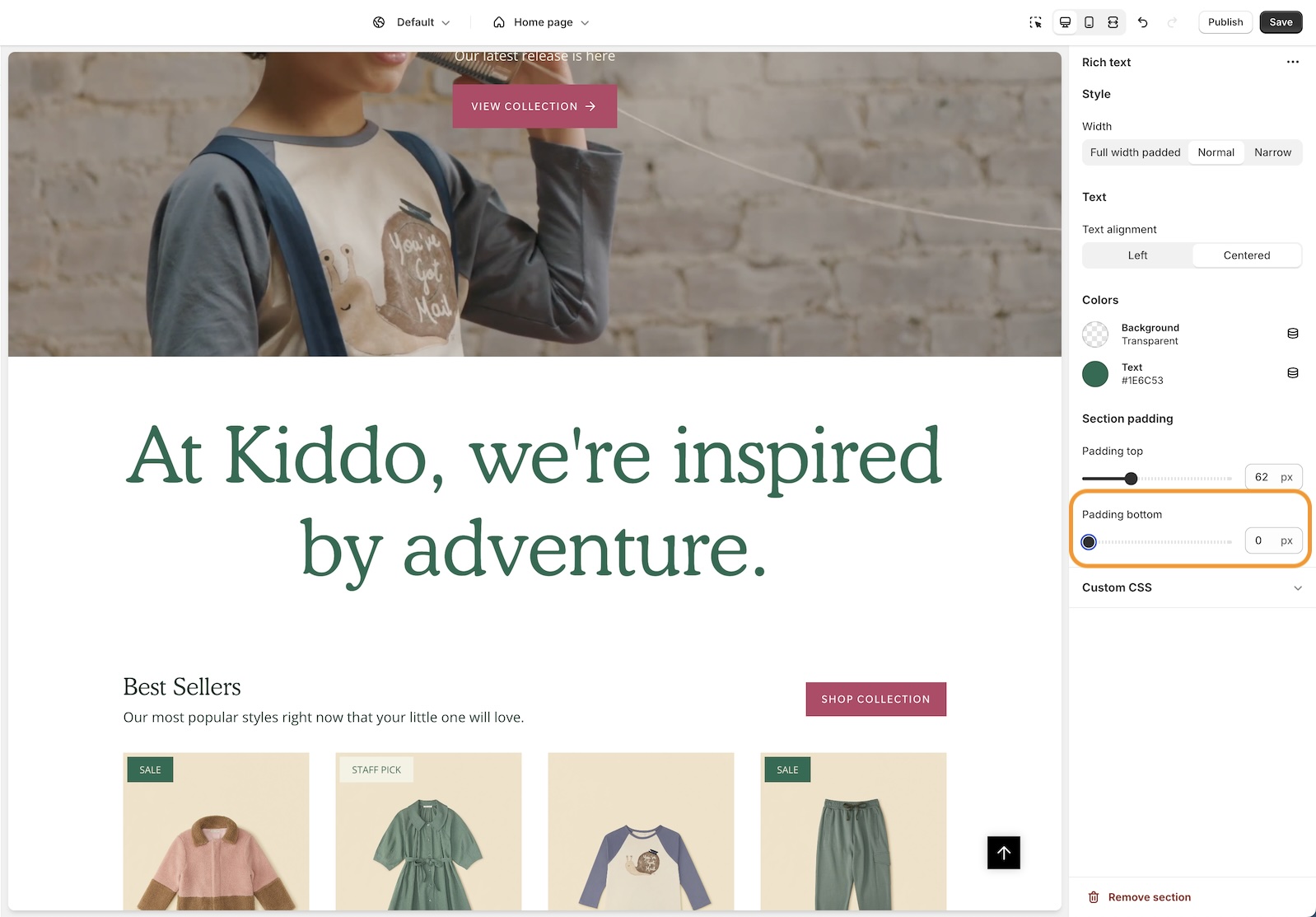
A bottom padding slider has been added to the Rich text and Image with text sections to help you manage spacing between sections:
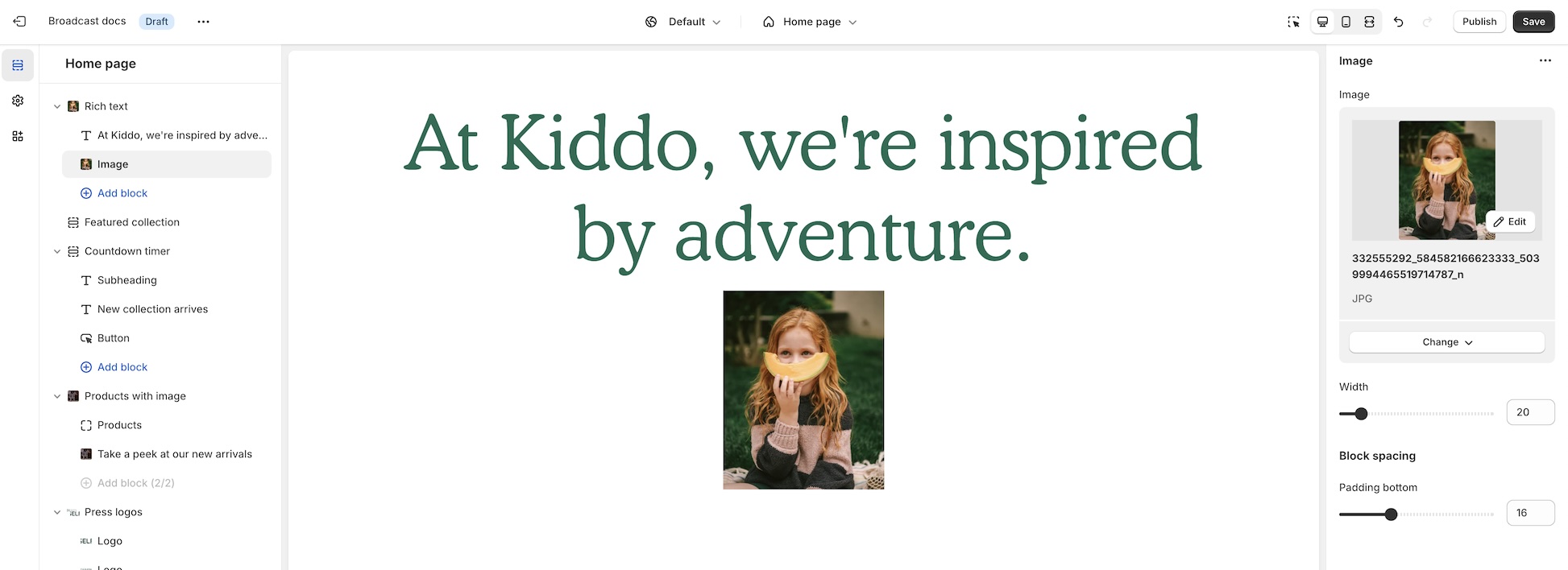
The Rich text section includes an image block option for adding a visual to the main text content:
### Featured product section - Background mobile image
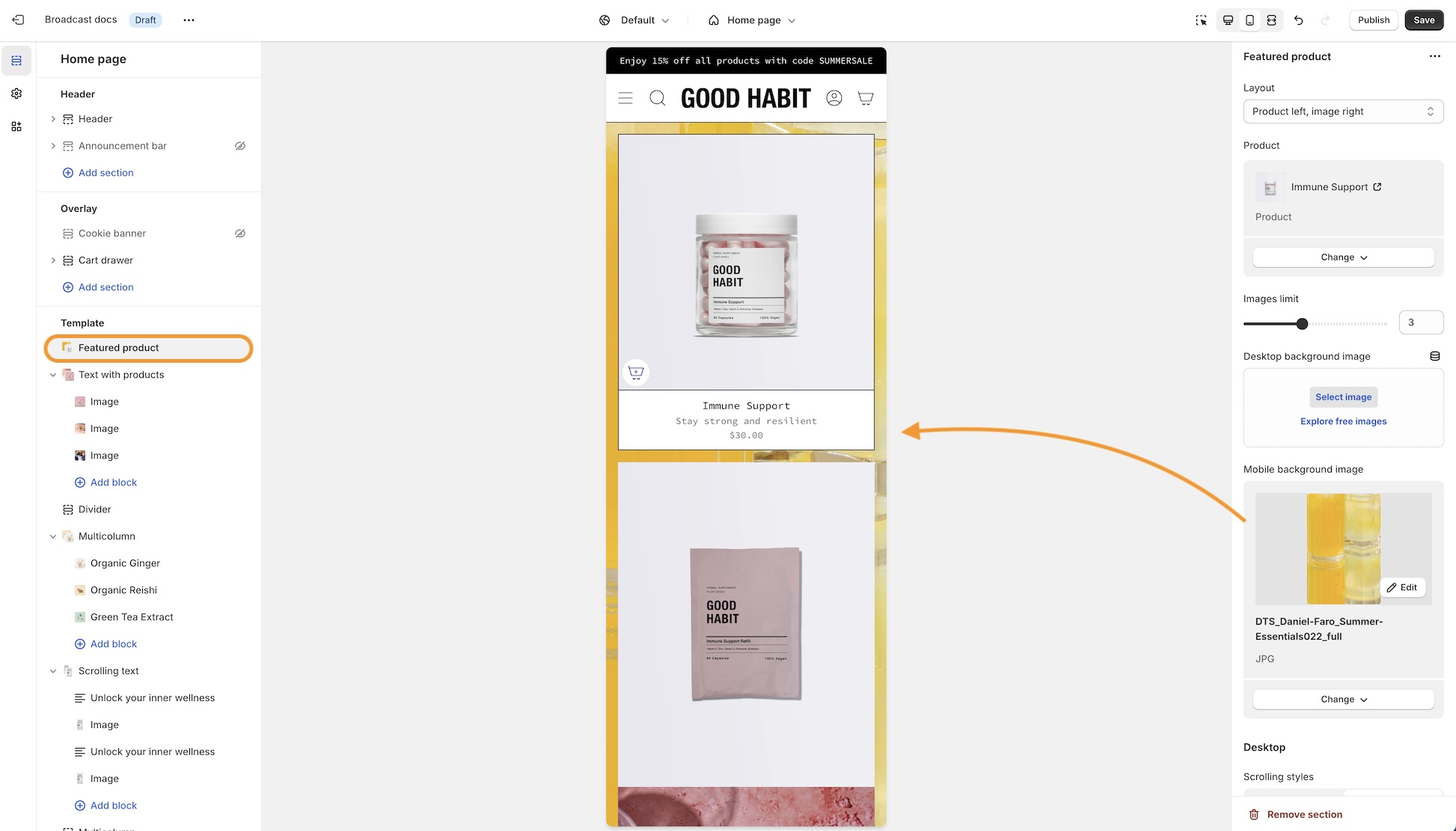
We've added a background image option for mobile devices to enhance the display and scrolling effect:
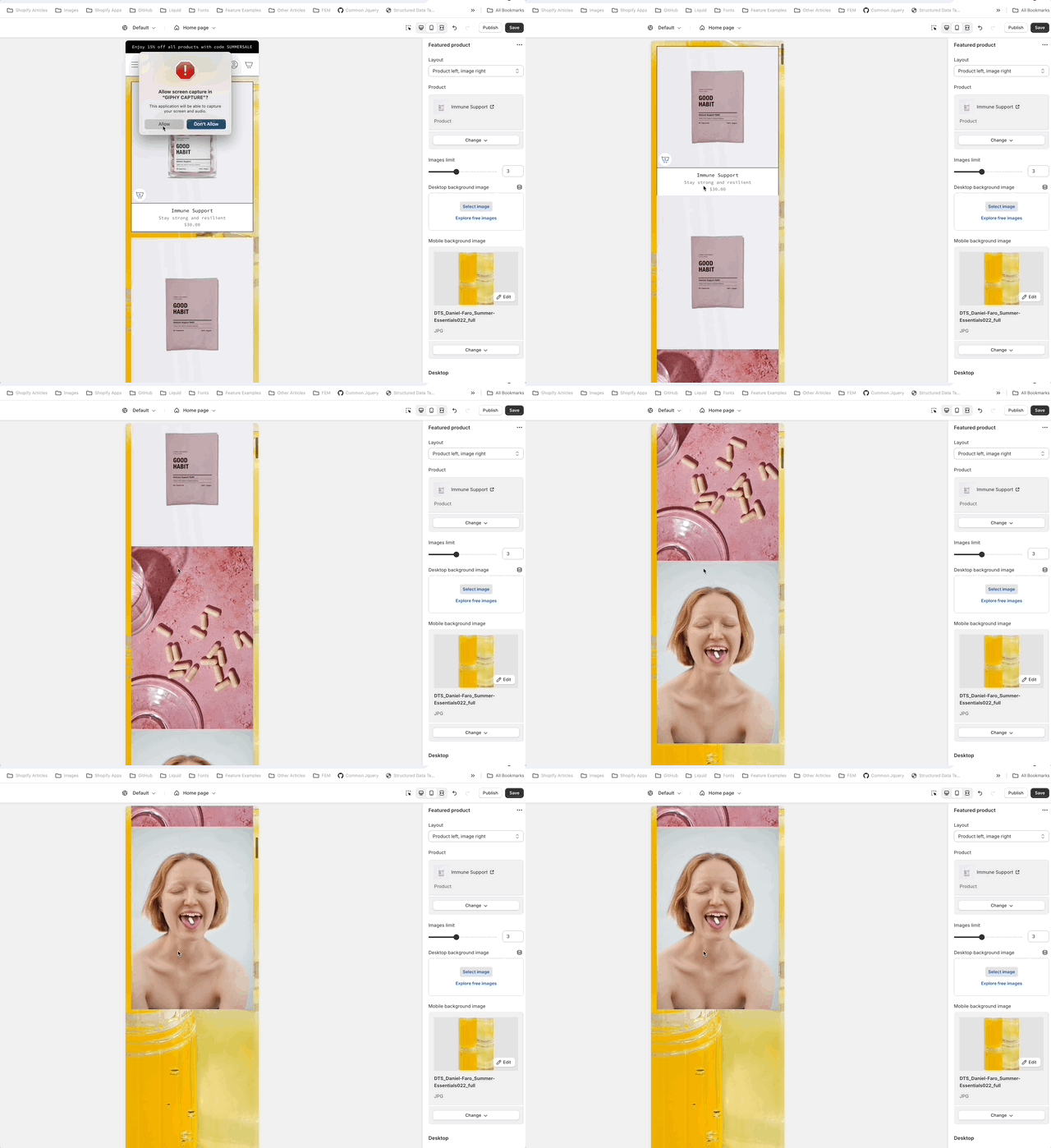
The background image remains sticky as the Featured Product elements are scrolled through:
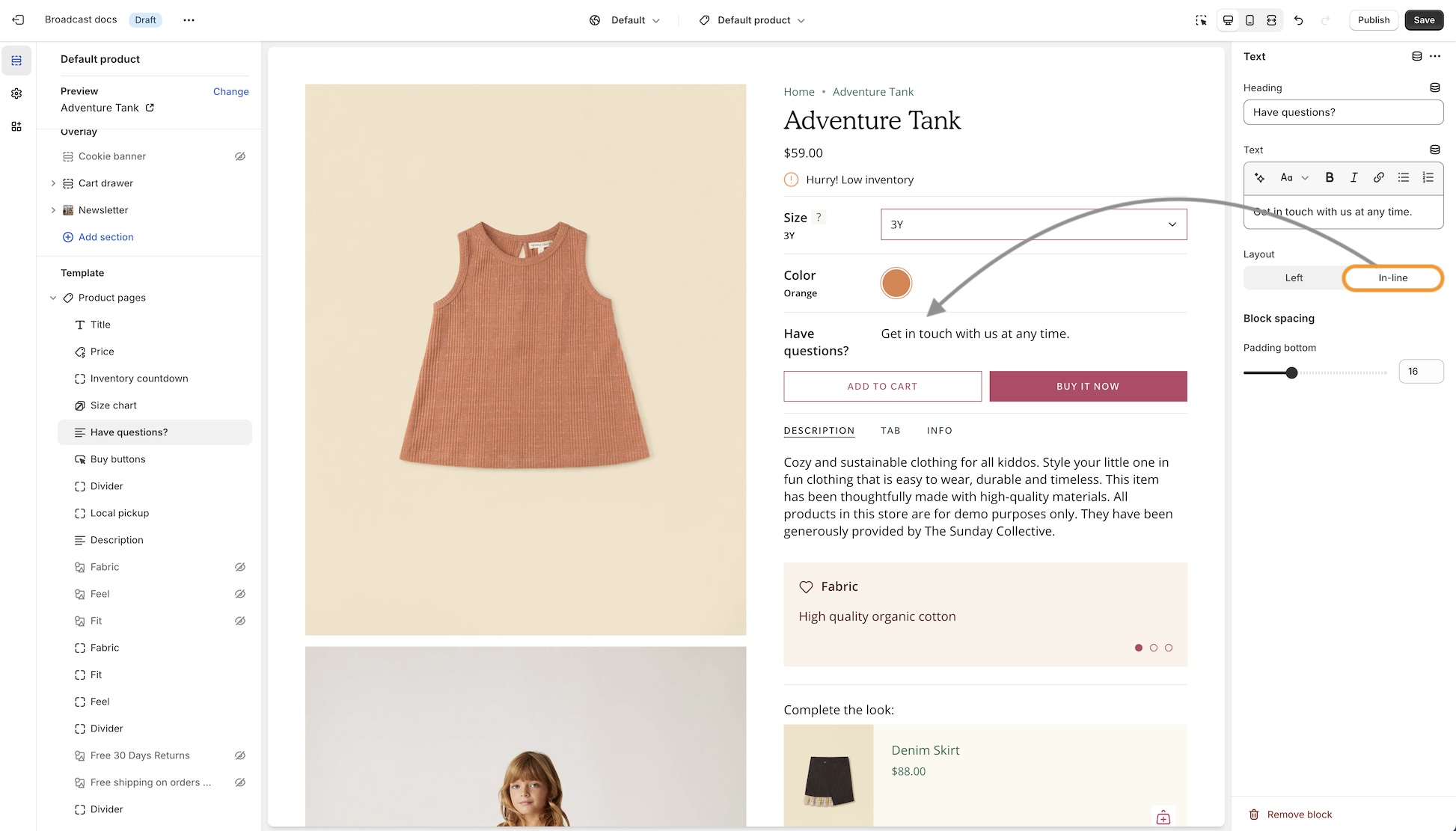
### Product form - Inline option for the text block
You can now have the text block styled to match the variant options when using the modern Product form layout. This places the heading to the left and the text in the next column that matches the style of the variants:
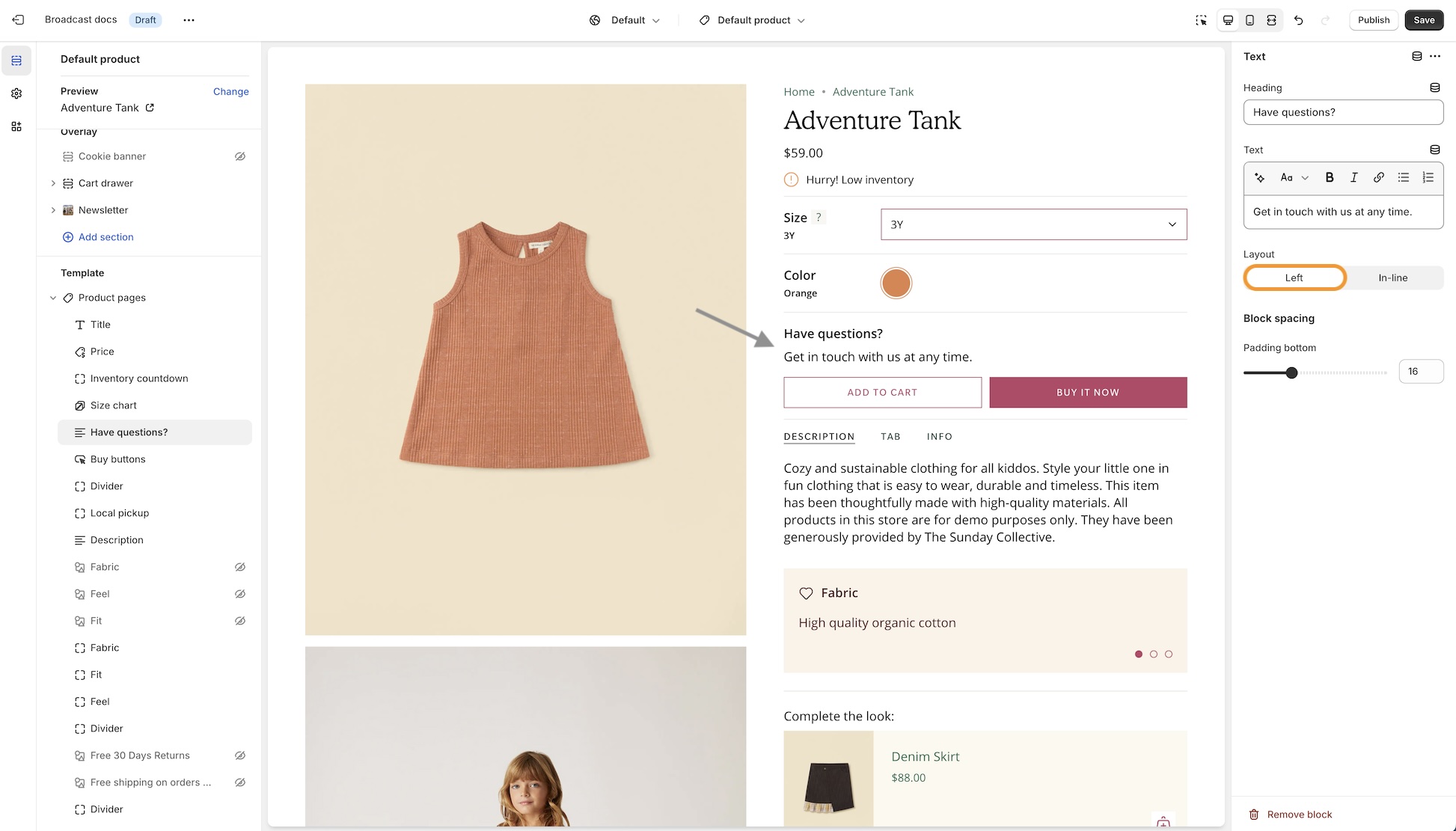
The Left option will show the heading and text in one column and two rows:
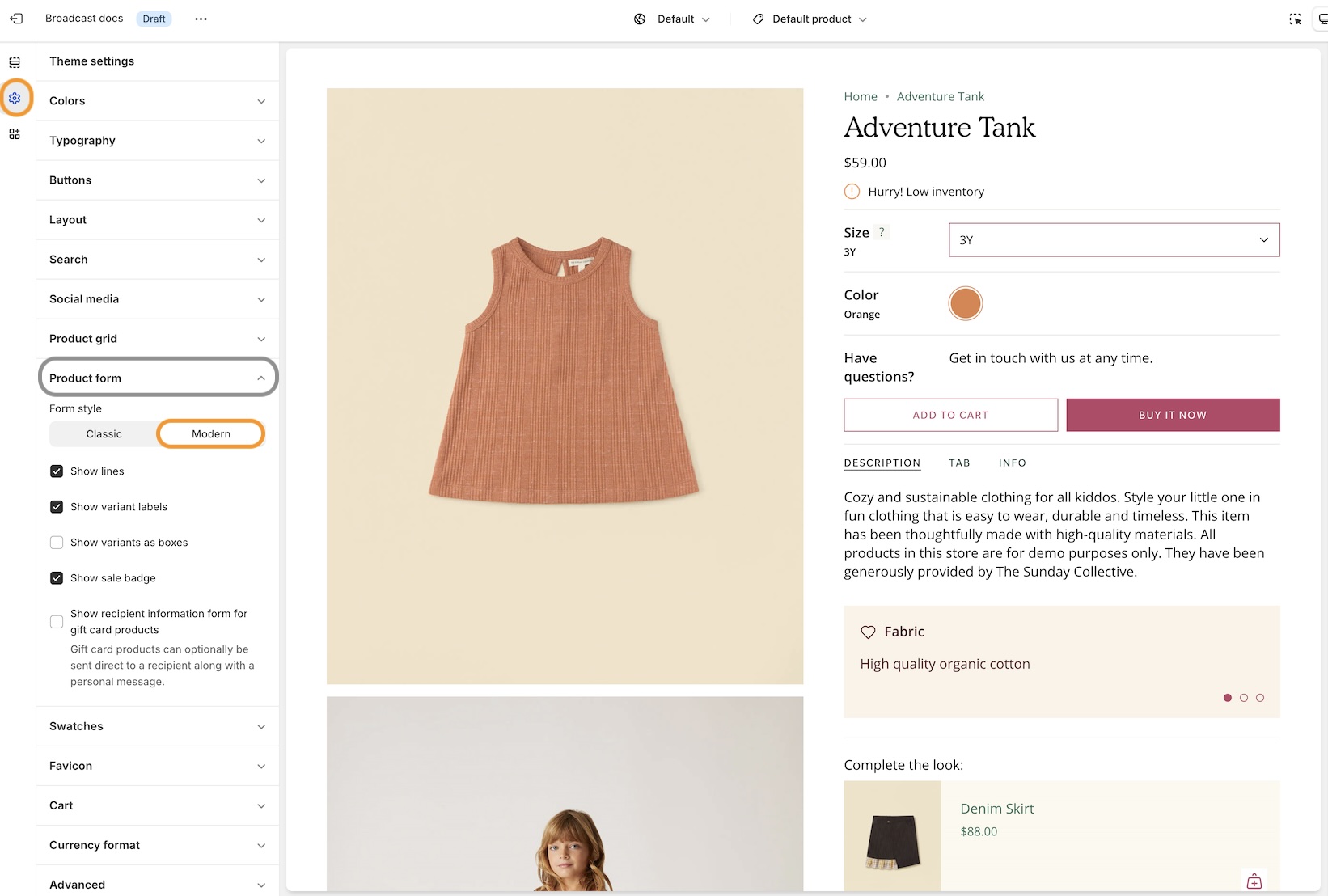
#### Settings
To enable this option, ensure the Modern form style is chosen under the Theme Settings -> Product form:
---
# Agent Instructions
This documentation is published with GitBook. GitBook is the documentation platform designed so that both humans and AI agents can read, navigate, and reason over technical content effectively. Learn more at gitbook.com.
## Querying This Documentation
If you need additional information that is not directly available in this page, you can query the documentation dynamically by asking a question.
Perform an HTTP GET request on the current page URL with the `ask` query parameter, and the optional `goal` query parameter:
```
GET https://broadcast.presidiocreative.com/broadcast-v5/updates/whats-new-in-broadcast/about-v5.5-release.md?ask=&goal=
```
`ask` is the immediate question: it should be specific, self-contained, and written in natural language.
`goal` is optional and describes the broader end goal you are ultimately trying to accomplish on behalf of the user. GitBook uses it to tailor the answer towards what is most useful for that goal.
The response will contain a direct answer to the question and relevant excerpts and sources from the documentation.
Use this mechanism when the answer is not explicitly present in the current page, you need clarification or additional context, or you want to retrieve related documentation sections.