> For the complete documentation index, see [llms.txt](https://broadcast.presidiocreative.com/llms.txt). Markdown versions of documentation pages are available by appending `.md` to page URLs; this page is available as [Markdown](https://broadcast.presidiocreative.com/broadcast-v5/updates/whats-new-in-broadcast/about-v5.2-release.md).
# About v5.2 release
Additional information on recent Broadcast updates
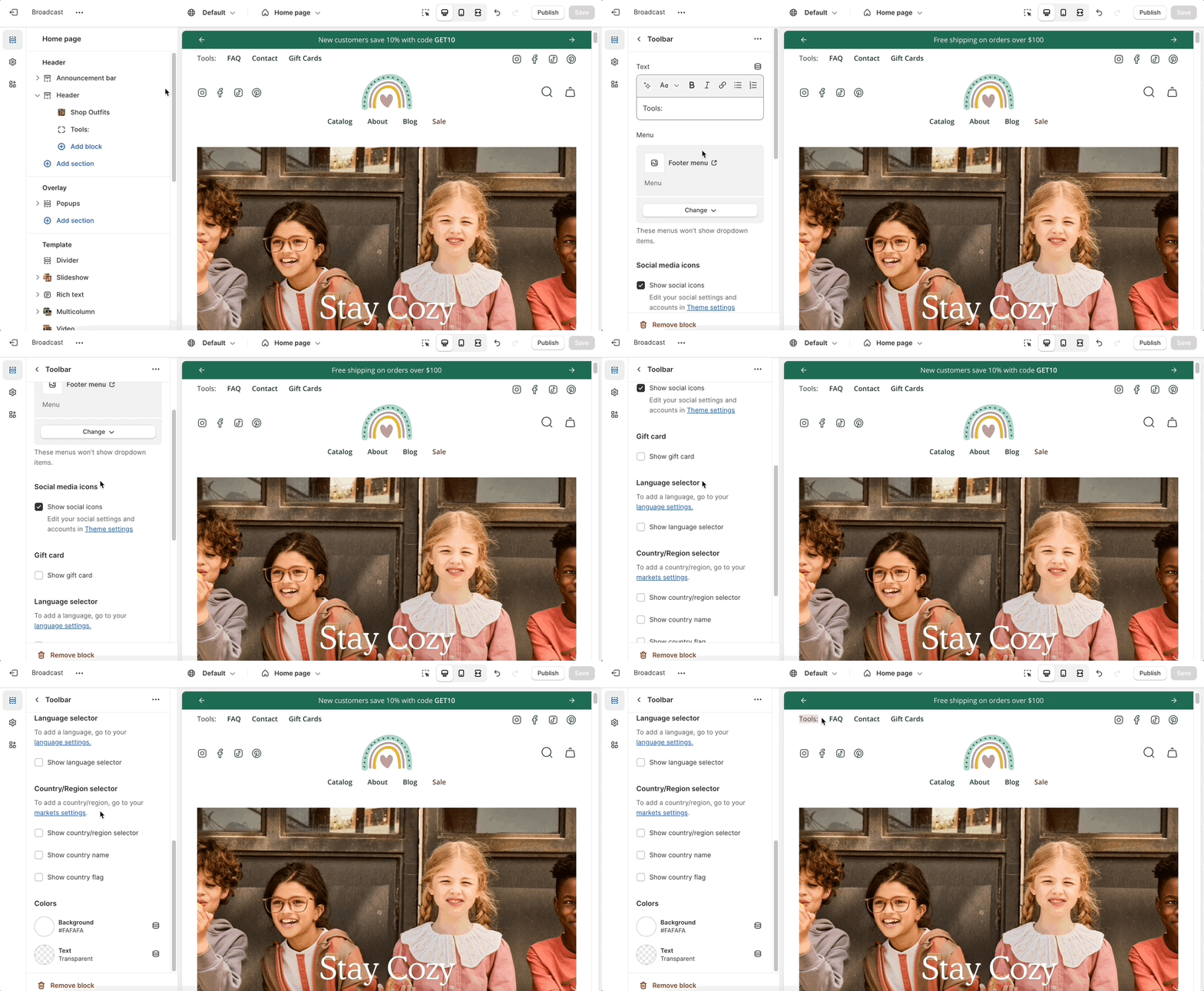
### Header section: Toolbar block
Our latest header block allows you to add more menu items, more icons, and more functionality to your main navigation.
This new option has dedicated controls to show a menu, country and region selectors, a currency picker, social media icons as well as dedicated color settings (for the background and text).
{% hint style="success" %}
Note: When the hamburger menu is enabled, links from the navigation menu will be added to the side drawer.
{% endhint %}
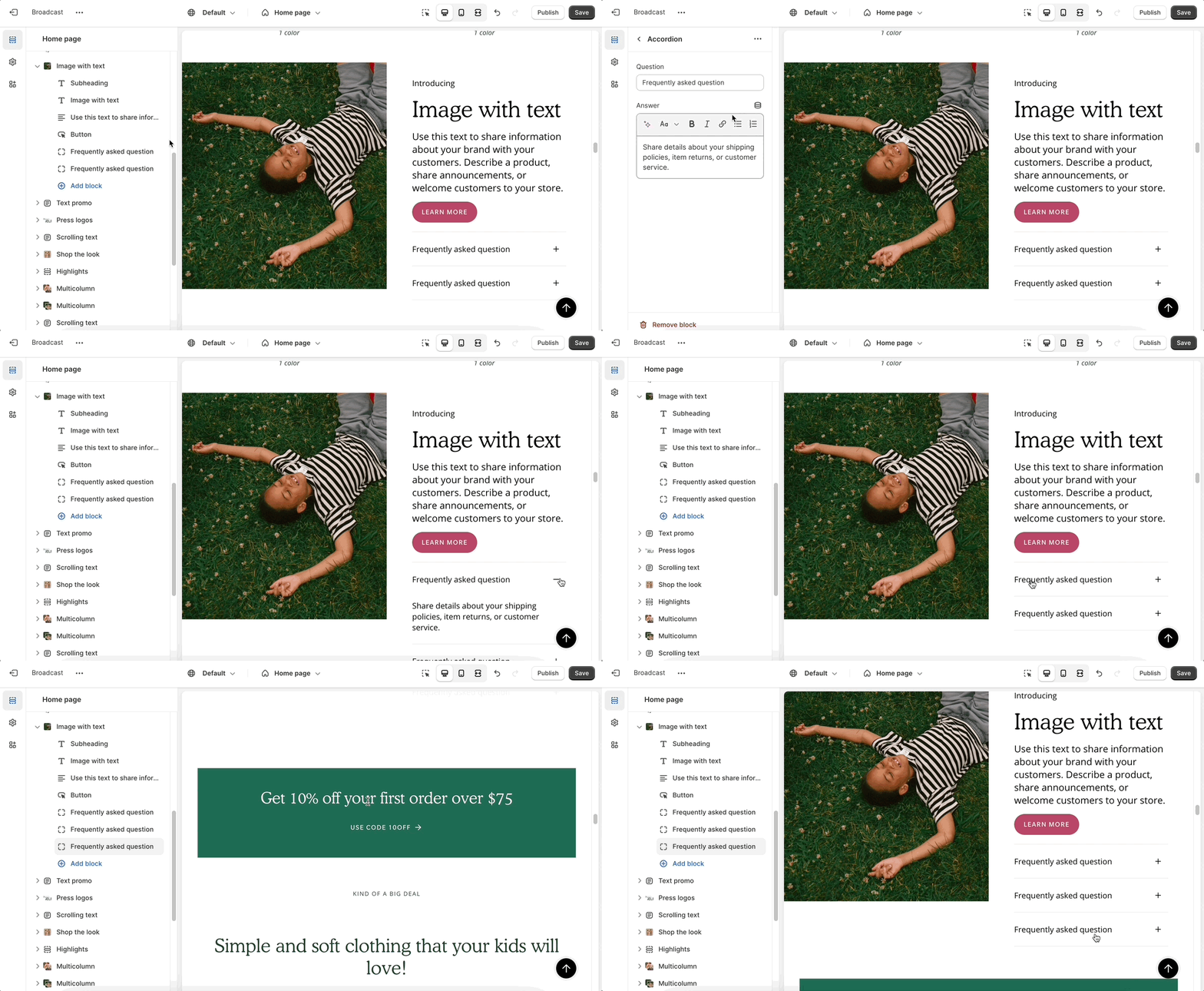
### Image with text: Accordion block
Accordions are making their way to more sections. Add expandable blocks to your Image with text section.
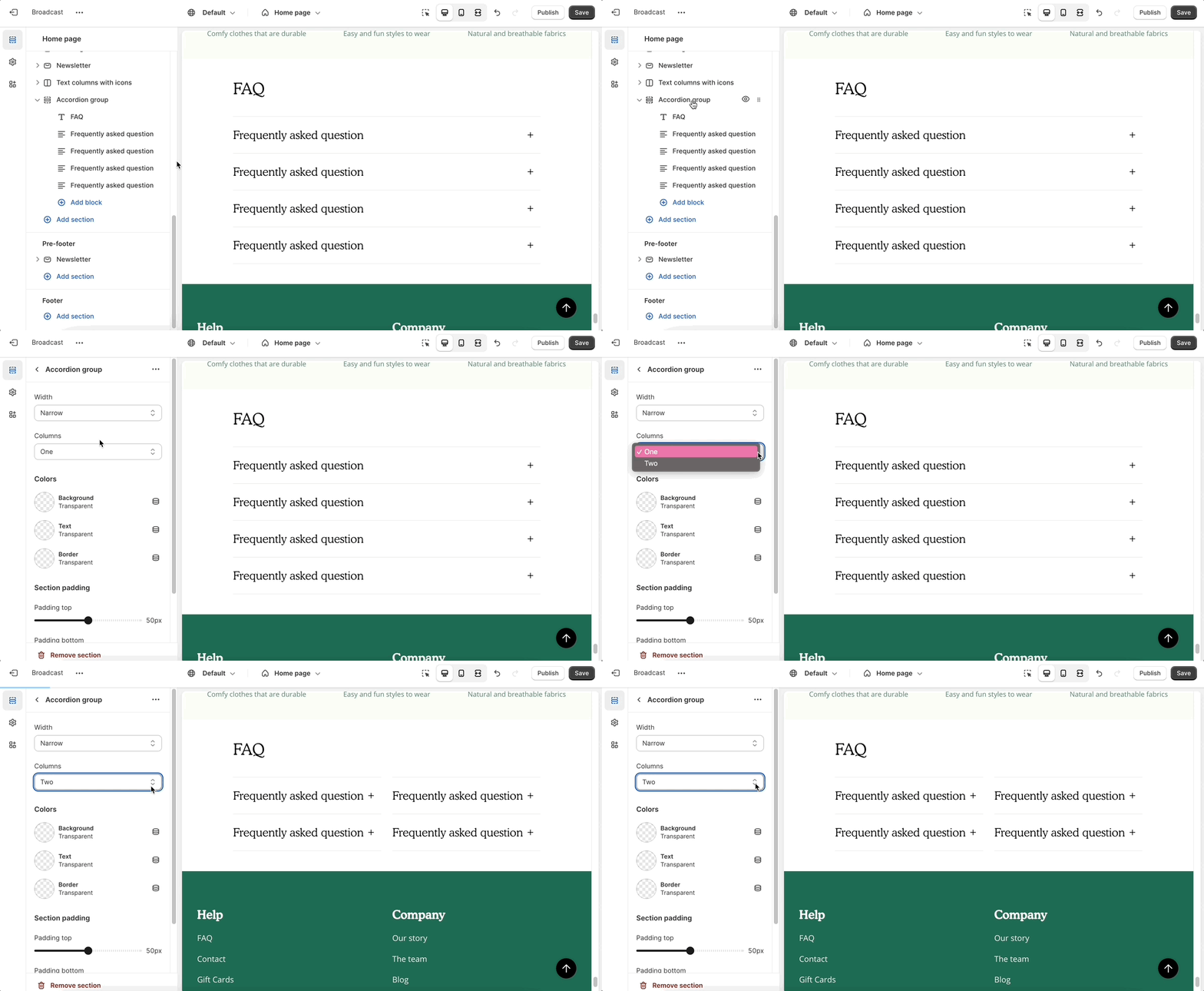
### Accordion group: new option
Show two columns of tabs with the new option in the accordion group section:
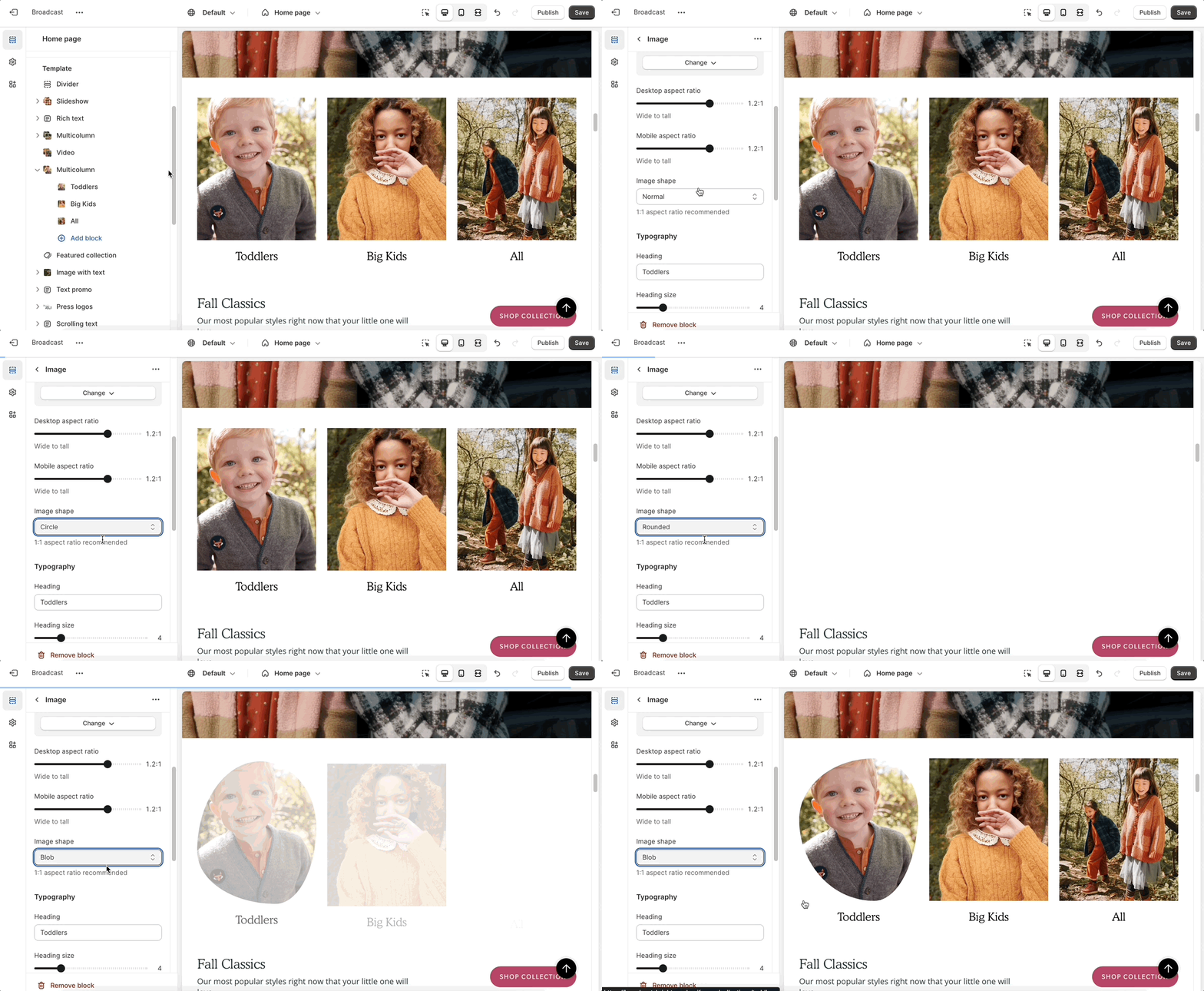
### Multicolumn: new option
There are three new ways to display your image blocks in the multicolumn section. First, be sure to add an image block:
Select an image shape from the individual block settings. Try out the new blob and its hover animation!
### Footer group: new block & section:
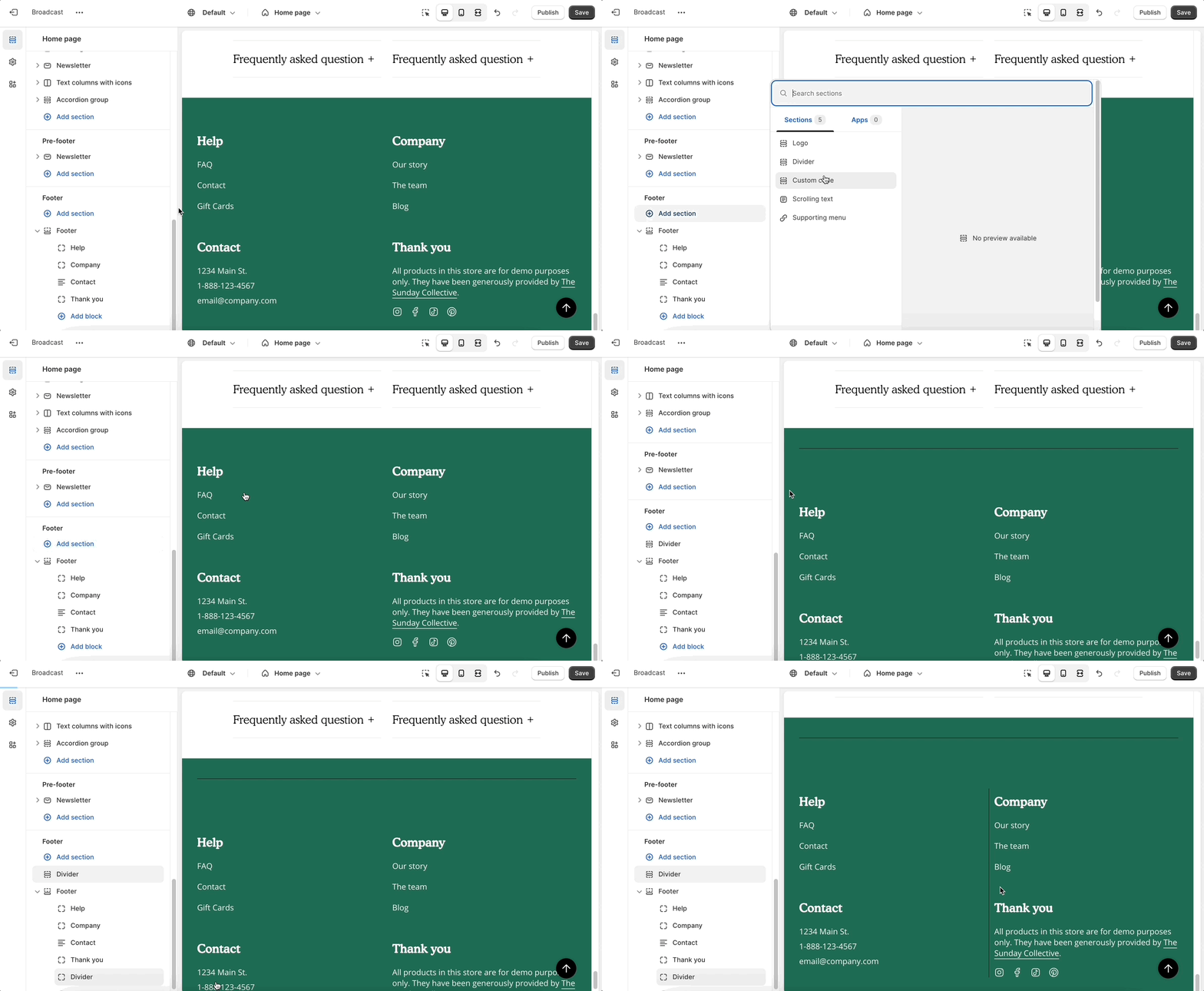
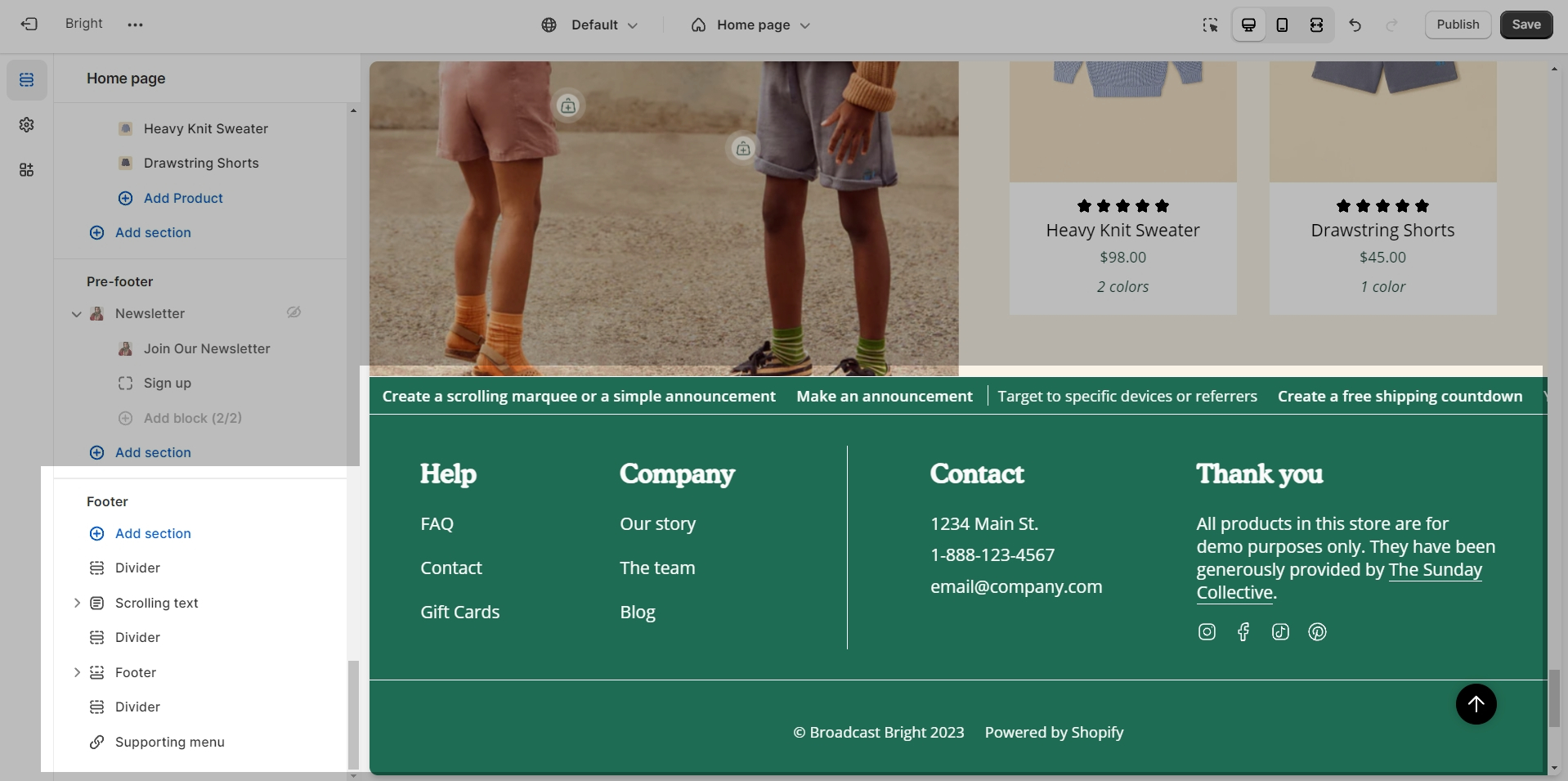
The divider section has made its way to the footer group. Use it to add a horizontal ruler and separate the content above the header.
There is also a divider block inside the footer section itself. Use the individual block settings to adjust the width and space everything perfectly around it:
---
# Agent Instructions
This documentation is published with GitBook. GitBook is the documentation platform designed so that both humans and AI agents can read, navigate, and reason over technical content effectively. Learn more at gitbook.com.
## Querying This Documentation
If you need additional information that is not directly available in this page, you can query the documentation dynamically by asking a question.
Perform an HTTP GET request on the current page URL with the `ask` query parameter, and the optional `goal` query parameter:
```
GET https://broadcast.presidiocreative.com/broadcast-v5/updates/whats-new-in-broadcast/about-v5.2-release.md?ask=&goal=
```
`ask` is the immediate question: it should be specific, self-contained, and written in natural language.
`goal` is optional and describes the broader end goal you are ultimately trying to accomplish on behalf of the user. GitBook uses it to tailor the answer towards what is most useful for that goal.
The response will contain a direct answer to the question and relevant excerpts and sources from the documentation.
Use this mechanism when the answer is not explicitly present in the current page, you need clarification or additional context, or you want to retrieve related documentation sections.