> For the complete documentation index, see [llms.txt](https://broadcast.presidiocreative.com/llms.txt). Markdown versions of documentation pages are available by appending `.md` to page URLs; this page is available as [Markdown](https://broadcast.presidiocreative.com/broadcast-v5/updates/whats-new-in-broadcast/about-v5.0-release.md).
# About v5.0 release
Additional information on recent Broadcast updates
### Gift card - Send directly to the recipient with a message
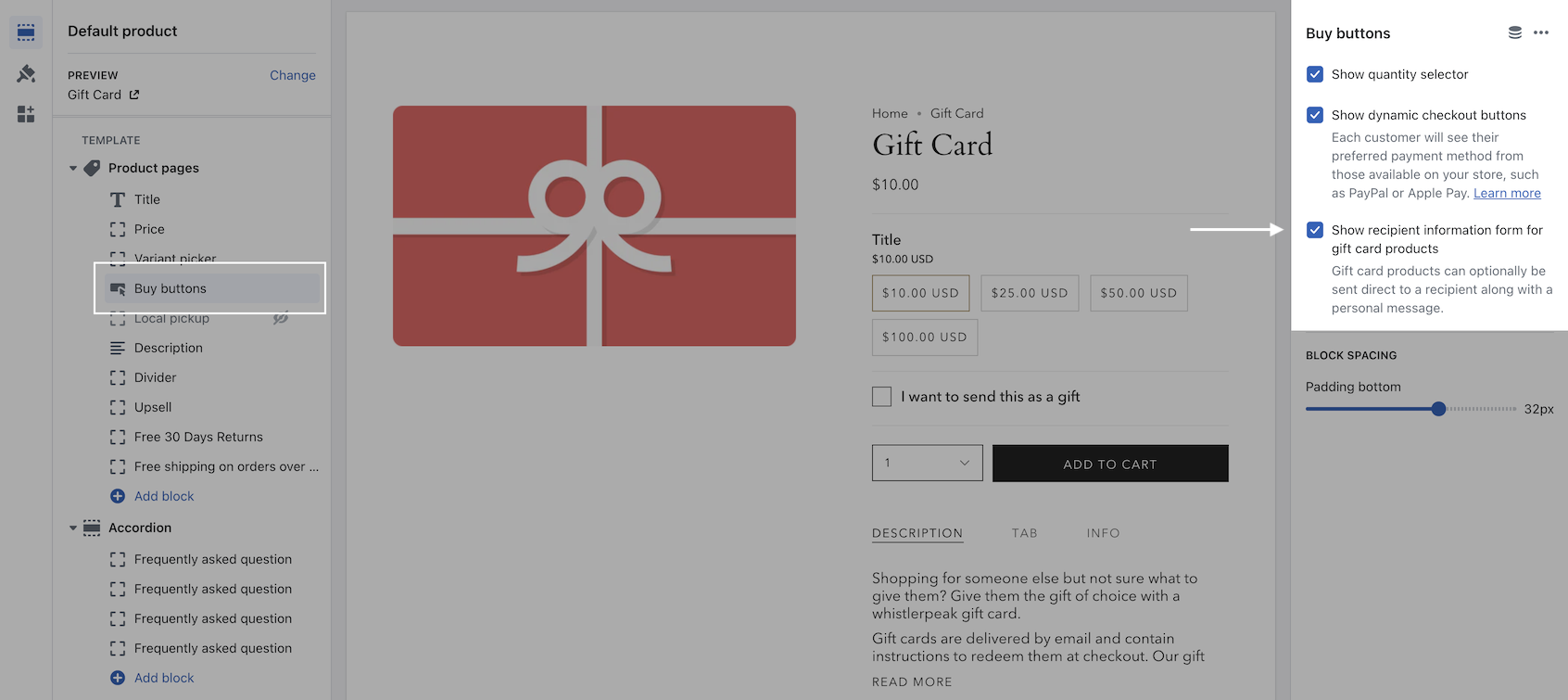
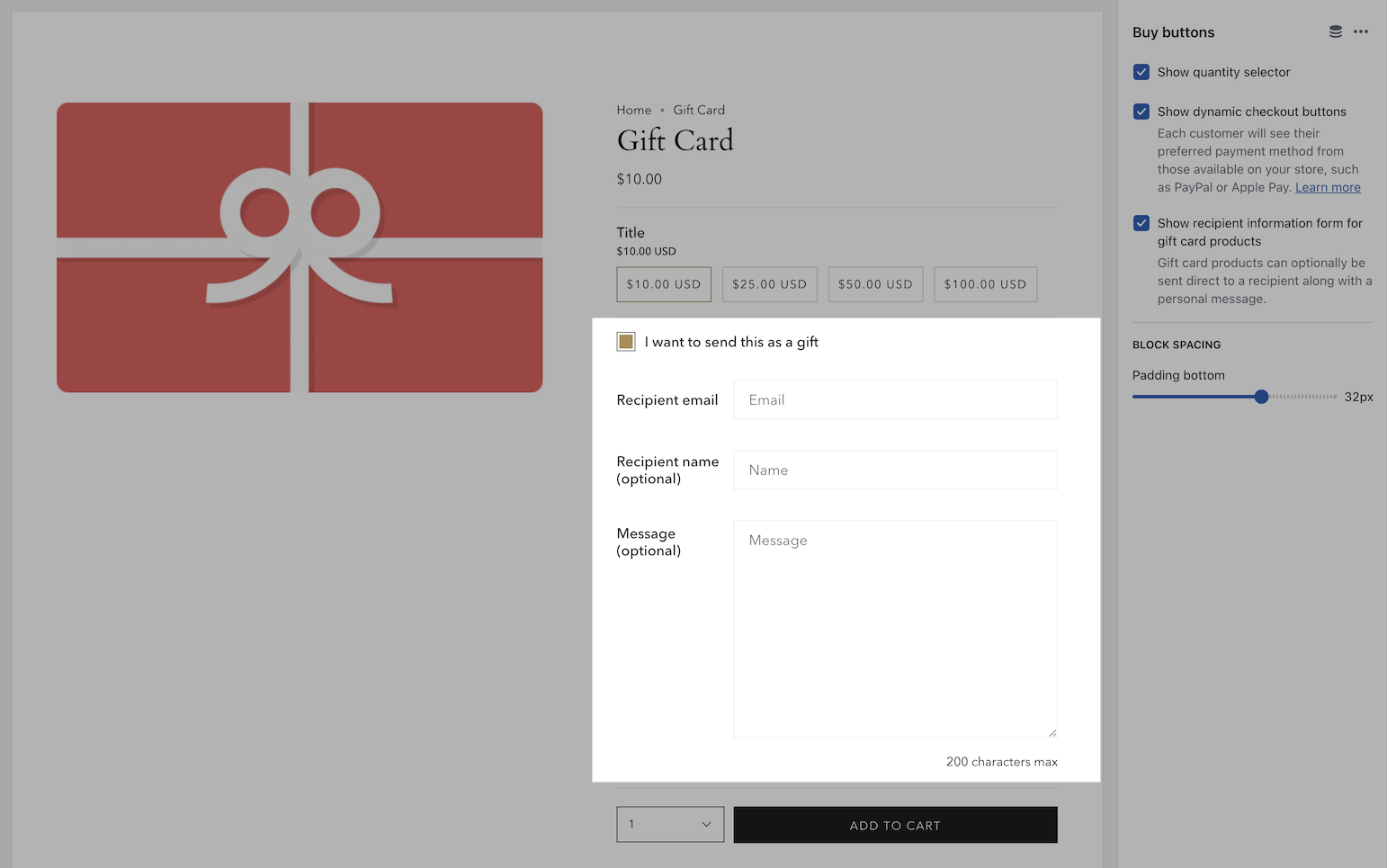
Customers can now send a gift card directly to the recipient's email and include a personal message.
In the Theme Editor, use the checkbox option on the Buy buttons block to enable.
The customer will then have the option to send it as a gift:
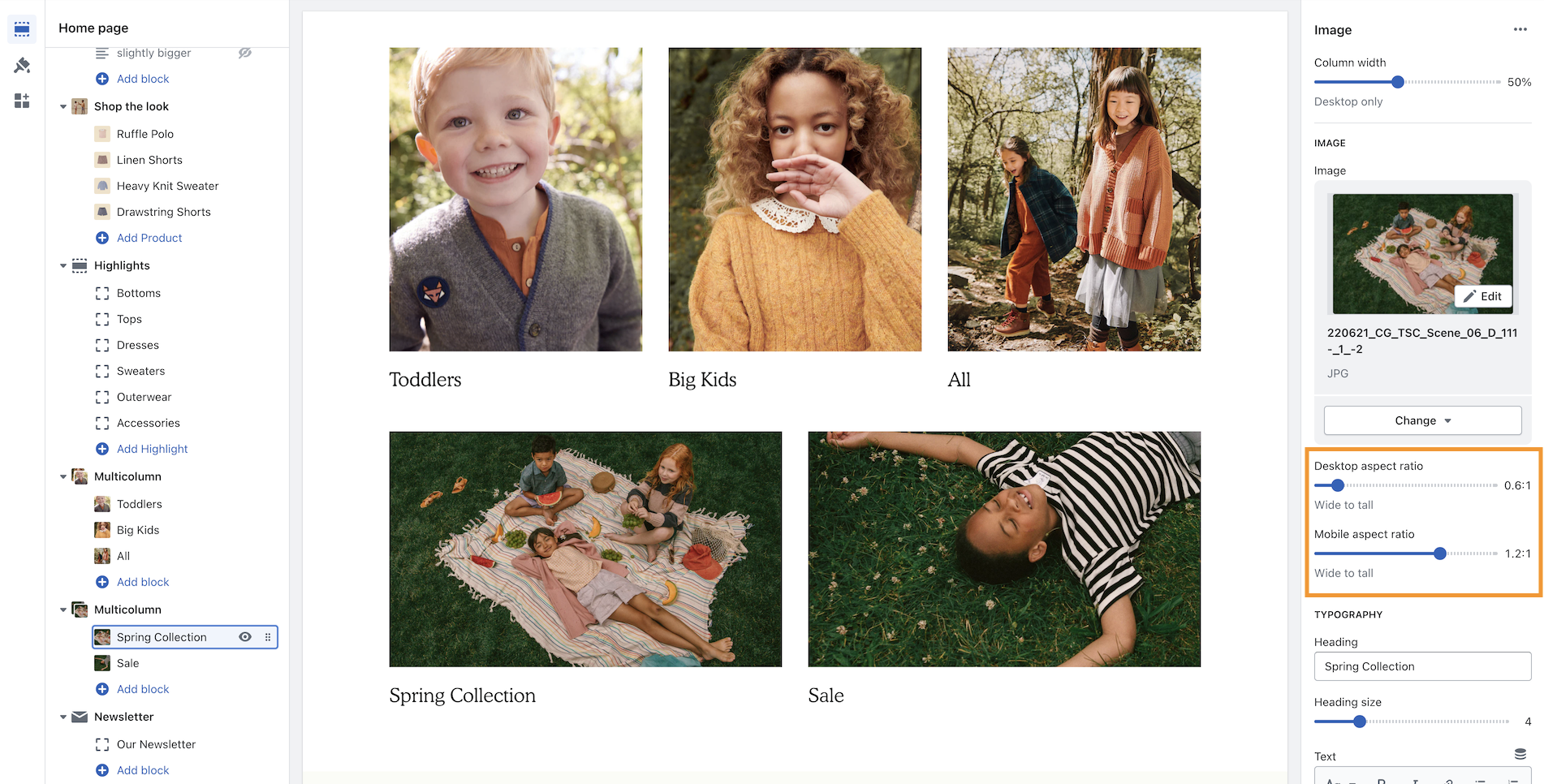
### Multicolumn - New mobile aspect ratio setting
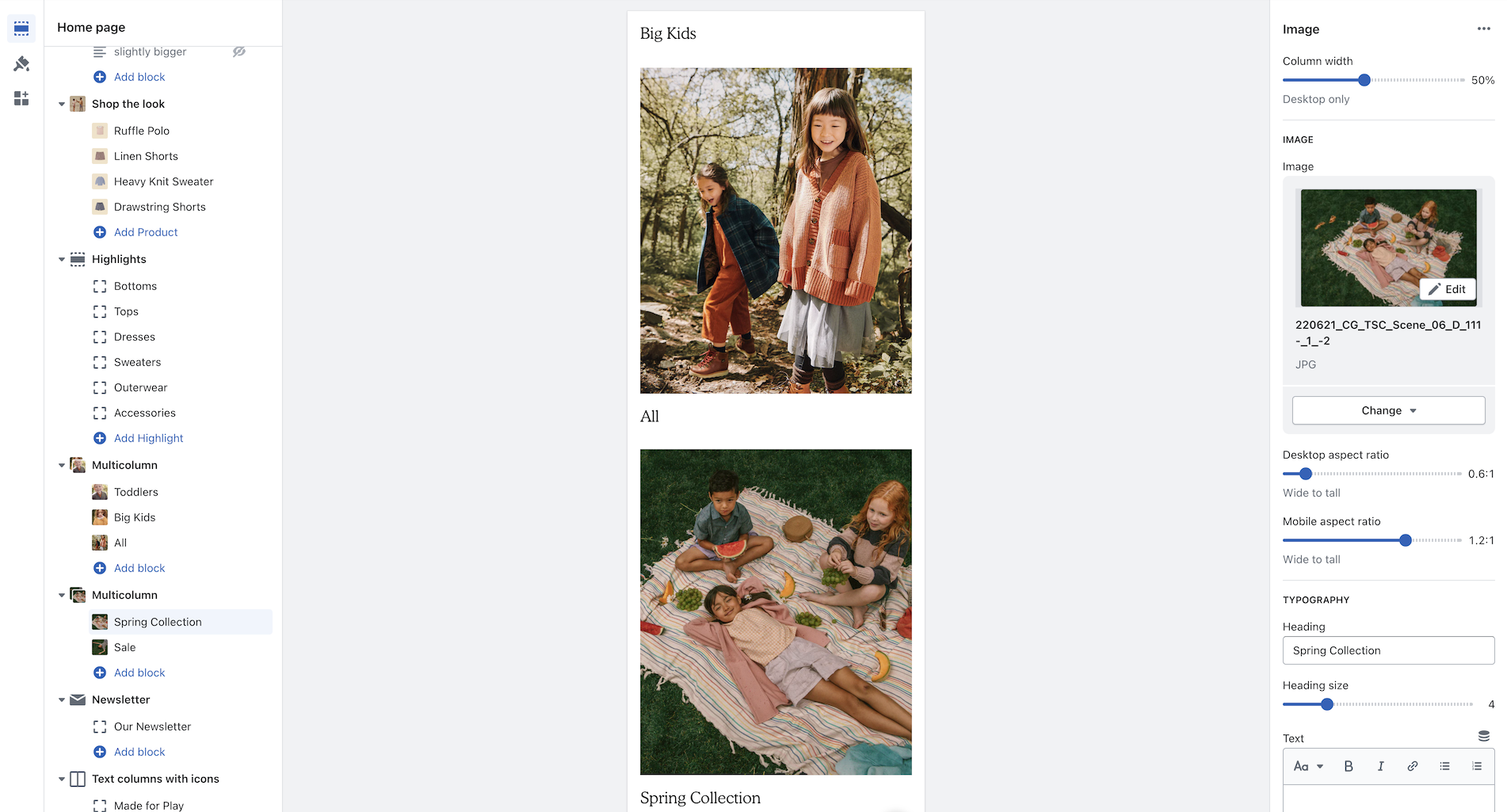
An image aspect ratio for mobile has been added in Broadcast 5.0. This will help provide more flexibility when designing complex layouts. In the example below, two Multicolumn sections are used to build a mosaic. The second has wider images. With the new settings, the mobile aspect ratio can be adjusted to make the images consistent with the section above:
Example of wider desktop images showing with 1:2:1 aspect ratio for mobile which matches the section image sizes of the previous section:
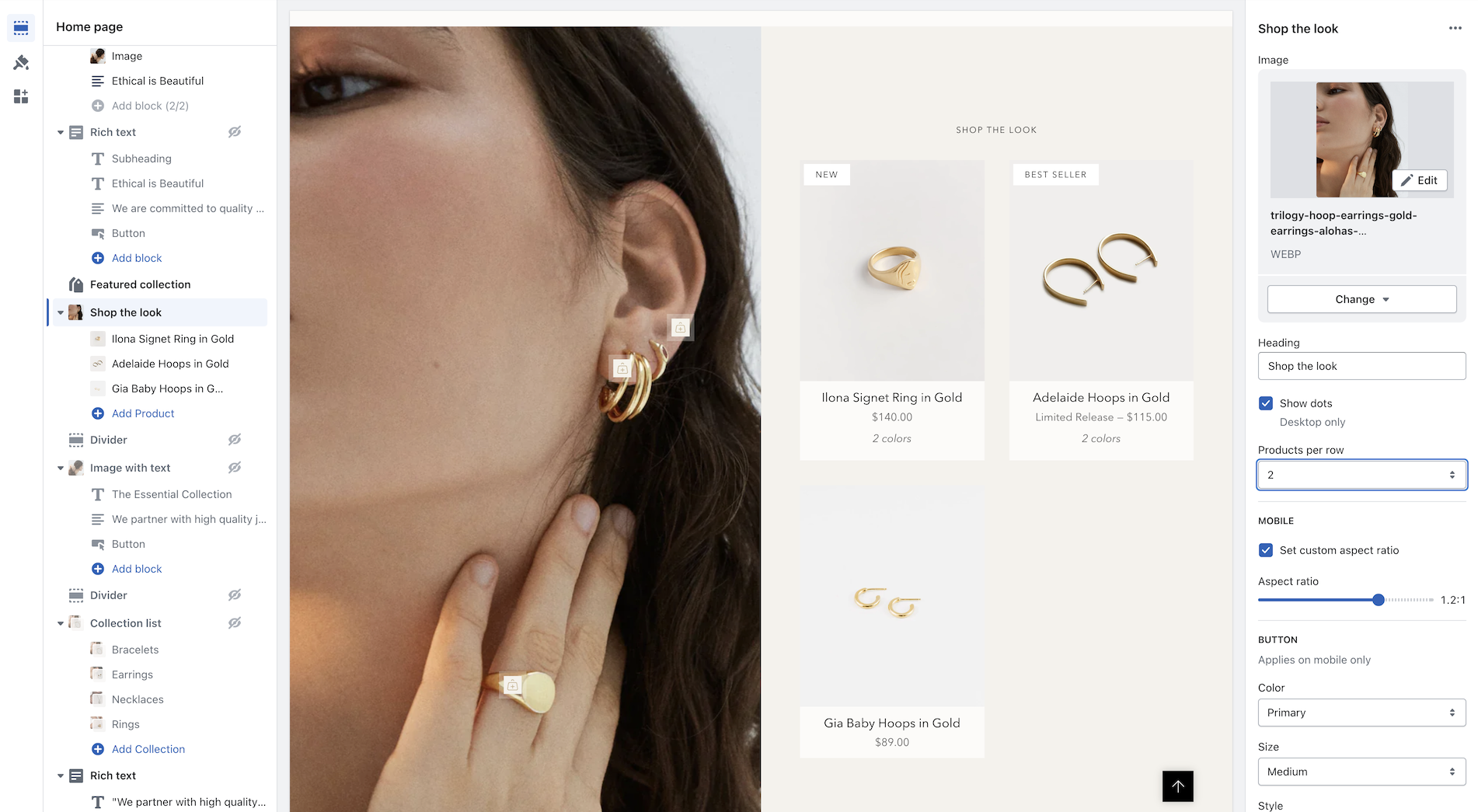
## Shop the look - Option for 2 per row
We've added the ability to show 2 product grid items per row. Ideal for showing more on desktop screens:
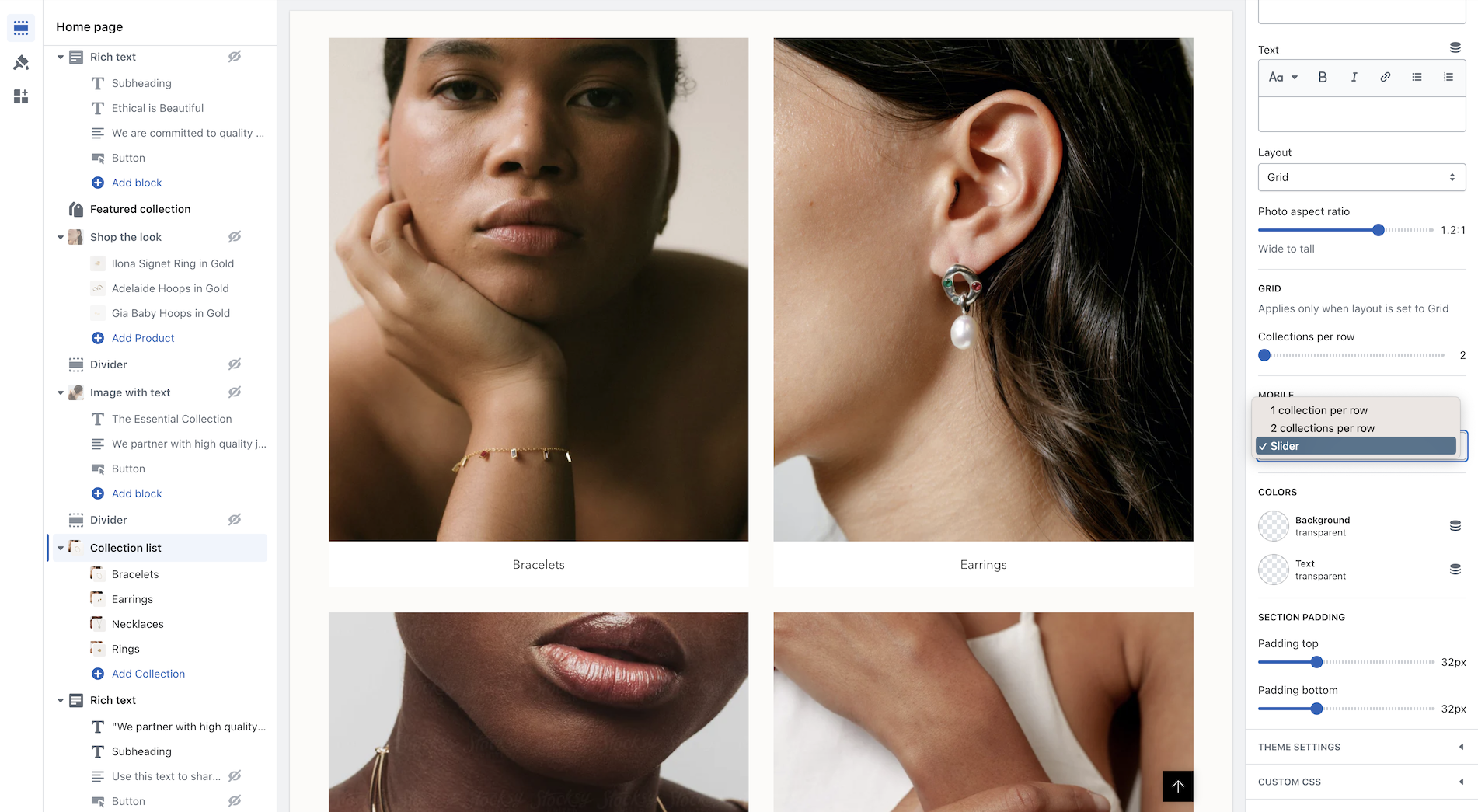
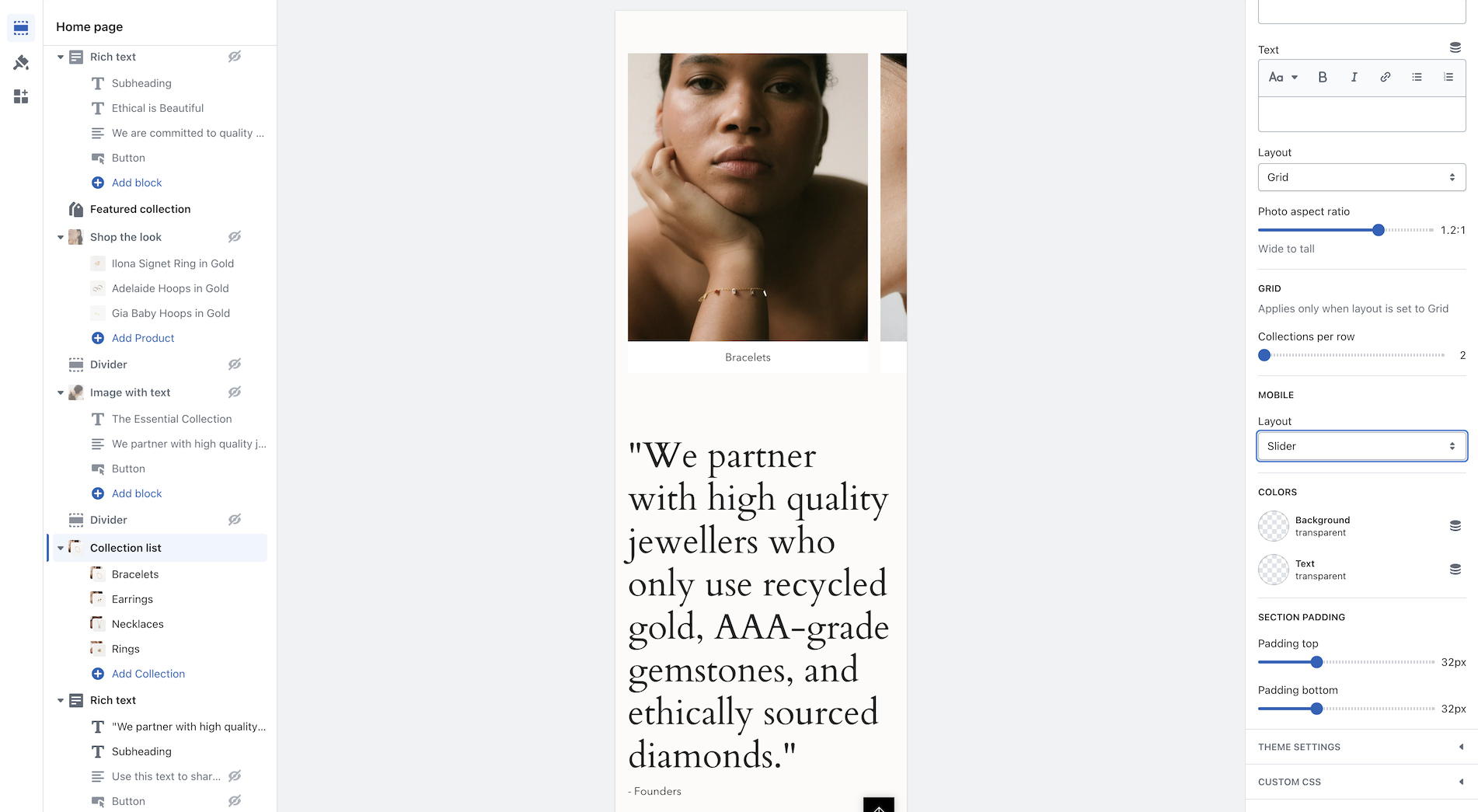
## Collection list - New mobile layout styles
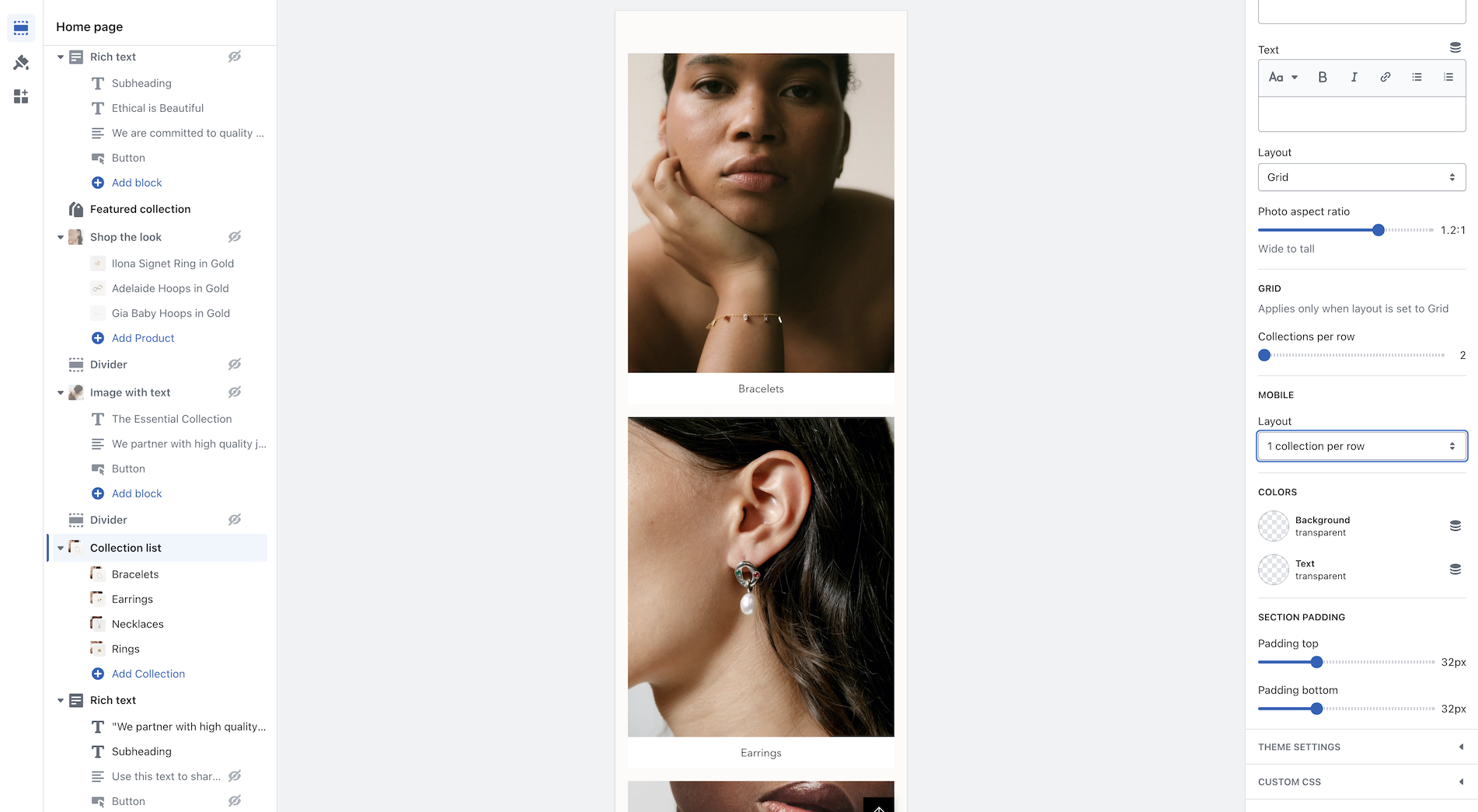
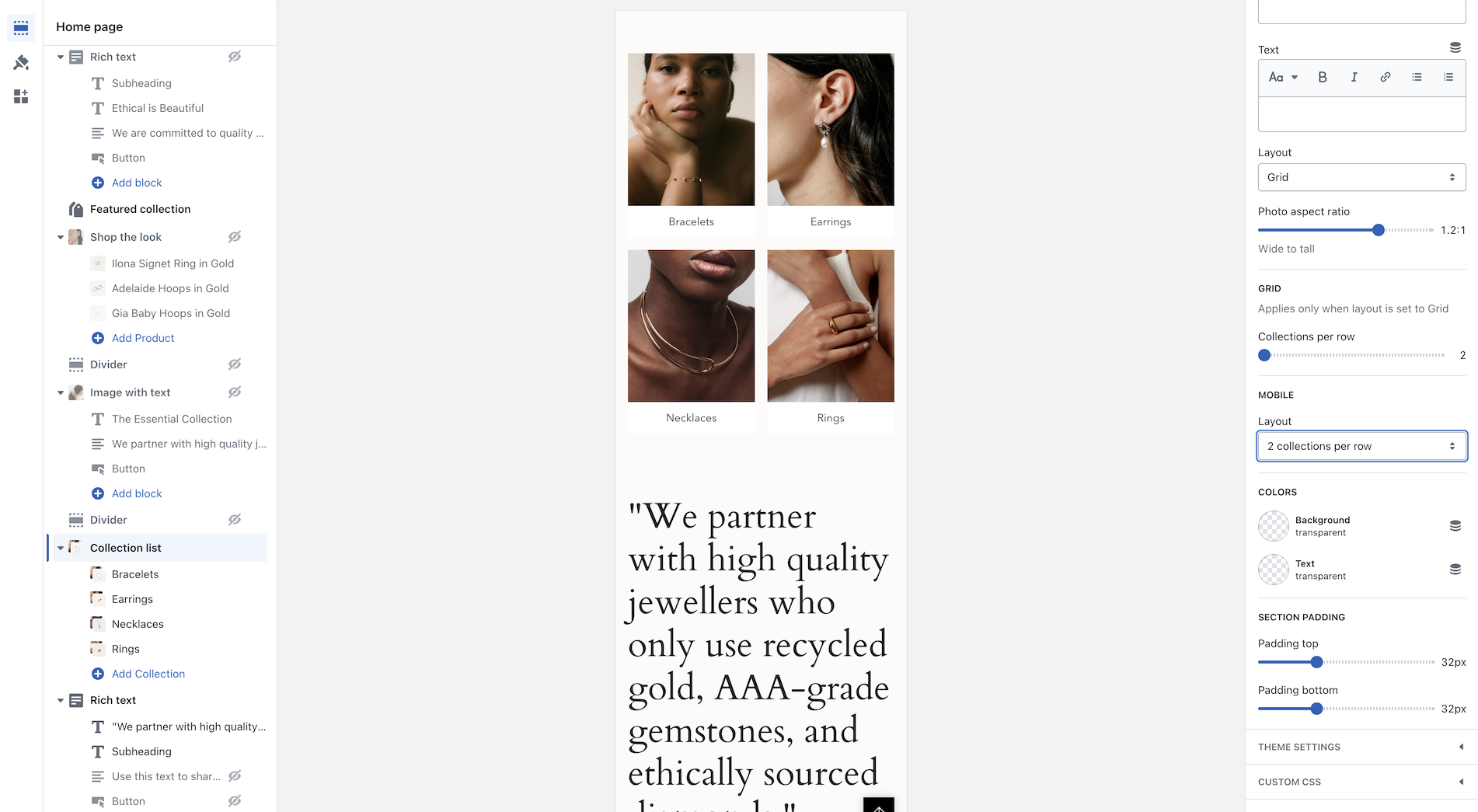
Broadcast now includes mobile layout styles for the Collection list section. You can choose to display 1 or 2 collections per row or the mobile slider:
Layout examples for mobile:
1 collection per row
2 collections per row
Slider
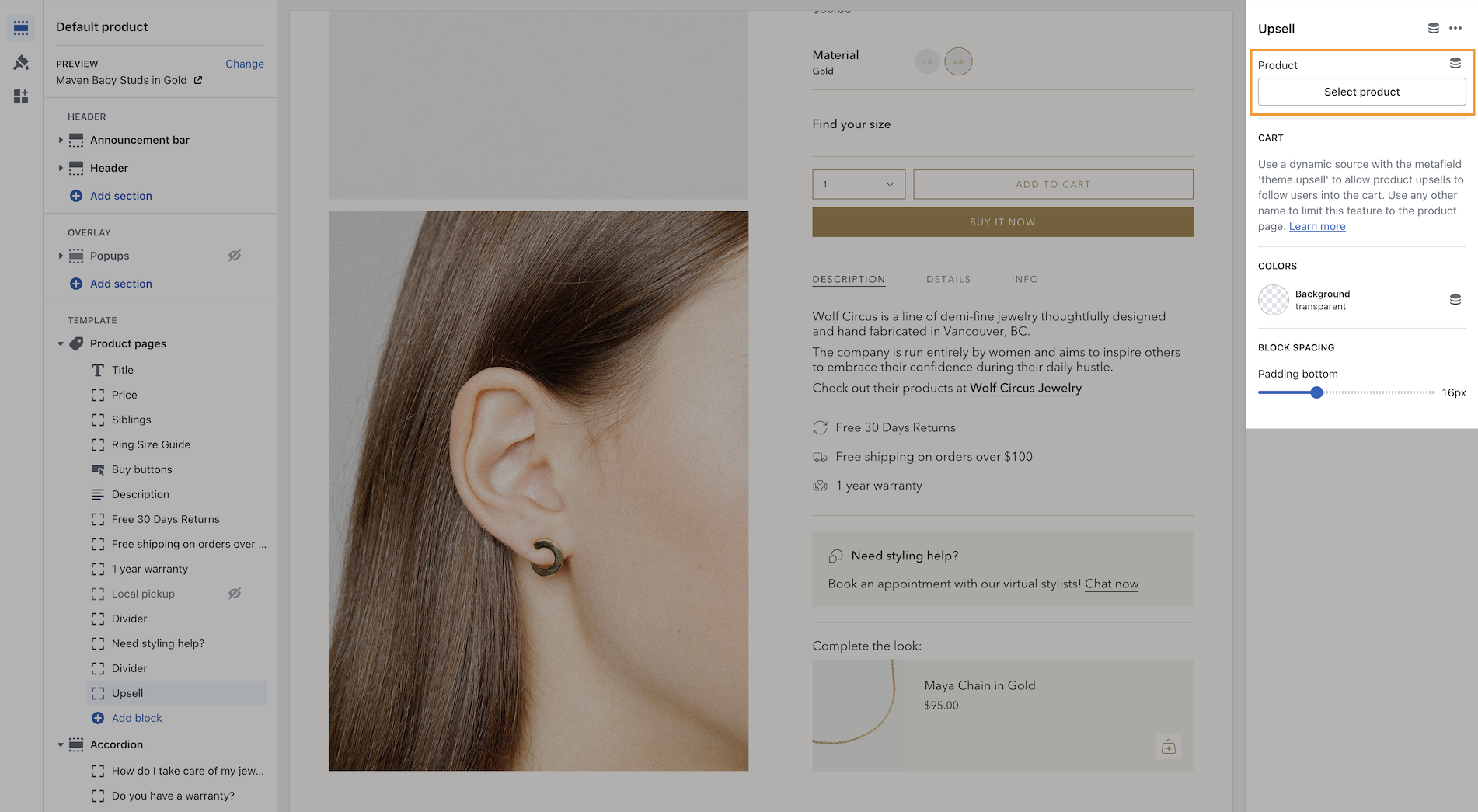
### Upsell functionality updated to work with one product and metafields
Now you can easily add one product right from the Theme Editor as your Upsell item which will instantly appear for all products using the same Product template.
This method is a simple way to use the upsell feature without the complexity of using metafields. It will add the chosen product to all products using the same template. If you use multiple product templates, you can customize which product is selected for each template.
{% hint style="info" %}
If you use the Select product option, that upsell product will appear for all products instantly. Think of this as a global upsell product. \
\
If you combine it with a metafield, the metafield will override the selected global option. Therefore, the fallback is the global choice and the override is the metafield.
{% endhint %}
---
# Agent Instructions
This documentation is published with GitBook. GitBook is the documentation platform designed so that both humans and AI agents can read, navigate, and reason over technical content effectively. Learn more at gitbook.com.
## Querying This Documentation
If you need additional information that is not directly available in this page, you can query the documentation dynamically by asking a question.
Perform an HTTP GET request on the current page URL with the `ask` query parameter, and the optional `goal` query parameter:
```
GET https://broadcast.presidiocreative.com/broadcast-v5/updates/whats-new-in-broadcast/about-v5.0-release.md?ask=&goal=
```
`ask` is the immediate question: it should be specific, self-contained, and written in natural language.
`goal` is optional and describes the broader end goal you are ultimately trying to accomplish on behalf of the user. GitBook uses it to tailor the answer towards what is most useful for that goal.
The response will contain a direct answer to the question and relevant excerpts and sources from the documentation.
Use this mechanism when the answer is not explicitly present in the current page, you need clarification or additional context, or you want to retrieve related documentation sections.