> For the complete documentation index, see [llms.txt](https://broadcast.presidiocreative.com/llms.txt). Markdown versions of documentation pages are available by appending `.md` to page URLs; this page is available as [Markdown](https://broadcast.presidiocreative.com/broadcast-v5/sections/broadcast-sections/video.md).
# Video
A powerful all-in-one video section for banners and building attention-grabbing promotions
Create video banners and promotional sections to enhance your brand, products, and services with this single-column section in Broadcast.
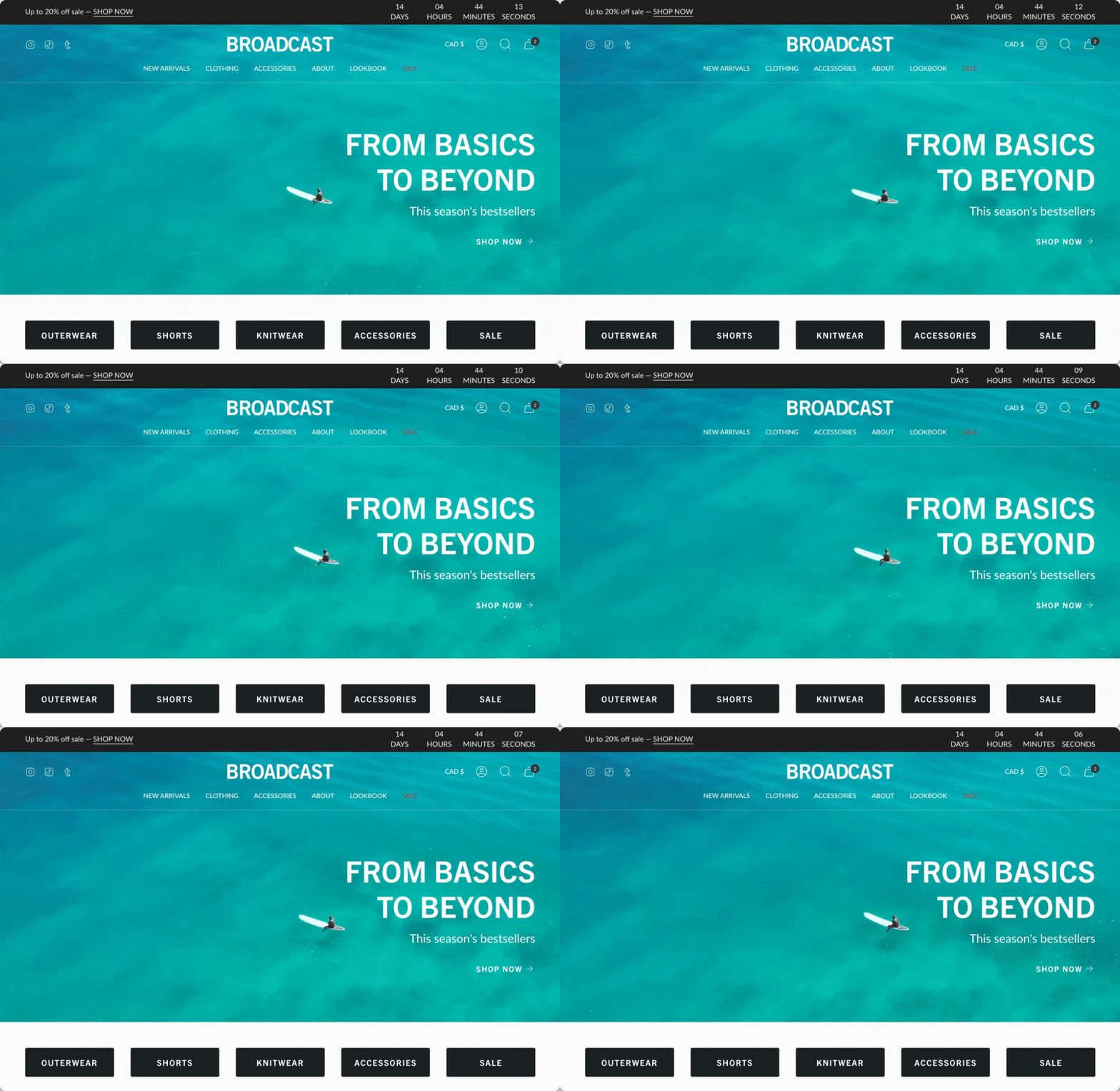
Homepage banner example with transparent header
### Flexible
The video section can loop **MP4** or **MOV** format videos from your content library. Videos can also appear with a pop-up player, ideal for longer video content.
Broadcast always presents a clean branded experience for shoppers, including options to add separate poster images for desktop and mobile devices. These images will load first while your video is loading into the browser and then be replaced by the video content.
Adding videos to your store is perfect for creating attractive promotions. You can easily incorporate them into any page of your store.
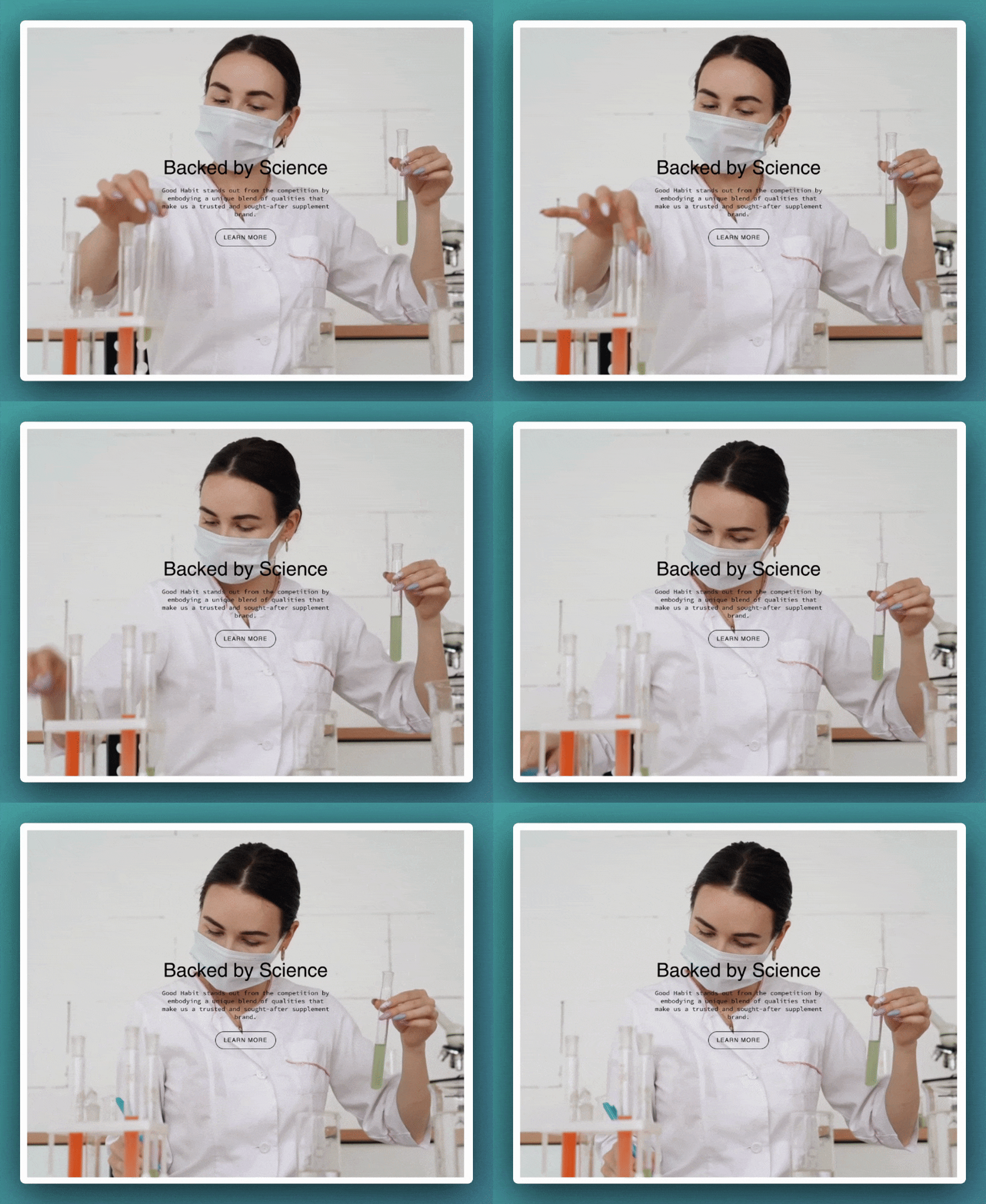
Promotion example adding animation to a page
### YouTube and Vimeo
YouTube and Vimeo videos can only be displayed as **Popup** videos. The reason is, Shopify can't control the ads and linked videos that YouTube or Vimeo will display in the video. The result is a very unprofessional background section.
If you need to use a YouTube or Vimeo video, we have a couple of recommendations:
* To use as a background video, download the YouTube or Vimeo video and convert it to an MP4 or MOV format, then you can simply add it to your Shopify library.
* For a popup video, you can add the YouTube or Vimeo URL in the Popup section. Use a branded image or a still frame from the video to represent the video.
### Customize
Use the section settings to configure all the options for the video section.
* To **loop** an MP4 or MOV video, select a supported video from your content library into the video option.
* To use the optional **popup** feature, check the toggle option and select a video from your content library or a **YouTube/Vimeo** link address. In the section settings, lower down, find and adjust the button style and colors to modify the play icon.
* Add a branded image or still frame image for desktop and mobile options in the image section. These images will be used while your video is loading into the browser. The mobile version is optional but recommended with a taller portrait-style image. For desktop, we recommend a **16:9** aspect ratio image, and for mobile, an **18:9** or **19:9** aspect ratio image.
* Under Layout, use the desktop and mobile height options to find the right size for the **video** and poster **image**. Desktop and mobile controls are available.
* For a banner-style image, choose the full-width option or add padding when using it to promote a page that incorporates padding on the sides.
* The **overlay** settings help to bring contrast into the image when using text.
* Add any optional text content with the heading and text settings. You can adjust the size for each of them.
* Configure a call-to-action **button** or use the button settings to customize the popup play button style.
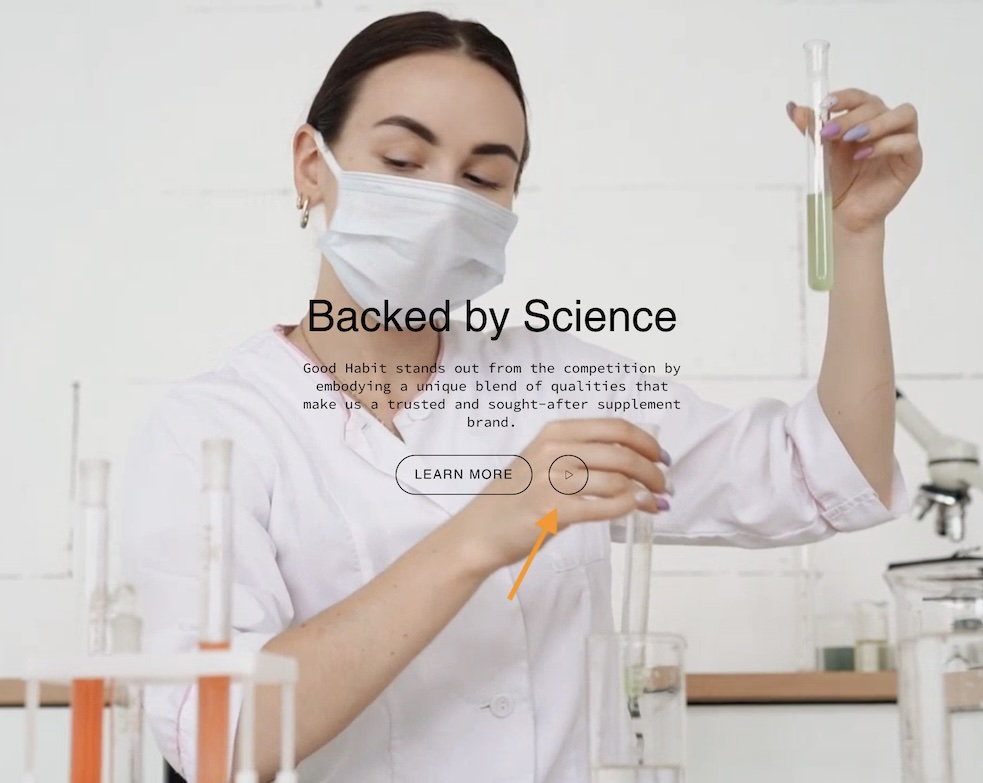
When enabled, the popup play button uses the same style as the call-to-action button. Adding a popup video can help display longer video content:
Popup play button is configured using the button settings
{% hint style="info" %}
To display a circle-shaped play button, use the **Theme settings -> Buttons** and choose the "**Pill**" style. The square version is a regular rectangular shape, and the rounded version has rounded corners.
{% endhint %}
### Video Overview
How to use the video section. This video demonstrates how to use the settings and options, plus details about the cover image and video types for looping and YouTube videos:
{% embed url="" %}
**Video walkthough of the video section in Broadcast**
{% endembed %}
---
# Agent Instructions
This documentation is published with GitBook. GitBook is the documentation platform designed so that both humans and AI agents can read, navigate, and reason over technical content effectively. Learn more at gitbook.com.
## Querying This Documentation
If you need additional information that is not directly available in this page, you can query the documentation by asking a question.
Perform an HTTP GET request on the following URL with the `ask` and `goal` query parameters:
```
GET https://broadcast.presidiocreative.com/broadcast-v5/sections/broadcast-sections/video.md?ask=&goal=
```
`ask` is the immediate question: it should be specific, self-contained, and written in natural language.
`goal` is what the user is ultimately trying to achieve, the reason they need the answer. Sharing it helps GitBook give you a better, more relevant answer. A goal is most helpful when it describes the outcome the user wants rather than restating the question. For example, with `ask=how do I create an API token`, a goal like `automate deployments from our CI pipeline` lets GitBook tailor the answer to that use case.
The response will contain a direct answer to the question and relevant excerpts and sources from the documentation.
Use this mechanism when the answer is not explicitly present in the current page, you need clarification or additional context, or you want to retrieve related documentation sections.