> For the complete documentation index, see [llms.txt](https://broadcast.presidiocreative.com/llms.txt). Markdown versions of documentation pages are available by appending `.md` to page URLs; this page is available as [Markdown](https://broadcast.presidiocreative.com/broadcast-v5/sections/broadcast-sections/map.md).
# Map
Display an interactive or static location map
With the map section in Broadcast, you can display an interactive map for your customers.
Interactive map using Google's Map API
Broadcast supports the Google Maps API to display a store's location easily. Alternatively, you can use any static image to display a location.
### Example map styles
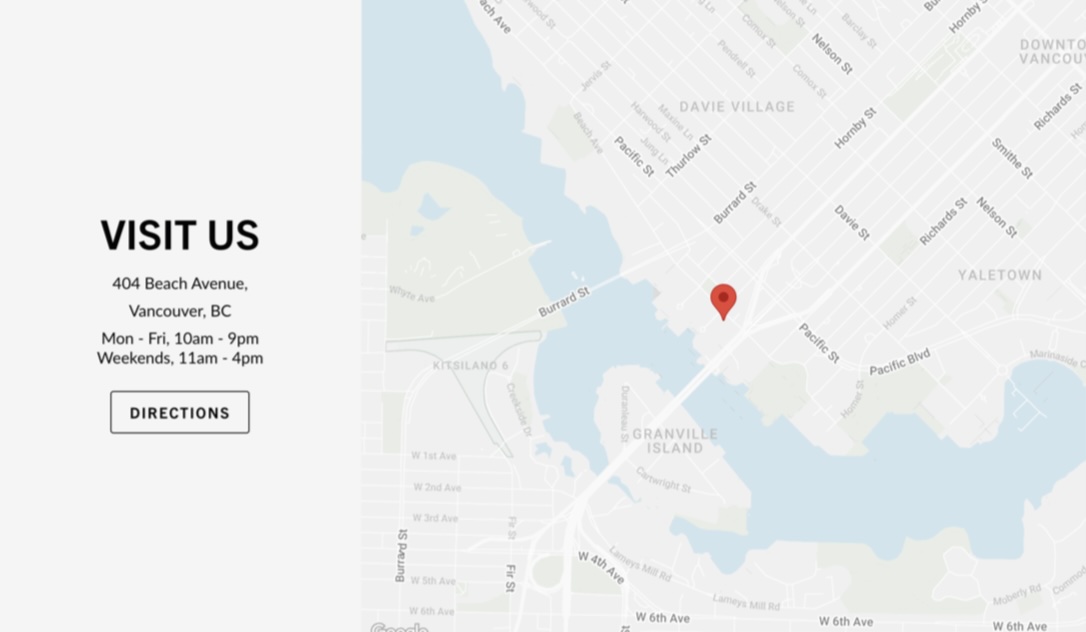
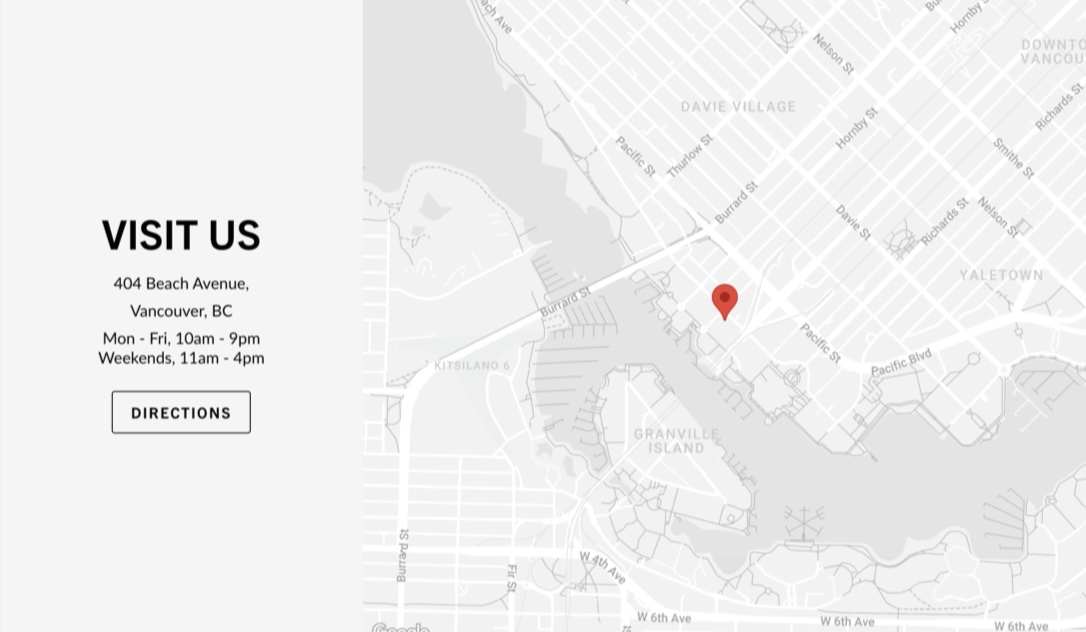
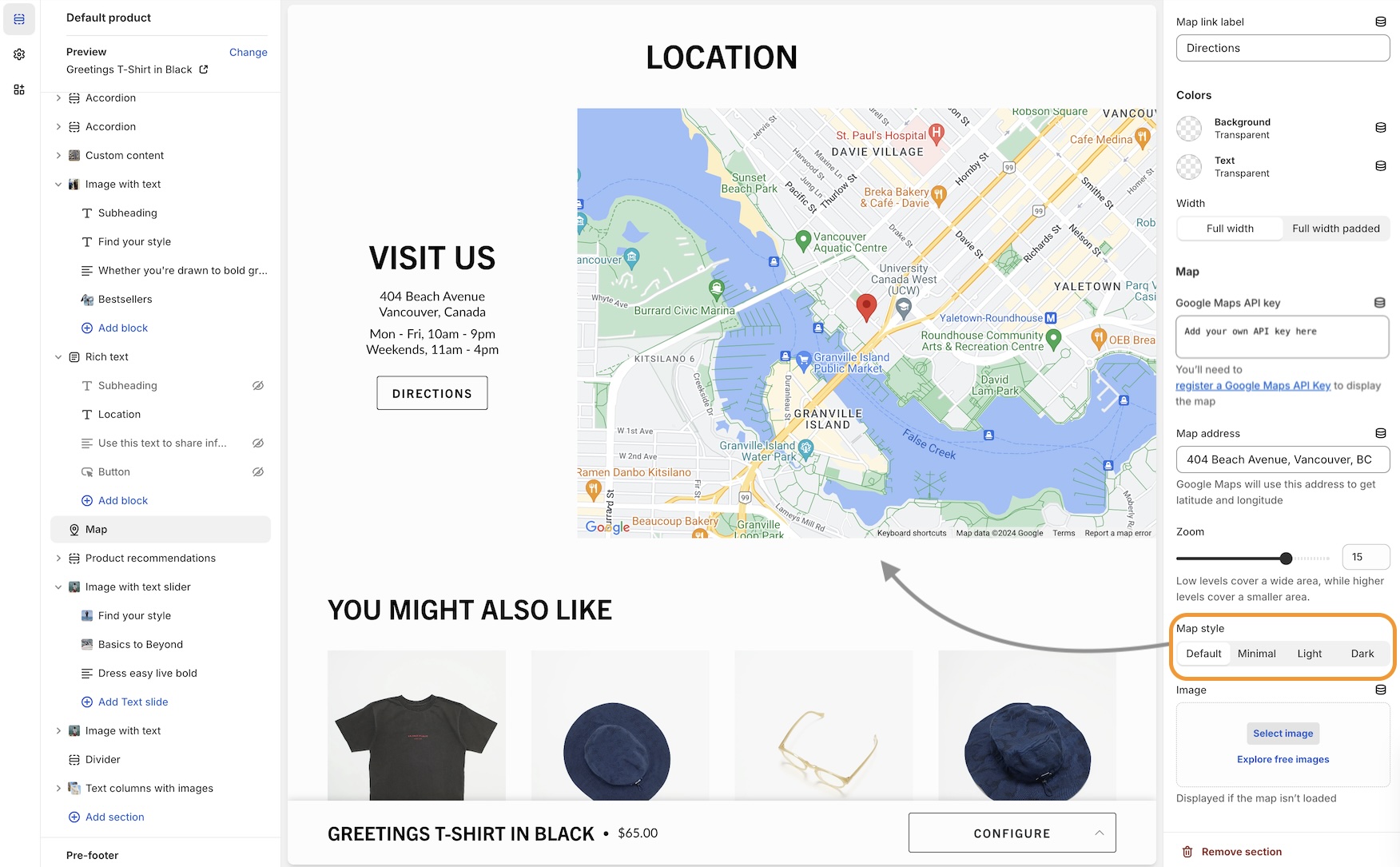
When using your Google Maps API key, Broadcast will automatically generate an interactive map with the address you provide. Broadcast also includes multiple map styles. Here are some examples:
Minimal style
Light style
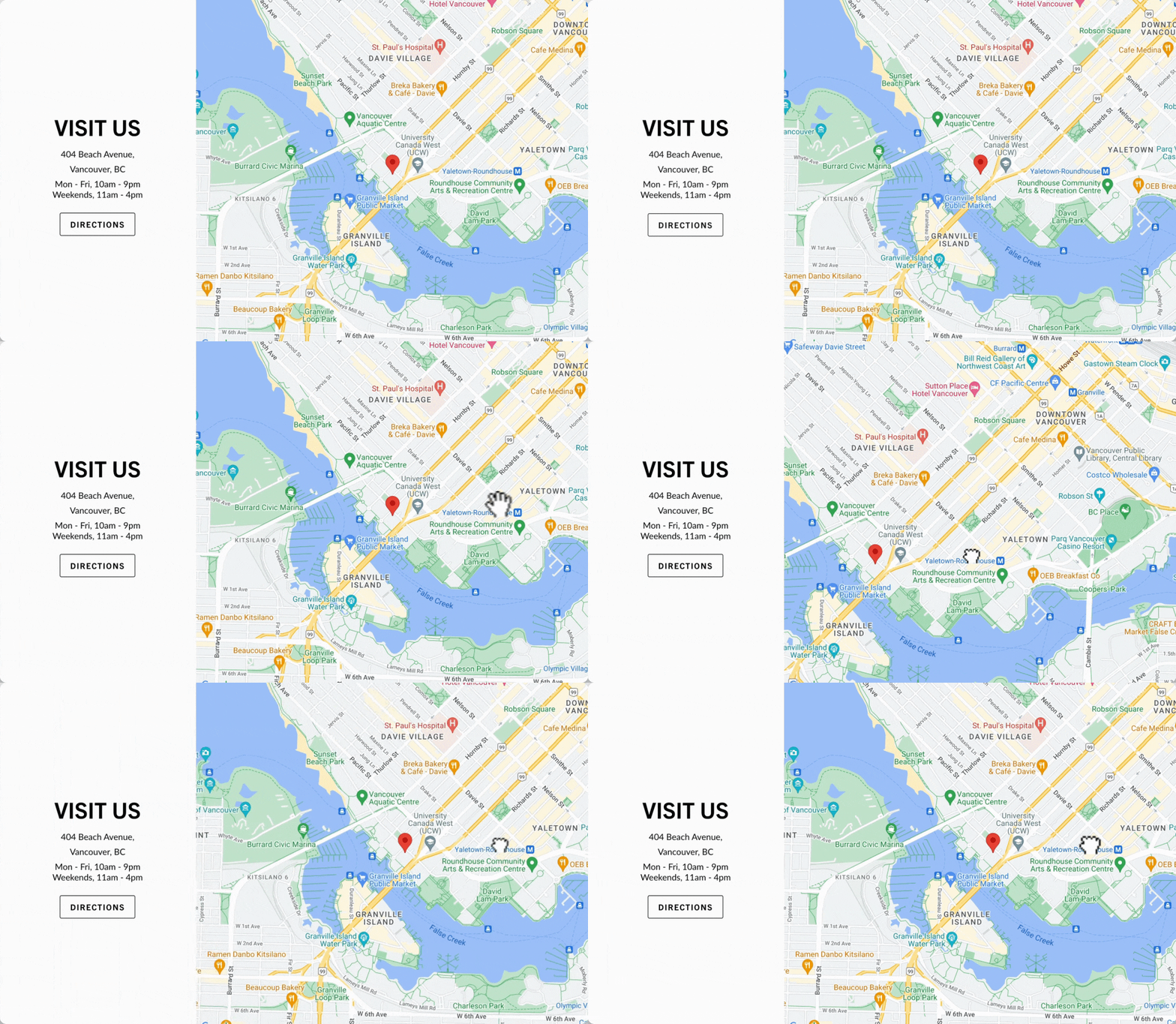
The default style displays the standard Google Maps colors:
Default style
### Flexible
This section can use the Google Map API for rich interactive maps or add any image from your store library to display a location. You can choose from different map styles and zoom levels when using the Map API key.
### Customize
* Choose the heights of the desktop and mobile sections. When using the Map API key, the map is not cropped. Use the zoom control to get the best view of your location. For static images, choose a height that works best for the image.
* Select from different map styles, including regular, minimal, light and dark.
* Add a heading and address to the text area. The directions button will open Google Maps to the address you've provided.
* You can use longitude and latitude values to find the perfect position for greater accuracy.
### Video Overview
This video demonstrates how to set up a Google Maps API key and also configure the section settings for the **Map** section:
{% embed url="" %}
**Video walkthrough of Google Map API Key and Map section setuup**
{% endembed %}
### Register a key
Shopify's article will help you get started with the links to the Google Dashboard:
{% embed url="" %}
---
# Agent Instructions
This documentation is published with GitBook. GitBook is the documentation platform designed so that both humans and AI agents can read, navigate, and reason over technical content effectively. Learn more at gitbook.com.
## Querying This Documentation
If you need additional information that is not directly available in this page, you can query the documentation dynamically by asking a question.
Perform an HTTP GET request on the current page URL with the `ask` query parameter, and the optional `goal` query parameter:
```
GET https://broadcast.presidiocreative.com/broadcast-v5/sections/broadcast-sections/map.md?ask=&goal=
```
`ask` is the immediate question: it should be specific, self-contained, and written in natural language.
`goal` is optional and describes the broader end goal you are ultimately trying to accomplish on behalf of the user. GitBook uses it to tailor the answer towards what is most useful for that goal.
The response will contain a direct answer to the question and relevant excerpts and sources from the documentation.
Use this mechanism when the answer is not explicitly present in the current page, you need clarification or additional context, or you want to retrieve related documentation sections.