> For the complete documentation index, see [llms.txt](https://broadcast.presidiocreative.com/llms.txt). Markdown versions of documentation pages are available by appending `.md` to page URLs; this page is available as [Markdown](https://broadcast.presidiocreative.com/broadcast-v5/sections/broadcast-sections/image-with-text.md).
# Image with text
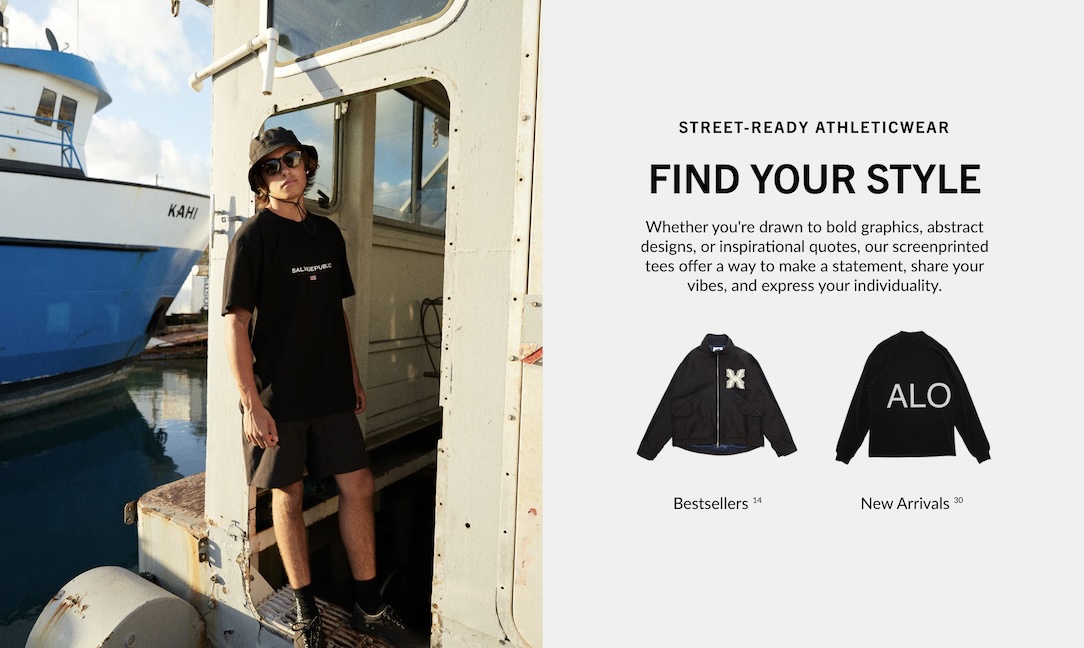
Display two columns of rich content types with a wide range of options
This is one of Broadcast's most flexible sections, packed with different content block types and options. Quickly build beautiful promotions with versatility.
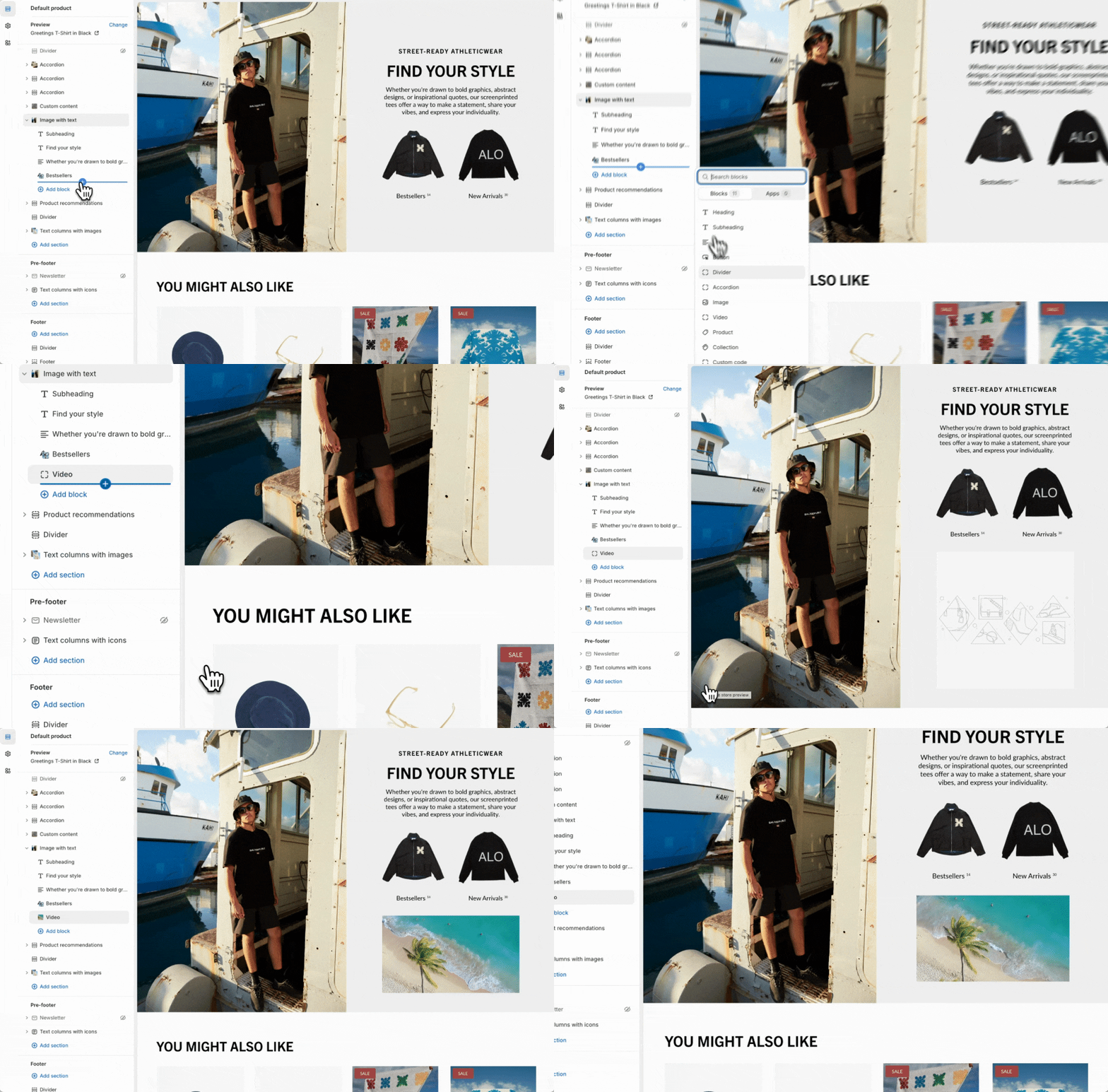
Image with text using the Collection block on the right
Build unique sections by adding multiple block types to the same column.
Video block added below Collection block
### Flexible
Build creative promotions for the product template or any page. Versatile enough to start any promotion concept with layers of options and settings for desktop and mobile devices.
### Customize
* The image column can have one or two images within the column. The size of the column can be increased.
* The text area can include multiple block types stacked together. The divider block can help add separation or lines.
* The placement of content can be swapped from left to right. Use the alignment option to place text to the left or center.
* Mobile positioning can be reversed to show text content first or following the image.
* Choose from various content blocks, such as Heading, Subheading, Text, Button, Divider, Accordion, Image, Video, Product, Collection, and Custom code.
* Each content block can be customized with various options.
### Video Overview
This video demonstrates how to build and customize the **Image with text** section, including block variations and mobile options:
{% embed url="" %}
**Video walkthrough of the Image with text section**
{% endembed %}
### Advanced setting
Learn more about the Advanced setting to show the placeholder image. The Image banner section contains a video on the concepts and how they are applied. You can use this feature in the same way for the Image with text section:
{% content-ref url="/pages/2GzLe30owbUFWBTZ0Q5t" %}
[Image banner](/broadcast-v5/sections/broadcast-sections/image-banner.md)
{% endcontent-ref %}
### See also
The multicolumn section in Broadcast is another option to build a custom section with additional columns rapidly:
{% content-ref url="/pages/saZZrHStqaYJbrKbumay" %}
[Multicolumn](/broadcast-v5/sections/broadcast-sections/multicolumn.md)
{% endcontent-ref %}
---
# Agent Instructions
This documentation is published with GitBook. GitBook is the documentation platform designed so that both humans and AI agents can read, navigate, and reason over technical content effectively. Learn more at gitbook.com.
## Querying This Documentation
If you need additional information that is not directly available in this page, you can query the documentation dynamically by asking a question.
Perform an HTTP GET request on the current page URL with the `ask` query parameter, and the optional `goal` query parameter:
```
GET https://broadcast.presidiocreative.com/broadcast-v5/sections/broadcast-sections/image-with-text.md?ask=&goal=
```
`ask` is the immediate question: it should be specific, self-contained, and written in natural language.
`goal` is optional and describes the broader end goal you are ultimately trying to accomplish on behalf of the user. GitBook uses it to tailor the answer towards what is most useful for that goal.
The response will contain a direct answer to the question and relevant excerpts and sources from the documentation.
Use this mechanism when the answer is not explicitly present in the current page, you need clarification or additional context, or you want to retrieve related documentation sections.