> For the complete documentation index, see [llms.txt](https://broadcast.presidiocreative.com/llms.txt). Markdown versions of documentation pages are available by appending `.md` to page URLs; this page is available as [Markdown](https://broadcast.presidiocreative.com/broadcast-v5/products/product-pages/swatches.md).
# Swatches (Updated)
Product variant swatches
Broadcast makes swatches simple. The theme supports solid color swatches, variant images, and siblings. Let's discover these swatch types and how to use them with your store.
* **Solid color swatches -** Pick solid colors to help customers find products and variant options. Broadcast lets you customize the color to match your variant color name.
* **Swatch images -** Match images in your Shopify image library to variant names. Similar to solid color swatches, you can map images directly to variant names.
* **Siblings -** Display product images as variant options. This option is ideal for earlier versions of Broadcast and requires each variant option to be a separate product. While this is a more complex method of setting up your products, it provides a professional look to collection and product pages.
* **Variant images -** This option displays the image associated with a product variant to help shoppers choose the right variant. You'll need Broadcast v5.6 or higher for this feature.
## Solid color swatches
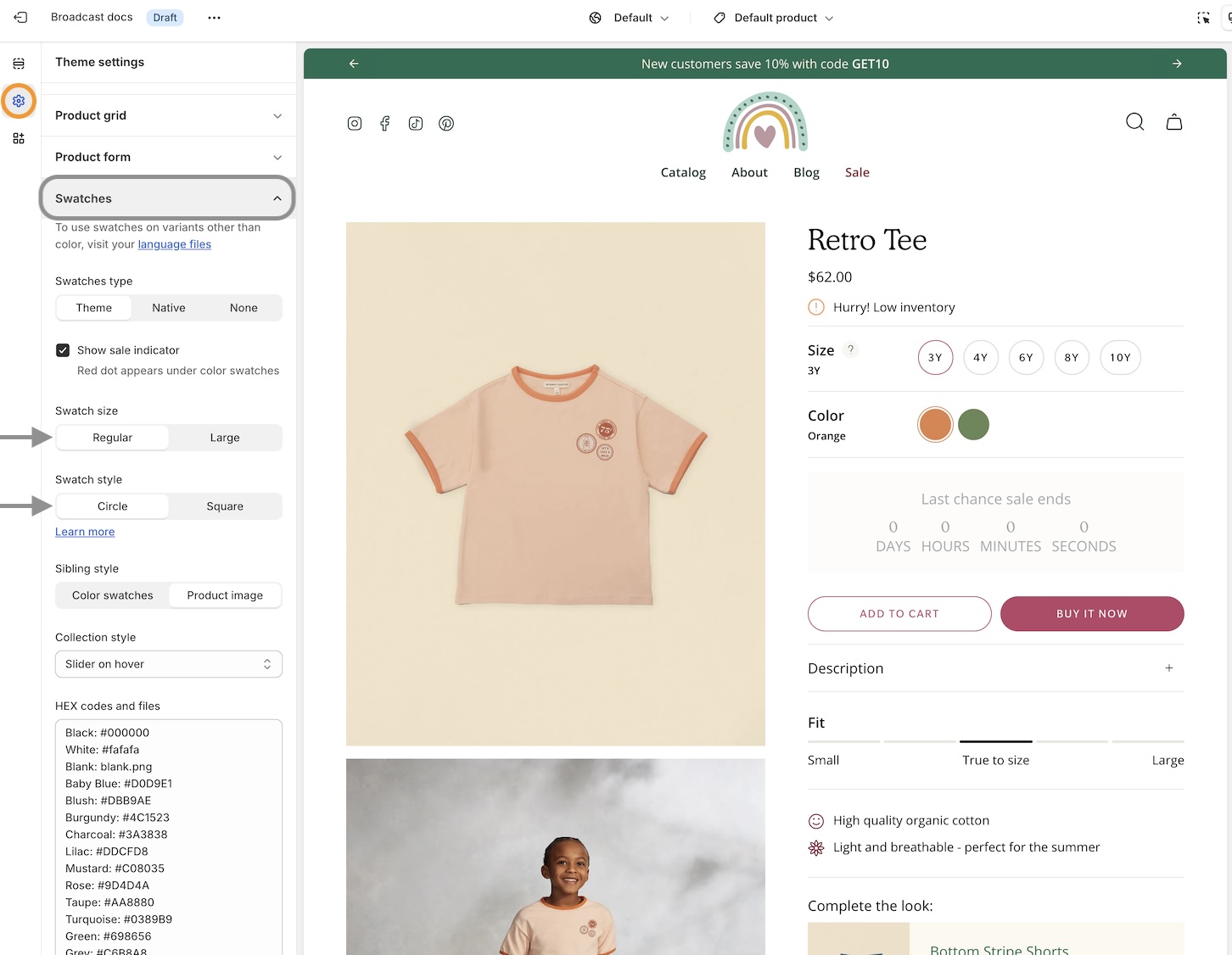
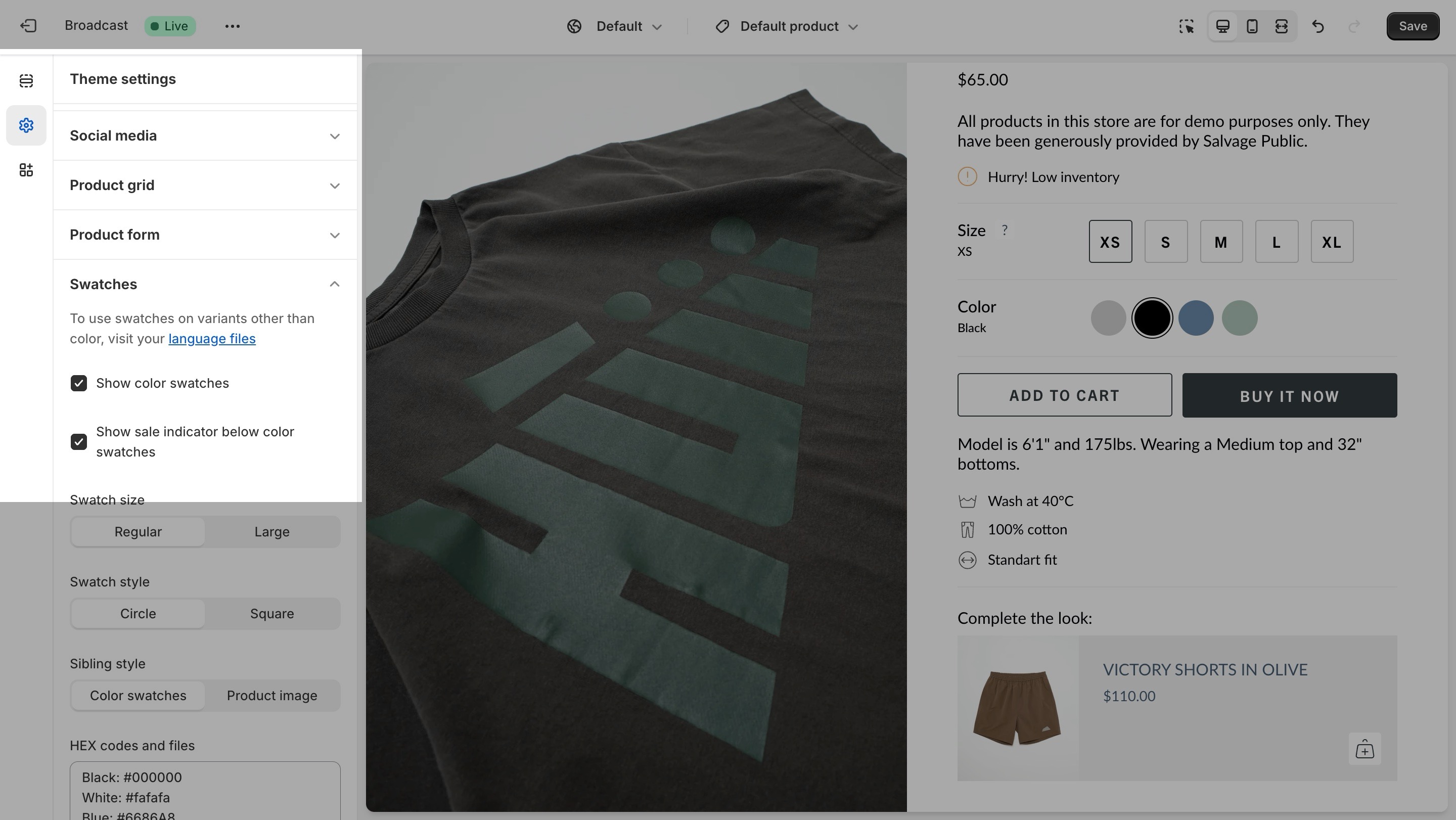
* Configure your swatch options in the Theme Settings -> Swatches. Here, you can customize the solid color swatches to appear in Regular or Large sizes and the shape, Circle or Square:
* We've included HEX color codes that you can customize directly in the Theme Settings. Each variant name can be mapped to a custom HEX color code for the perfect solid color swatch.
### Customize colors
Here's how we can **customize** the **colors** and match them with the names used for our variants:
{% embed url="" %}
We can use a site like Color Hunt to find HEX color codes easily:
{% embed url="" %}
* Broadcast can automatically detect 140 color names. A default grey color swatch represents all other more complex names. Here is a full list of color names that will automatically be converted to swatches:[ Color names list](https://groupthought.com/pages/swatch-color-names). You can easily override the colors, as shown in the above video.
### Trigger words
* The **trigger** word for color swatches is configured in the Content Editor. By default, Broadcast uses variant types "**Color and Colour**" to trigger swatches.
If your store uses different labels for the variant name, you can trigger swatches with a custom name:
{% embed url="" %}
How to **trigger swatches** for varant names **other** than **Color and Colour**
{% endembed %}
## Swatch images
Similar to customizing the colors for swatches, you can also use images to represent a swatch color. An image from your Shopify content library is used. **Instead** of using a **HEX** color code, the **filename** of your **image** is used in the swatch settings:
{% embed url="" %}
**Video overview on using images instead of a color code**
{% endembed %}
## Siblings
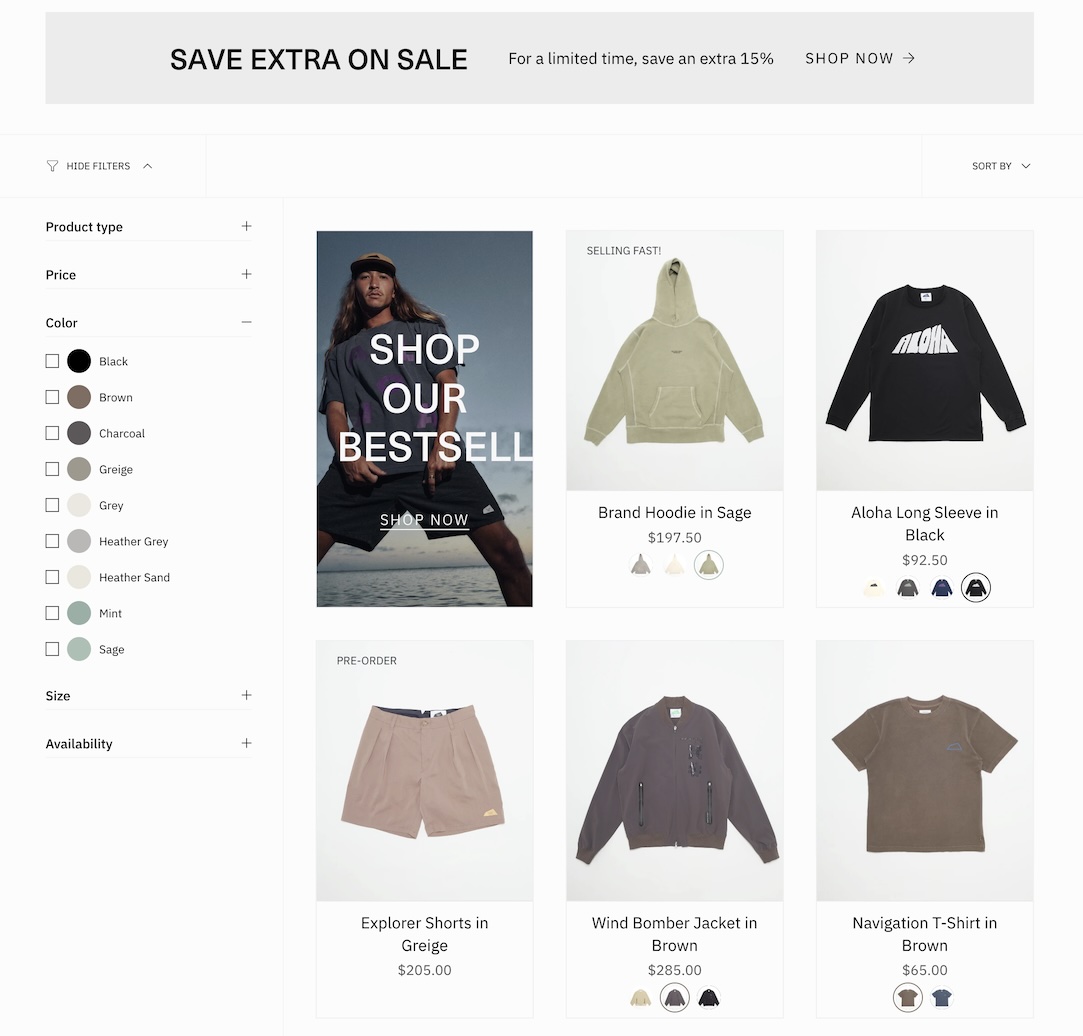
The Siblings feature is a fully integrated feature that displays **product images** as **swatches** in the product grid and product pages:
* The feature requires each variant option to be configured as a separate product, resulting in a much richer shopping experience for customers.
* **Product images** are displayed **as swatches** on **both** the collection grid and product pages.
#### Learn more
There are several steps involved with the Siblings feature; we have an entire section to cover them:
{% content-ref url="/pages/FkGnPbDb3HfTuuTEUHPT" %}
[Siblings](/broadcast-v5/siblings/product-siblings.md)
{% endcontent-ref %}
## Variant Images
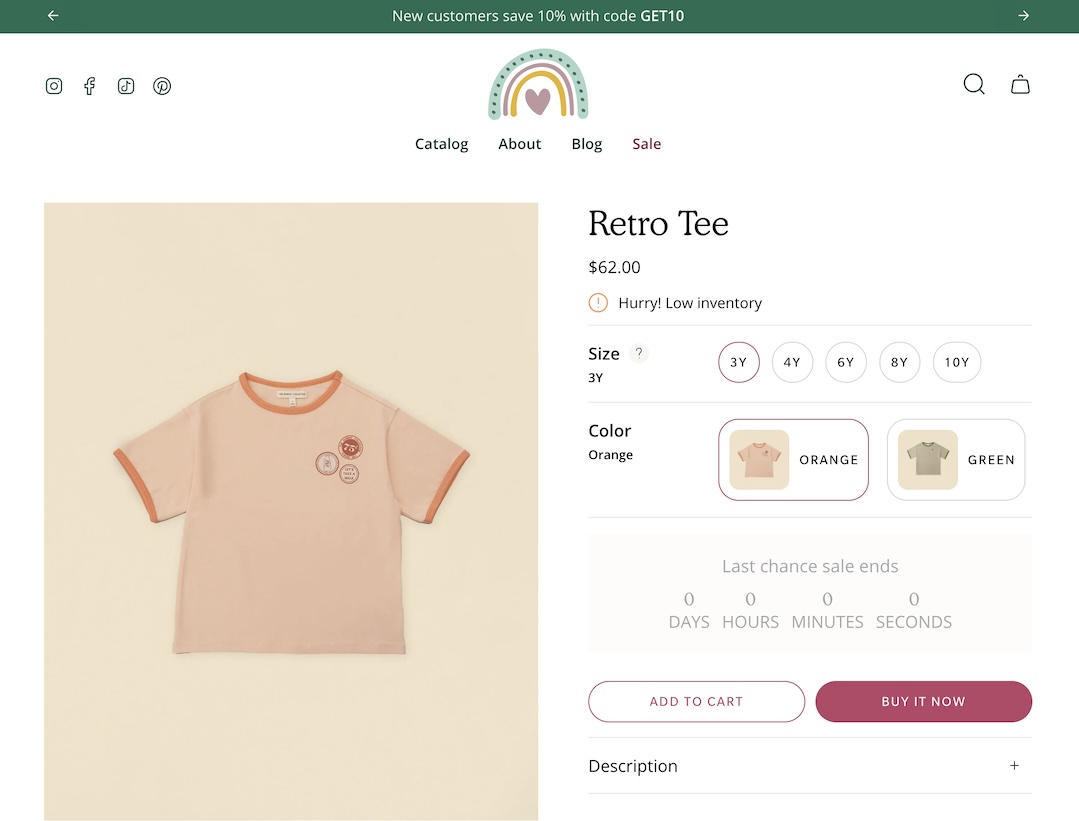
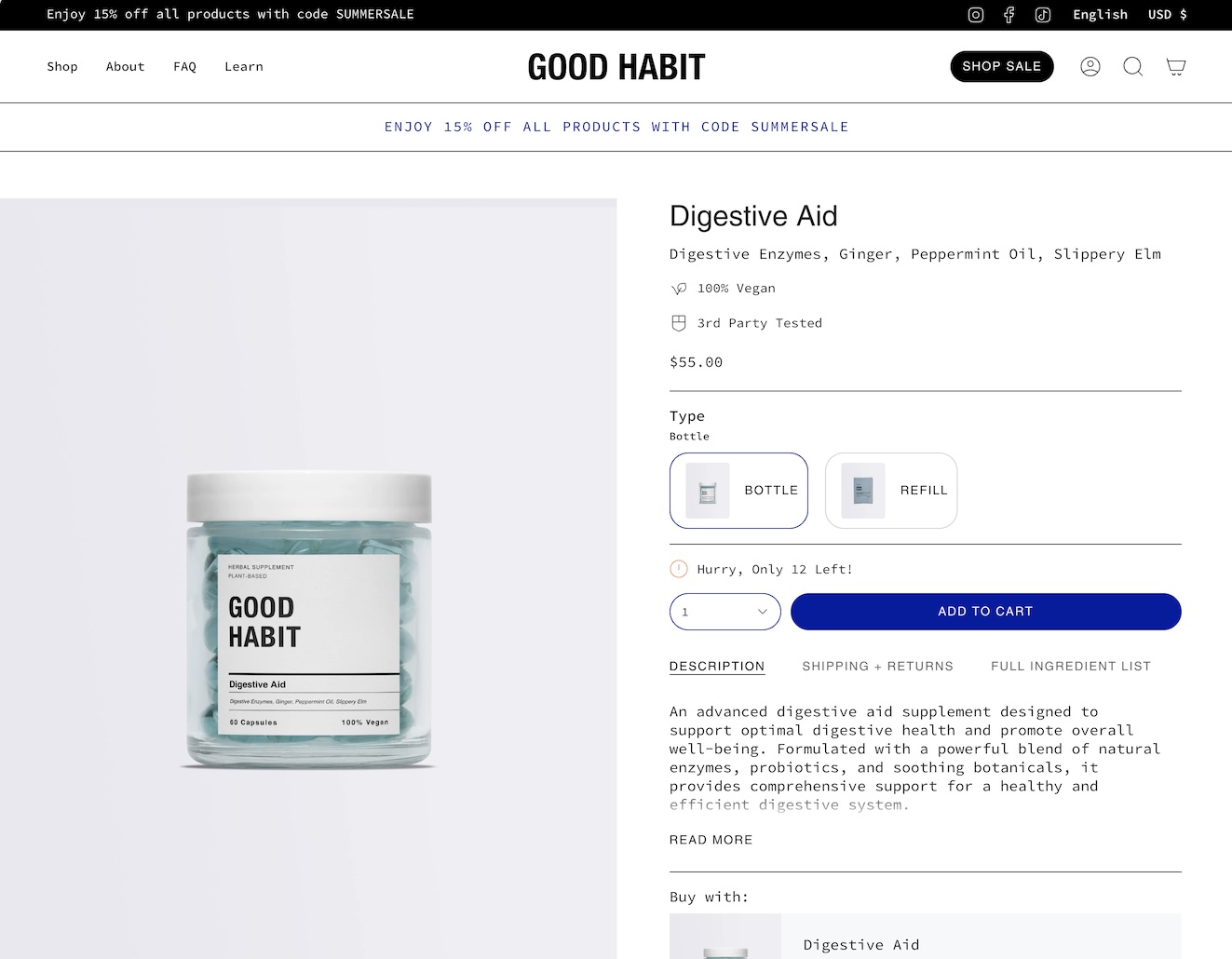
Broadcast can also display images with a feature called Variant Images. This option shows the associated variant image as a variant option on the product form:
Variant images can be used as variant options
* Variant images were introduced in Broadcast 5.6. Be sure your theme has been updated to use this feature.
* The variant images feature is **best suited** for measurements or **sizes:**
* It can be configured for color use but **won't** display in the **product grid**. Here are some important steps about the feature:
{% embed url="" %}
#### Learn more
Full details about variant images:
{% content-ref url="/pages/9qO1P5Zo3RlyxJvWX4R8" %}
[Variant images](/broadcast-v5/products/product-pages/variant-images.md)
{% endcontent-ref %}
***
## Earlier versions of Broadcast
The following instructions are for Broadcast 5.0 and earlier.
{% hint style="info" %}
If you are using Broadcast 5.0 or earlier, please follow the instructions below to customize swatches
{% endhint %}
#### Customizing
If your products have color names other than the listed colors in the [Color names list](https://groupthought.com/pages/swatch-color-names), you can add your own color names and values or upload images to the Assets folder:
#### Add custom color names and values to swatches.json
Use the `swatches.json` file located in the Assets folder to add your own custom names and HEX color values:

{% hint style="success" %}
To find additional HEX color codes, visit the link below.
{% endhint %}
{% embed url="" %}
#### Add custom images to the assets folder
Upload your own custom swatch images and display them on product and collection pages:


How to:
{% hint style="success" %}
* Create a small square image (60x60 or 100x100 for best results)
* Upload to the Assets folder
* Modify `swatches.json` to include your color name and image
{% endhint %}
#### Video tutorial
{% embed url="" %}
Reference from the video:
```
{
"Stripes": "stripes.jpg"
},
```
#### Avoid spaces in the filename
{% hint style="info" %}
We recommend if your image has spaces, replace them with an underscore or dash:\
\
Instead of 'Light Navy.png' use 'light\_navy.png' or 'light-navy.png'.
{% endhint %}
For the JSON file, your multiword variant can look like this:
```
{
"Light Navy": "light_navy.png"
},
```
The variant name can have spaces. However, we recommend for the filename of the image, use an underscore or dash instead of a space.
#### Video tutorial - More tips for custom images
In this short video, we'll look at filenames and an example of creating a custom image for a swatch:
{% embed url="" %}
More tips on adding custom images
{% endembed %}
#### Disabling swatches
Swatches can be toggled on and off in the Theme settings from the Swatches tab:
---
# Agent Instructions
This documentation is published with GitBook. GitBook is the documentation platform designed so that both humans and AI agents can read, navigate, and reason over technical content effectively. Learn more at gitbook.com.
## Querying This Documentation
If you need additional information that is not directly available in this page, you can query the documentation by asking a question.
Perform an HTTP GET request on the following URL with the `ask` and `goal` query parameters:
```
GET https://broadcast.presidiocreative.com/broadcast-v5/products/product-pages/swatches.md?ask=&goal=
```
`ask` is the immediate question: it should be specific, self-contained, and written in natural language.
`goal` is what the user is ultimately trying to achieve, the reason they need the answer. Sharing it helps GitBook give you a better, more relevant answer. A goal is most helpful when it describes the outcome the user wants rather than restating the question. For example, with `ask=how do I create an API token`, a goal like `automate deployments from our CI pipeline` lets GitBook tailor the answer to that use case.
The response will contain a direct answer to the question and relevant excerpts and sources from the documentation.
Use this mechanism when the answer is not explicitly present in the current page, you need clarification or additional context, or you want to retrieve related documentation sections.