> For the complete documentation index, see [llms.txt](https://broadcast.presidiocreative.com/llms.txt). Markdown versions of documentation pages are available by appending `.md` to page URLs; this page is available as [Markdown](https://broadcast.presidiocreative.com/broadcast-v5/overlay/popups/coupon-codes.md).
# Coupon codes
How to send a coupon code after signing up for a newsletter
When using the newsletter popups in Broadcast, a coupon code can be displayed for your customer after they successfully enter their email address:
Large newsletter:

Small newsletter:

## How to setup
There are two newsletter styles in Broadcast.
A Large newsletter block which uses a modal window popup and has the ability to show an image or a Small newsletter block which is a minimal design and retains sticky.
We will cover the steps for both below.
### Large newsletter
The Large newsletter uses the Language editor to manage the success message. This is especially helpful if your store is supporting multiple languages.
Steps:
In the Theme Editor, add the Large newsletter block under Popups:

Configure the block settings to design your newsletter popup:

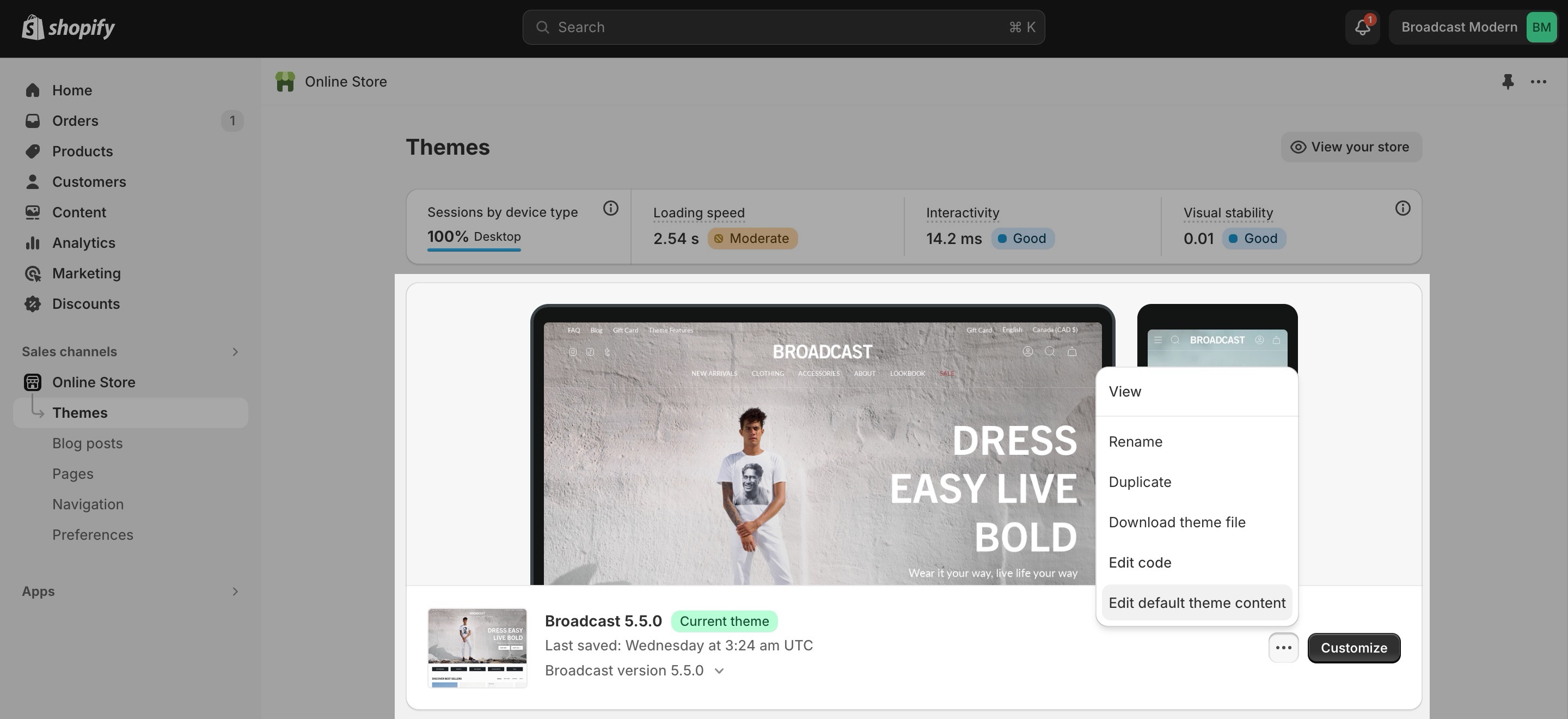
To configure the success message and include the Coupon Code, use the Language editor (Edit default theme content).
You can open the Language Editor by clicking on the 3-dot ellipsis icon at the top of Theme Editor:
In the Language Editor, type in `newsletter` in the filter/search box and find this section:

Here you can customize the success message and include your Coupon Code.
if you use the `Coupon Code` format, the information inside the span tags will be styled to highlight the code in your message:

### Small newsletter
The smaller newsletter uses very little space on the screen and can be positioned in various locations on the screen. The success message is configured right in the block settings.
Steps:
In the Theme Editor, add the Small newsletter block under Popups:

In the block settings, add the initial text that will be displayed to your customer under Heading. Then add the coupon code under 'Success message':

Use the additional settings to customize the look and behavior of the popup:

#### Order of action
The Heading text is displayed first:

Customers can click on the popup and enter their email address:

the success message is displayed afterward:

Customers can copy the instant Coupon Code for immediate or future use based on the type of coupon code you've created.
{% hint style="info" %}
**Note:** Broadcast does not create promotions or codes. Refer to your Shopify admin settings to find the Discounts tab and set up your coupon codes and automated promotions.
{% endhint %}
---
# Agent Instructions
This documentation is published with GitBook. GitBook is the documentation platform designed so that both humans and AI agents can read, navigate, and reason over technical content effectively. Learn more at gitbook.com.
## Querying This Documentation
If you need additional information that is not directly available in this page, you can query the documentation by asking a question.
Perform an HTTP GET request on the following URL with the `ask` and `goal` query parameters:
```
GET https://broadcast.presidiocreative.com/broadcast-v5/overlay/popups/coupon-codes.md?ask=&goal=
```
`ask` is the immediate question: it should be specific, self-contained, and written in natural language.
`goal` is what the user is ultimately trying to achieve, the reason they need the answer. Sharing it helps GitBook give you a better, more relevant answer. A goal is most helpful when it describes the outcome the user wants rather than restating the question. For example, with `ask=how do I create an API token`, a goal like `automate deployments from our CI pipeline` lets GitBook tailor the answer to that use case.
The response will contain a direct answer to the question and relevant excerpts and sources from the documentation.
Use this mechanism when the answer is not explicitly present in the current page, you need clarification or additional context, or you want to retrieve related documentation sections.