> For the complete documentation index, see [llms.txt](https://broadcast.presidiocreative.com/llms.txt). Markdown versions of documentation pages are available by appending `.md` to page URLs; this page is available as [Markdown](https://broadcast.presidiocreative.com/broadcast-v5/faq/frequently-asked-questions/where-to-make-css-changes.md).
# CSS customizations
Adding your own custom styles and CSS overrides to the theme
### Theme Customizer
Shopify has made adding global and local CSS changes to your theme easy. Broadcast supports these Theme Customer methods. Some examples are:
* **Template Pages** - Apply CSS overrides to Product templates, Blog posts, and standard Page templates.
* **Sections -** Customize elements only within a specific section. This includes the home page, header, cart drawer, and footer.
* **Global** - Apply CSS overrides for the entire store.
{% hint style="success" %}
**Advantages**
* When updating Broadcast to newer versions, these CSS changes will automatically be applied to your new theme.
* The Shopify Update tool migrates any Custom CSS added to the Theme Customizer.
{% endhint %}
### Product pages
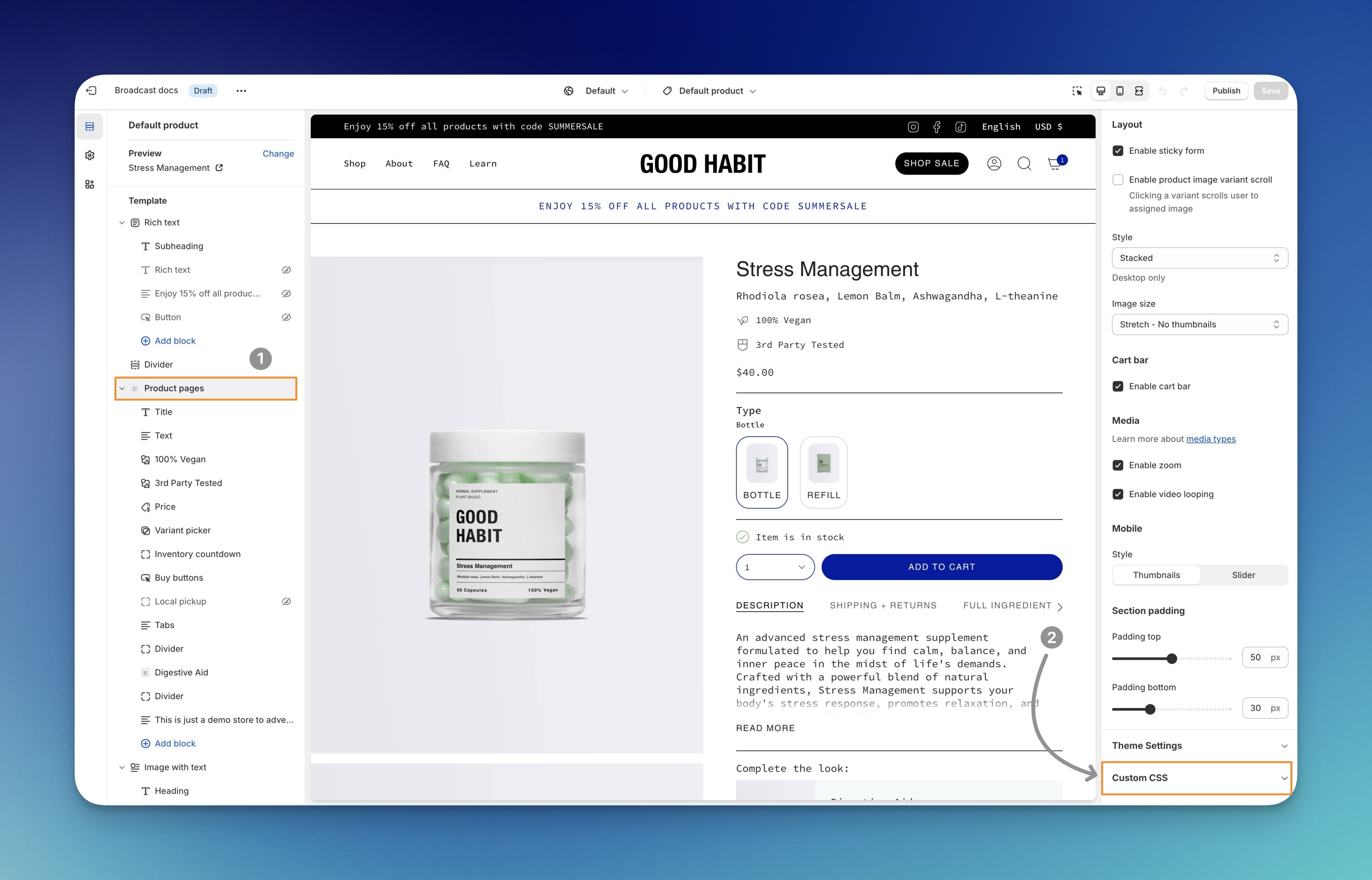
1. Click on "**Product pages**" in the Theme Customizer sidebar.
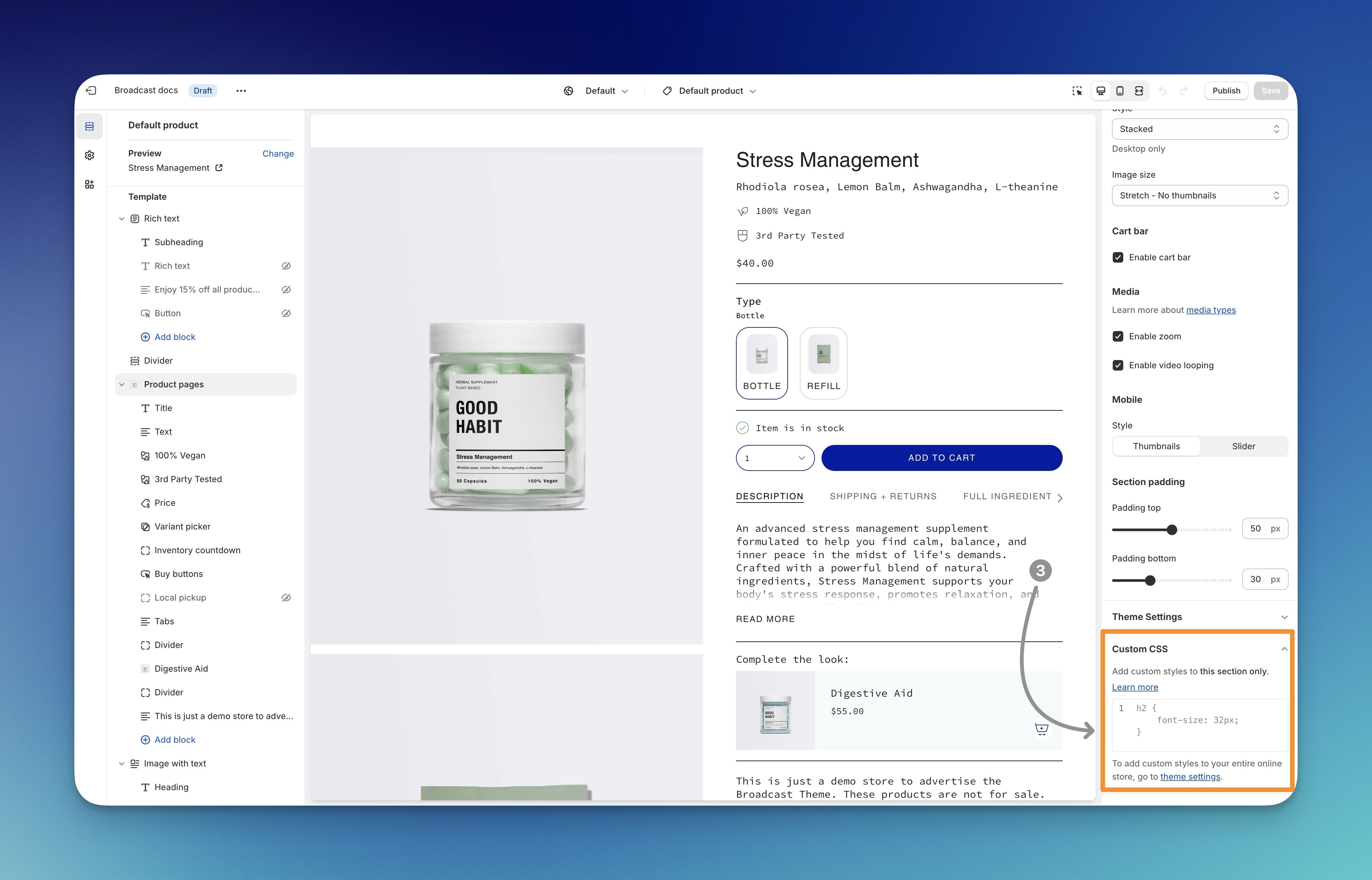
2. Find "**Custom CSS**" towards the bottom of the settings.
3. Click on "**Custom CSS**" to expand the accordion. Here, you can paste the CSS code:
The CSS code snippet you use here will apply to **all products** that use the same template.
Be sure to paste valid CSS code and then **save** the changes in the Theme Customizer.
***
### Theme Sections
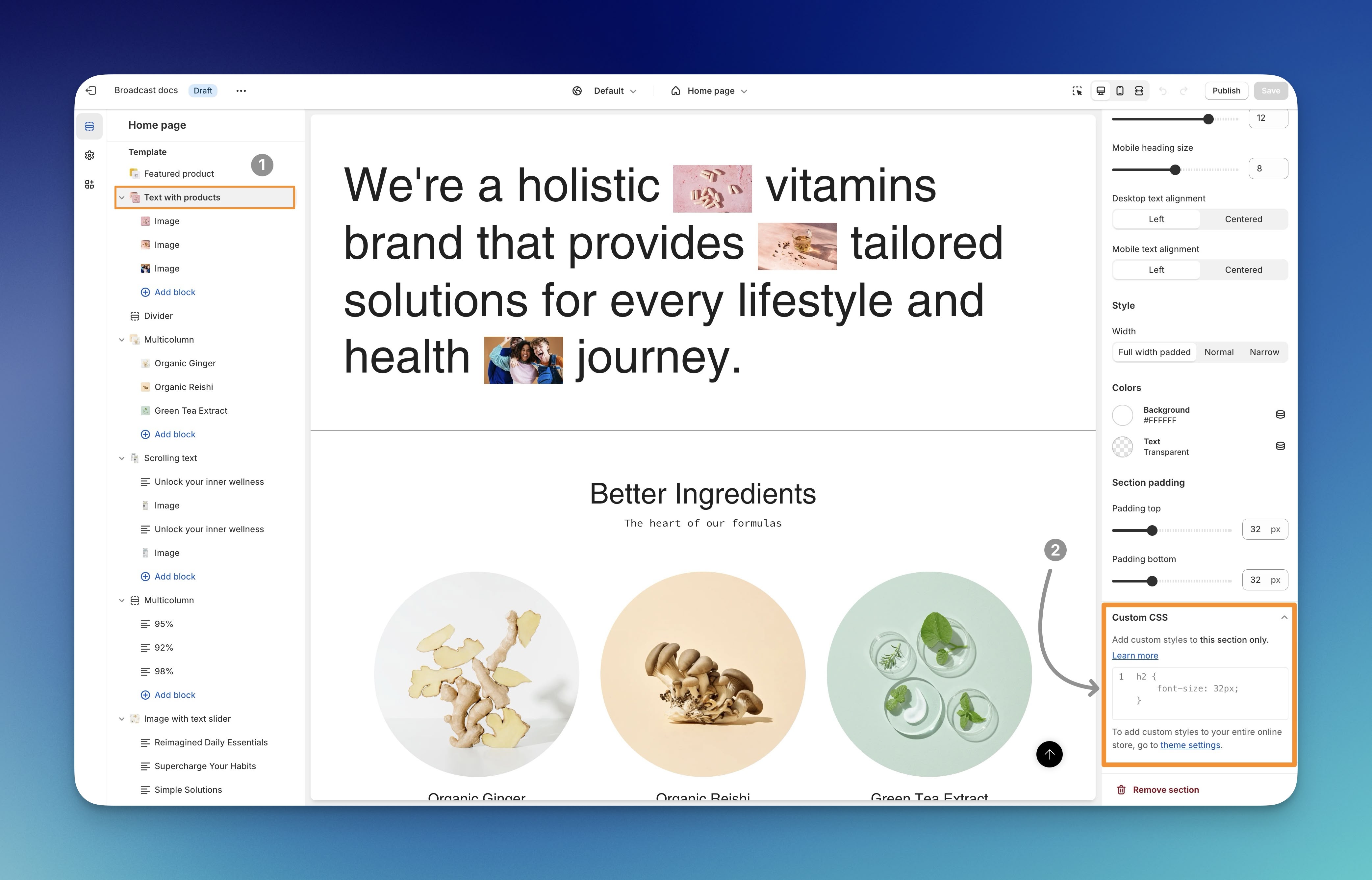
The home page and other sections used throughout the theme will have a similar option for adding CSS code snippets. Changes made there are local to only that section.
1. Click on the section to which you'd like to add your CSS code snippet.
2. In the section settings, scroll to the bottom and click "**Custom CSS**" to expand. Then, add your CSS code snippet inside.
The CSS you add here will **only** affect this section and will **not** affect any other sections in your store.
Remember to **Save** your changes.
***
### Global CSS
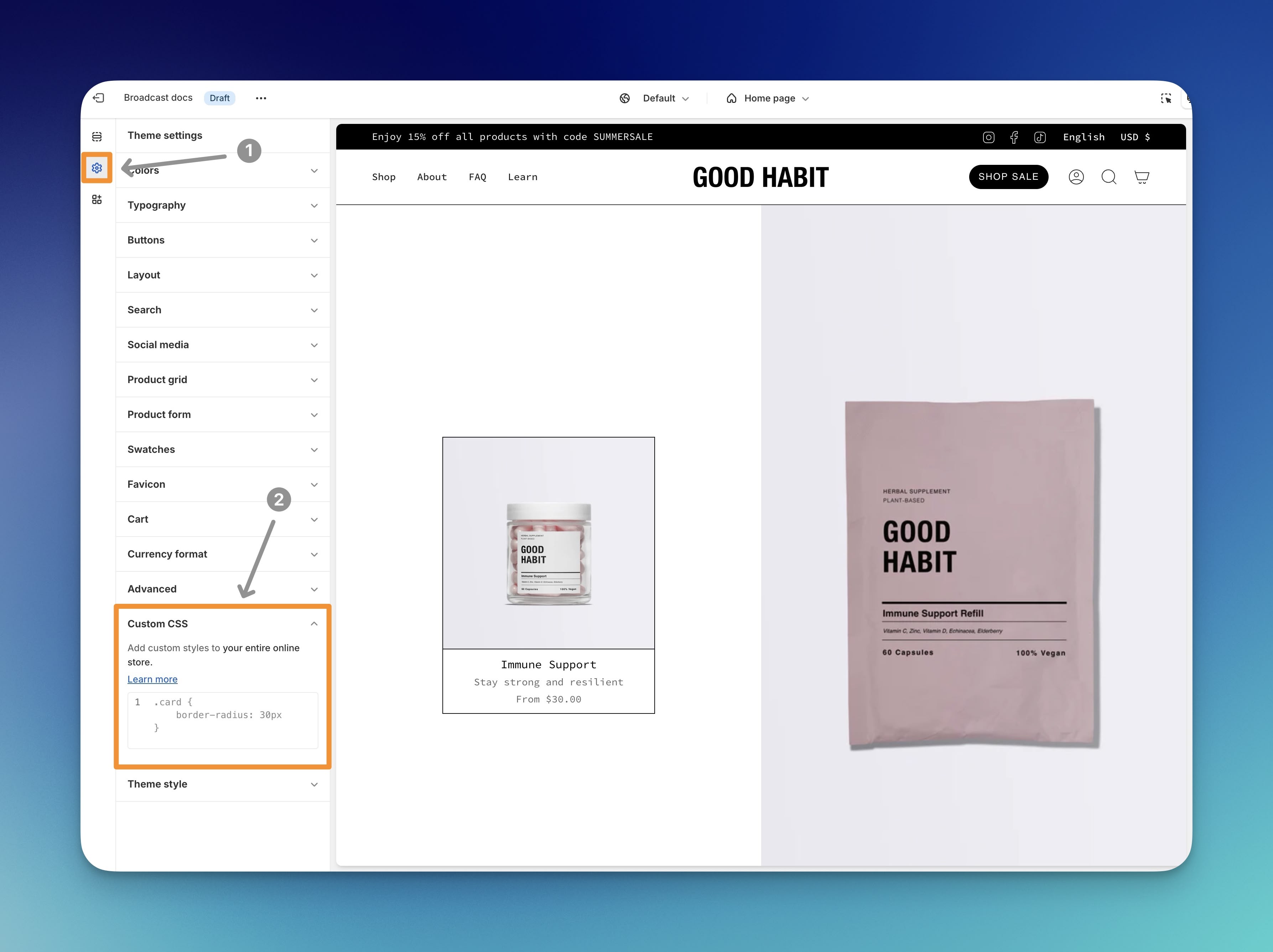
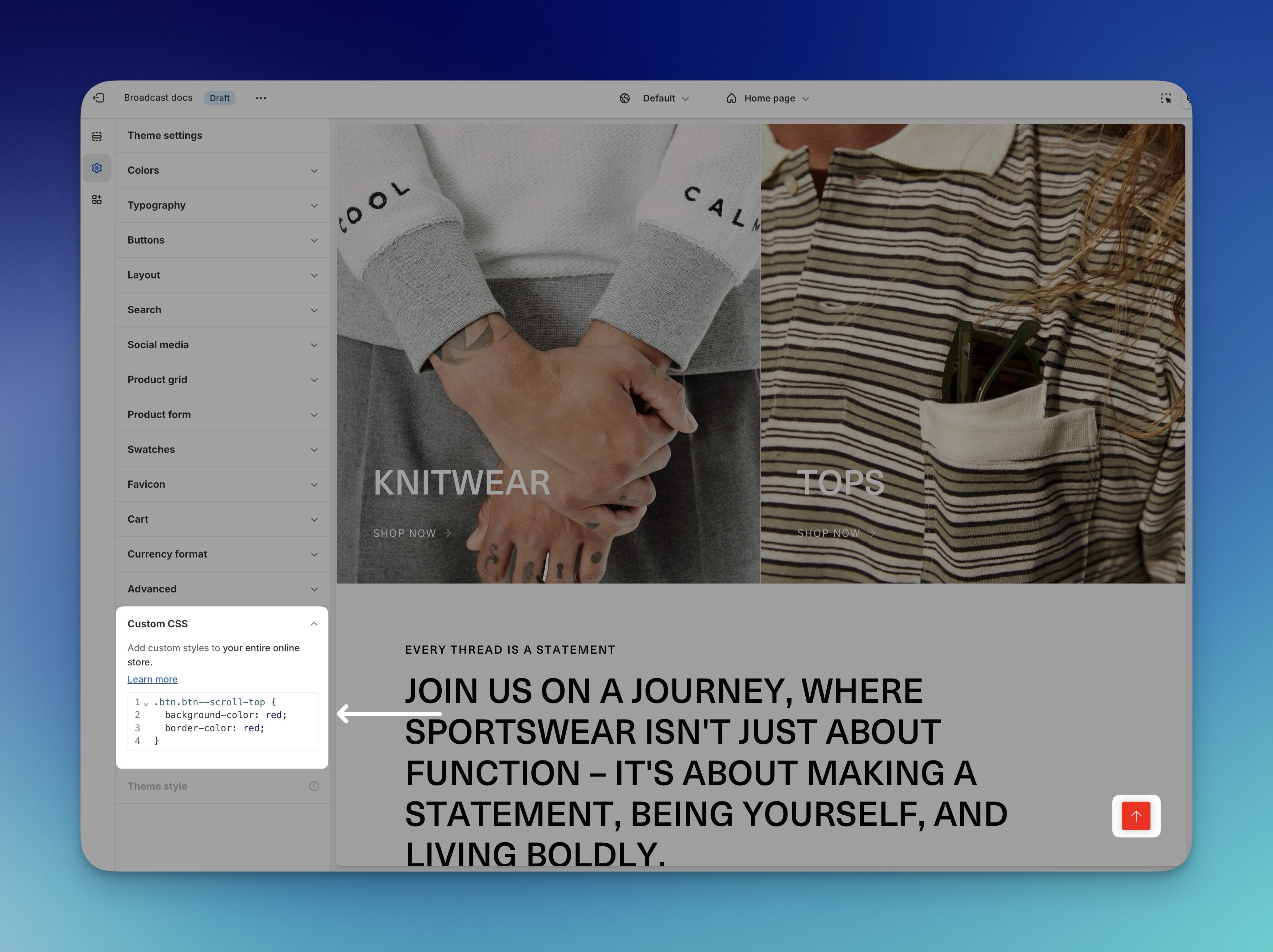
Use the **Theme Settings** in the Theme Customizer to add a CSS code snippet that will target **all** areas of your store.
1. Click on the **Settings** **icon** in the Theme Customizer.
2. Towards the bottom, click to expand the "**Custom CSS**" accordion and paste your code snippet into the main field.
### Example of code snippet
We'll use this sample code snippet to demonstrate where the code will be added:
```
.btn.btn--scroll-top {
background-color: red;
border-color: red;
}
```
1. Copy all of the code, including the opening and closing curly brackets.
2. Paste the code snippet into the main box area.
Line numbers will be displayed next to your code snippet to help indicate how many lines of code have been added.
**Save** your changes.
***
## Alternative method
Developers might be used to editing theme.css files. However, we no longer recommend this method as it's a legacy option.
{% hint style="warning" %}
**Disadvantages**
* Code added using the Code Editor will **not** automatically migrate when you update your theme.
Please use the above methods to avoid manually adding CSS code changes after each time you update Broadcast.
{% endhint %}
For developers who would like to use the Code Editor, it's very important to add your custom CSS at the bottom of the `theme.css` file, which is located in the **assets** folder.

---
# Agent Instructions
This documentation is published with GitBook. GitBook is the documentation platform designed so that both humans and AI agents can read, navigate, and reason over technical content effectively. Learn more at gitbook.com.
## Querying This Documentation
If you need additional information that is not directly available in this page, you can query the documentation dynamically by asking a question.
Perform an HTTP GET request on the current page URL with the `ask` query parameter, and the optional `goal` query parameter:
```
GET https://broadcast.presidiocreative.com/broadcast-v5/faq/frequently-asked-questions/where-to-make-css-changes.md?ask=&goal=
```
`ask` is the immediate question: it should be specific, self-contained, and written in natural language.
`goal` is optional and describes the broader end goal you are ultimately trying to accomplish on behalf of the user. GitBook uses it to tailor the answer towards what is most useful for that goal.
The response will contain a direct answer to the question and relevant excerpts and sources from the documentation.
Use this mechanism when the answer is not explicitly present in the current page, you need clarification or additional context, or you want to retrieve related documentation sections.