> For the complete documentation index, see [llms.txt](https://broadcast.presidiocreative.com/llms.txt). Markdown versions of documentation pages are available by appending `.md` to page URLs; this page is available as [Markdown](https://broadcast.presidiocreative.com/broadcast-v5/faq/frequently-asked-questions/how-to-update-broadcast.md).
# How to update Broadcast
Tips on how to update to the latest version
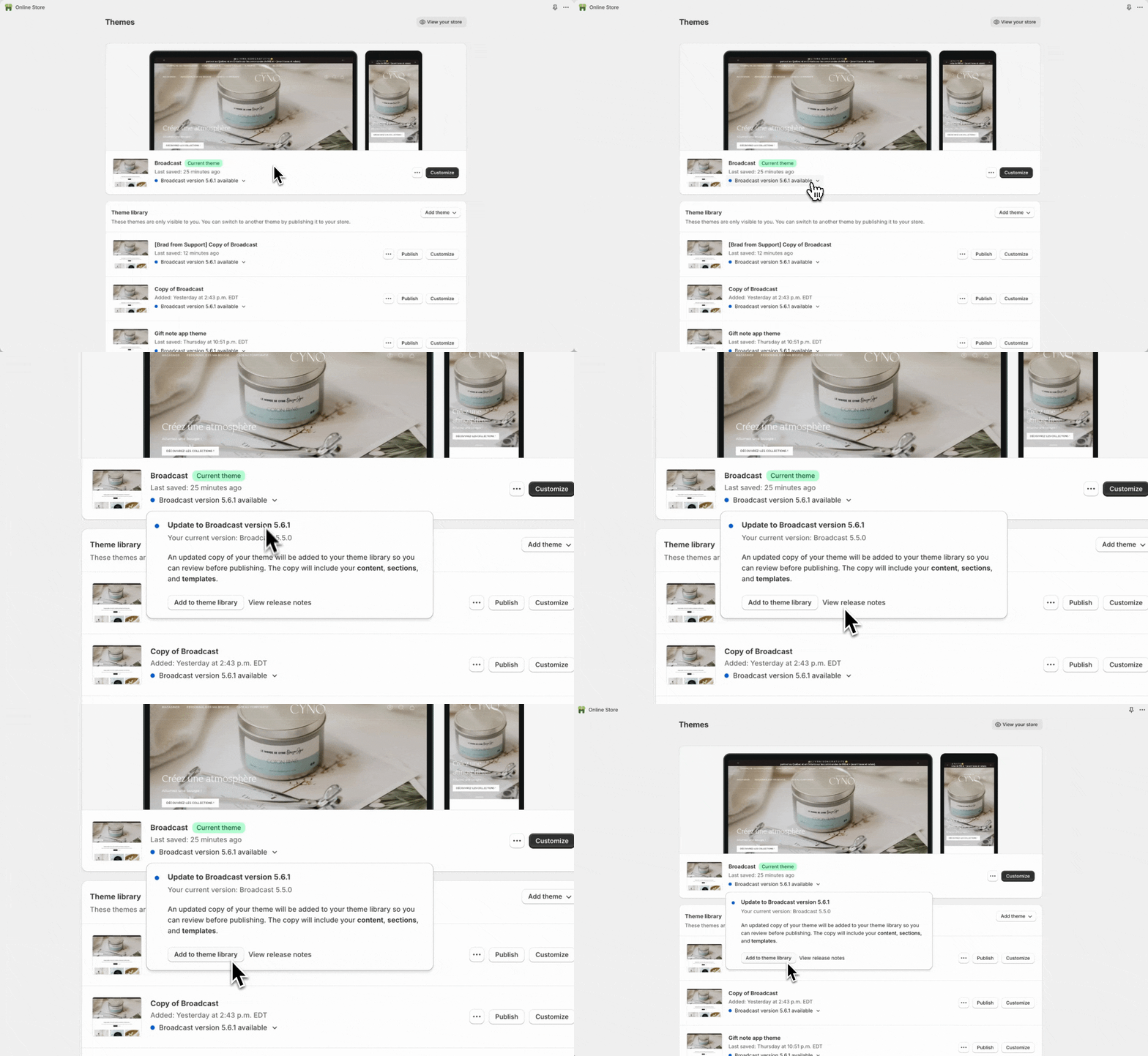
All licensed customers of Broadcast can now easily update to newer versions of Broadcast using the Shopify update tool:
### Updating process
When using the Shopify update tool with your current live theme:
* A copy of your existing theme is created and added to the drafts folder.
* The Shopify update tool will then apply the new theme code to this copied version.
* The live theme is never modified during the process, and it will not affect customers.
### Tips on updating
* We recommend you start by manually duplicating your current live theme. This step is ***optional*** but good practice when performing any theme update.
* It's **safe** to update your live theme as the Shopify update tool first makes a copy of the live theme and then applies changes to the copied version. The live theme is never modified.
* After the update has been completed, you can **review** and **customize** it.
* We recommend viewing the release notes and the Broadcast documentation to see what's new. Then, experiment with the changes to enhance and optimize your store.
### Video
Quick video demonstrating the entire process of using the Shopify update tool with Broadcast with a live theme:
{% embed url="" %}
---
# Agent Instructions
This documentation is published with GitBook. GitBook is the documentation platform designed so that both humans and AI agents can read, navigate, and reason over technical content effectively. Learn more at gitbook.com.
## Querying This Documentation
If you need additional information that is not directly available in this page, you can query the documentation dynamically by asking a question.
Perform an HTTP GET request on the current page URL with the `ask` query parameter, and the optional `goal` query parameter:
```
GET https://broadcast.presidiocreative.com/broadcast-v5/faq/frequently-asked-questions/how-to-update-broadcast.md?ask=&goal=
```
`ask` is the immediate question: it should be specific, self-contained, and written in natural language.
`goal` is optional and describes the broader end goal you are ultimately trying to accomplish on behalf of the user. GitBook uses it to tailor the answer towards what is most useful for that goal.
The response will contain a direct answer to the question and relevant excerpts and sources from the documentation.
Use this mechanism when the answer is not explicitly present in the current page, you need clarification or additional context, or you want to retrieve related documentation sections.